
WhatsApp Template Analytics
View how your WhatsApp message templates are performing across campaigns and journeys.
Overview
The WhatsApp Template Analytics screen provides a consolidated view of how your approved WhatsApp message templates are performing across campaigns and journeys.
It helps you:
- Measure delivery and engagement performance.
- Track replies and button interactions.
- Understand downstream conversion impact.
- Identify optimization opportunities for template content and CTA buttons
Use this screen to evaluate whether a template is driving engagement and business outcomes, and to decide which templates to improve, pause, or reuse.
View Analytics
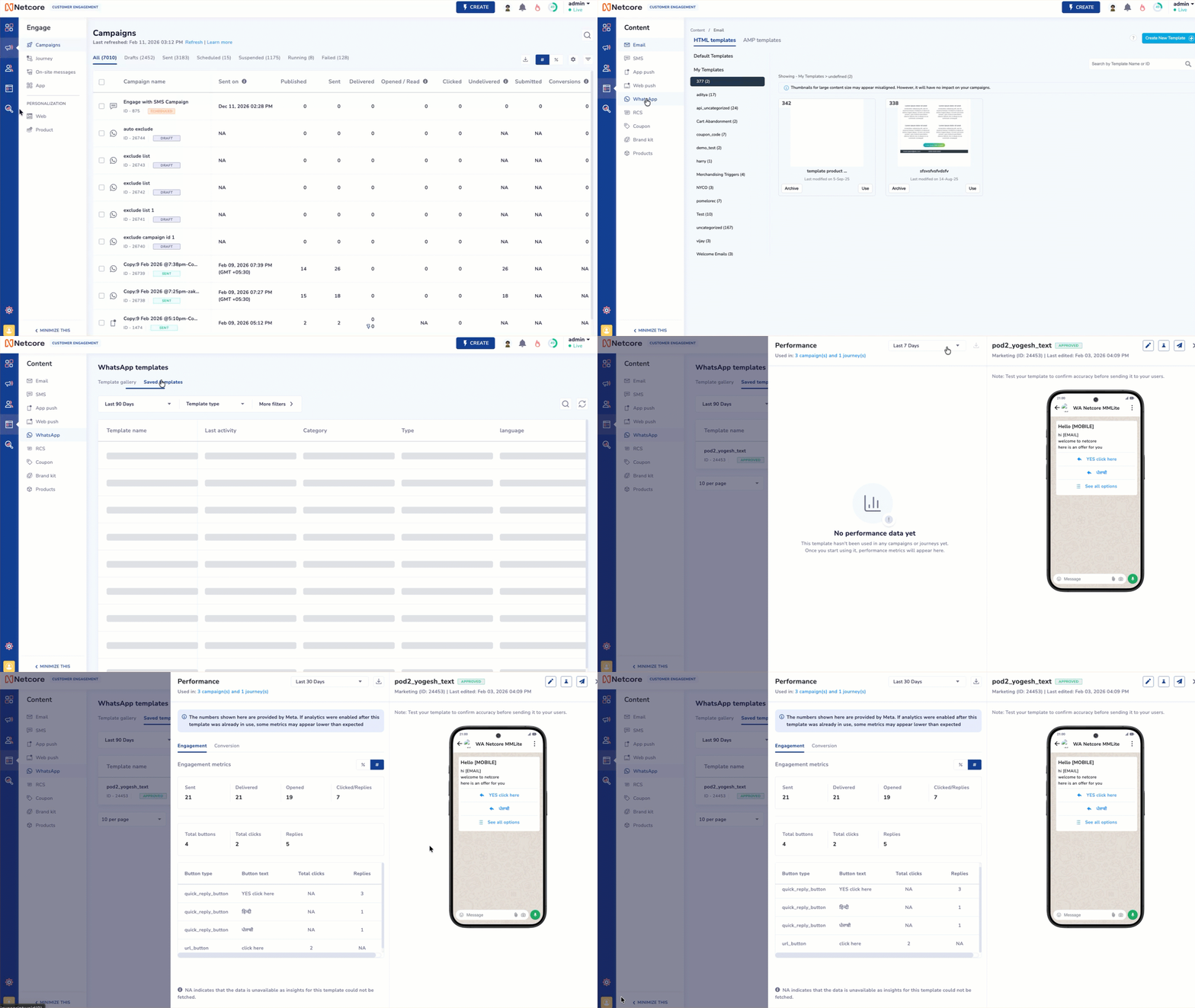
View Analytics for WhatsApp Templates
Follow the steps given below to view the WhatsApp Template Analytics:
-
Log in to the Netcore CE dashboard and go to Content from the main navigation menu.
-
Select WhatsApp to open the list of available templates.
-
Click Saved templates and search or browse to find the template whose analytics you want to view.
-
Click the template name to open its details.
The Performance screen will be displayed. View the metrics in the left pane and the template preview in the right pane.
The two metrics sections present here are:
- Engagement: Shows how users interacted with the template, including sends, deliveries, opens, clicks, replies, and button-level performance.
- Conversion: Shows business metrics attributed to the template, such as add-to-cart, checkout, purchases, and revenue.
Important NoteThe numbers shown on this screen are provided by Meta. If analytics were enabled after this template was already in use, some metrics may appear lower than expected
Engagement
| Metric | Description | How It’s Calculated |
|---|---|---|
| Sent | Total number of WhatsApp messages sent using this template | Count of all sends triggered via campaigns and journeys |
| Delivered | Messages successfully delivered to user devices | Sent messages accepted and delivered by WhatsApp |
| Opened | Messages opened by recipients | Delivered messages that were opened by users |
| Clicked / Replies | Total user interactions with the template | Sum of button clicks and user replies |
Button-Level Performance
Refer to the given table to know the metrics available for the buttons added to your WhatsApp template.
| Field | Description | Why It Matters |
|---|---|---|
| Button Type | Type of CTA button (for example: Quick Reply or URL button) | Helps compare interaction style performance |
| Button Text | Exact label shown on the button | Identifies which CTA wording performs best |
| Total Clicks | Number of times the URL button was clicked | Measures traffic-driving effectiveness |
| Replies | Number of quick reply taps or responses for that button | Shows which response options users prefer |
Functionality
Refer to the table below to see the functionalities available on this screen.
| Option | Description |
|---|---|
| Duration | Select the number of days for which you want to view the data.
|
| Download report | Export the template’s performance metrics for the selected date range as a downloadable report file for offline analysis and sharing. |
| Edit | Modify the approved template content and resubmit it for approval (allowed only once every 24 hours). |
| Test template | Send a test message using this template to a selected number to verify the template before live use. |
| Use template | Use this template directly when creating a new campaign to speed up campaign setup. |
Updated about 1 month ago