
Personalized Content
View and manage your personalization campaigns.
Overview
Every user arrives on your app/ website with different needs. The Personalized Content section helps you shape these individual journeys. It serves as the control centre where you create, manage, and review personalised messages, offers, and experiences tailored to each user segment.
The Personalized content section displays your app/website personalization campaigns. The dashboard provides a view of all your personalization campaigns, including their status, schedule, engagement, and performance metrics. You can view who last edited a campaign, how it’s performing across various engagement metrics, and access detailed reports.
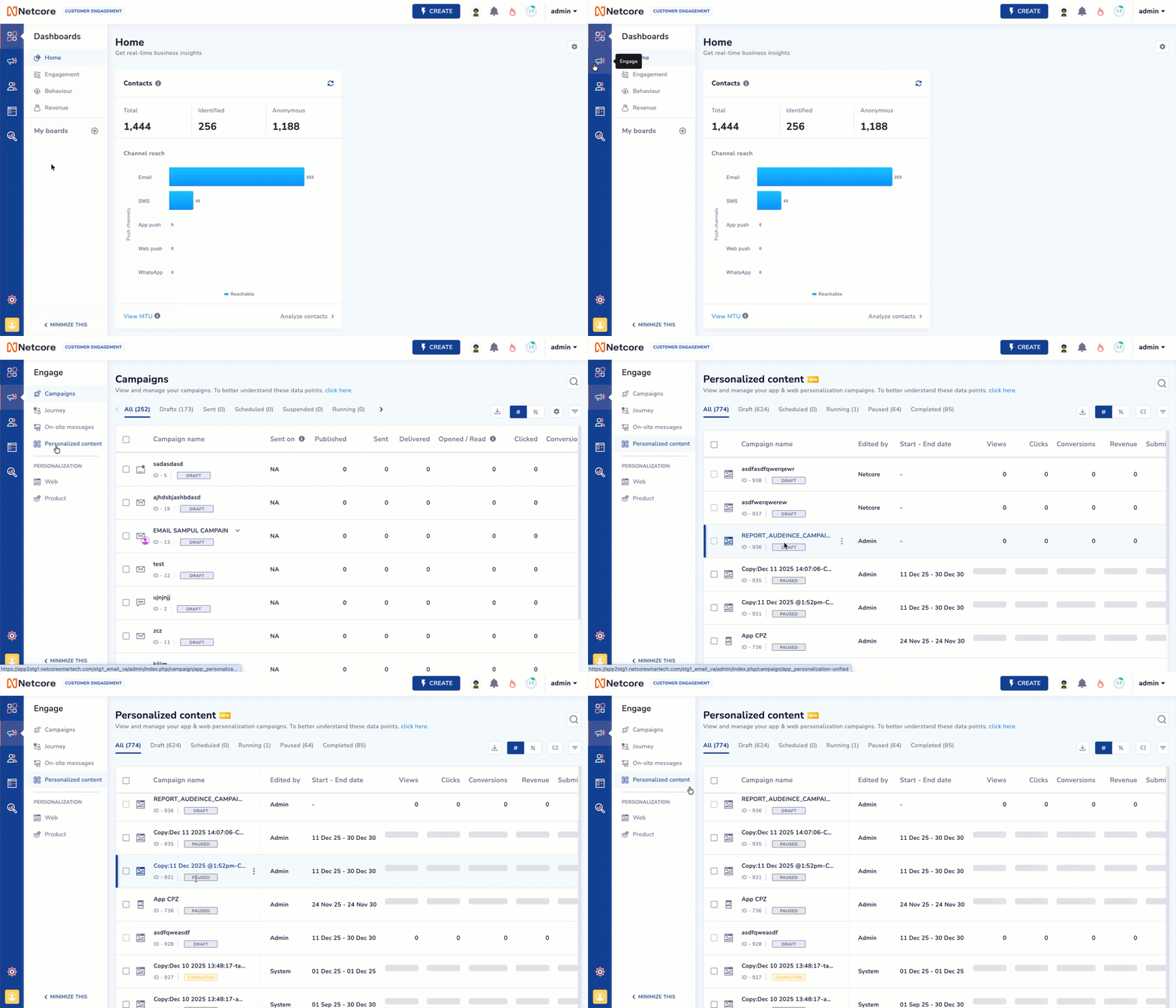
View and Manage your Personalisation Campaigns
Navigate to Engage and locate Personalized content to view and manage your personalization campaigns.
Personalised Content Fields
Refer to the given table to view the fields available on the Personalised Content screen.
| Field | Description |
|---|---|
| Campaign name | Name of the personalisation campaign created. |
| Edited by | User who last updated or modified the campaign. |
| Start-ends | Displays the campaign’s scheduled start and end dates. |
| Views | Number of times users viewed the personalized content. |
| Clicks | Number of times users clicked links or CTAs within the campaign. |
| Conversions | Number of successful actions completed as a result of the campaign (for example, purchases or sign-ups). |
| Revenue | Total revenue generated from conversions attributed to this campaign. |
| Submissions | Total form submissions or user responses captured through the campaign. |
| Report/ Performance | Detailed breakdown of how each personalised content campaign is performing. |
Campaign Status
Refer to the given table to view the available statuses for campaigns.
| Status | Description |
|---|---|
| All | Total number of campaigns, regardless of their current status. |
| Running | Number of campaigns that are currently being sent or processed. |
| Drafts | Number of campaigns created but not yet sent or scheduled. |
| Scheduled | Number of campaigns that are planned and scheduled for the future. |
| Completed | Number of campaigns temporarily halted or stopped from sending. |
NoteIf you duplicate a personalization campaign from the old Personalisation section, the duplicated campaign is automatically added to the new Personalised content section.
Export Report
The Export Report section allows you to download or schedule summary and detailed reports for your personalised content campaigns. These reports help you analyse user activity, engagement, and personalised content performance.
- Select Personalization Type: Choose the channel for which you want to generate the report: Web or App
- Select your Report Type.
You can export two types of reports:
| Report Type | Description |
|---|---|
| Summary report | Shows the number of unique tracked users within the selected duration. |
| Detailed report | Lists unique tracked users along with their attributes, such as name, GUID, email ID, or mobile number. |
- Select the duration for which you want to generate the report. Available durations include:
- Today
- Yesterday
- Last 7 Days
- Last 1 Month
- Last 3 Months
- Custom Range
- When would you like to export the report?
You can export a report in two ways:
A. Download Now: Generates the report immediately.
- Starts the export job and sends the file once completed.
B. Schedule Later
- Schedule a recurring export.
- Set a Title, Duration, Frequency, and Day of Month (if applicable).
- The system will automatically generate and send reports.
- Select where to send the report
A. Select Method: Pick your preferred delivery channel.
B. Send Email ID: Enter the email address where you want the report delivered.
C. Send Password (One-Time Setup)
For receiving reports via email for the first time:
- Add a phone number.
- Netcore sends a one-time password (OTP) to that number.
- Use this password to access your reports.
This verification is required once per email address. Repeat this step only if adding new email addresses. Click here to get assistance with adding an email ID.
- Click Download Report or Schedule Report based on your chosen method.
Updated about 1 month ago