
CE Quick Reply
WhatsApp Quick Replies with Postback Support in Netcore
Overview
Quick Reply buttons in WhatsApp allow users to respond with a tap, sending predefined responses. With Postback Support, each QR interaction can carry hidden metadata, enabling advanced tracking, segmentation, reporting, and journey branching. Upon clicking, a message containing the button text is sent from the user's number, allowing seamless interaction and backend tracking for marketers.
Prerequisites
Before using the Quick Reply feature in your WhatsApp campaigns in Netcore CE, ensure the following:
- WhatsApp Integration is enabled in your CE account.
- Template approval by WhatsApp is completed before campaign launch.
- User Attributes are configured for dynamic or hybrid postbacks.
Notes
- Text-only buttons that send a predefined reply from the user.
- It is supported in Marketing and Utility templates.
- It can include multiple quick replies (up to 10).
Key Functional Enhancements
Postback Support for Quick Replies
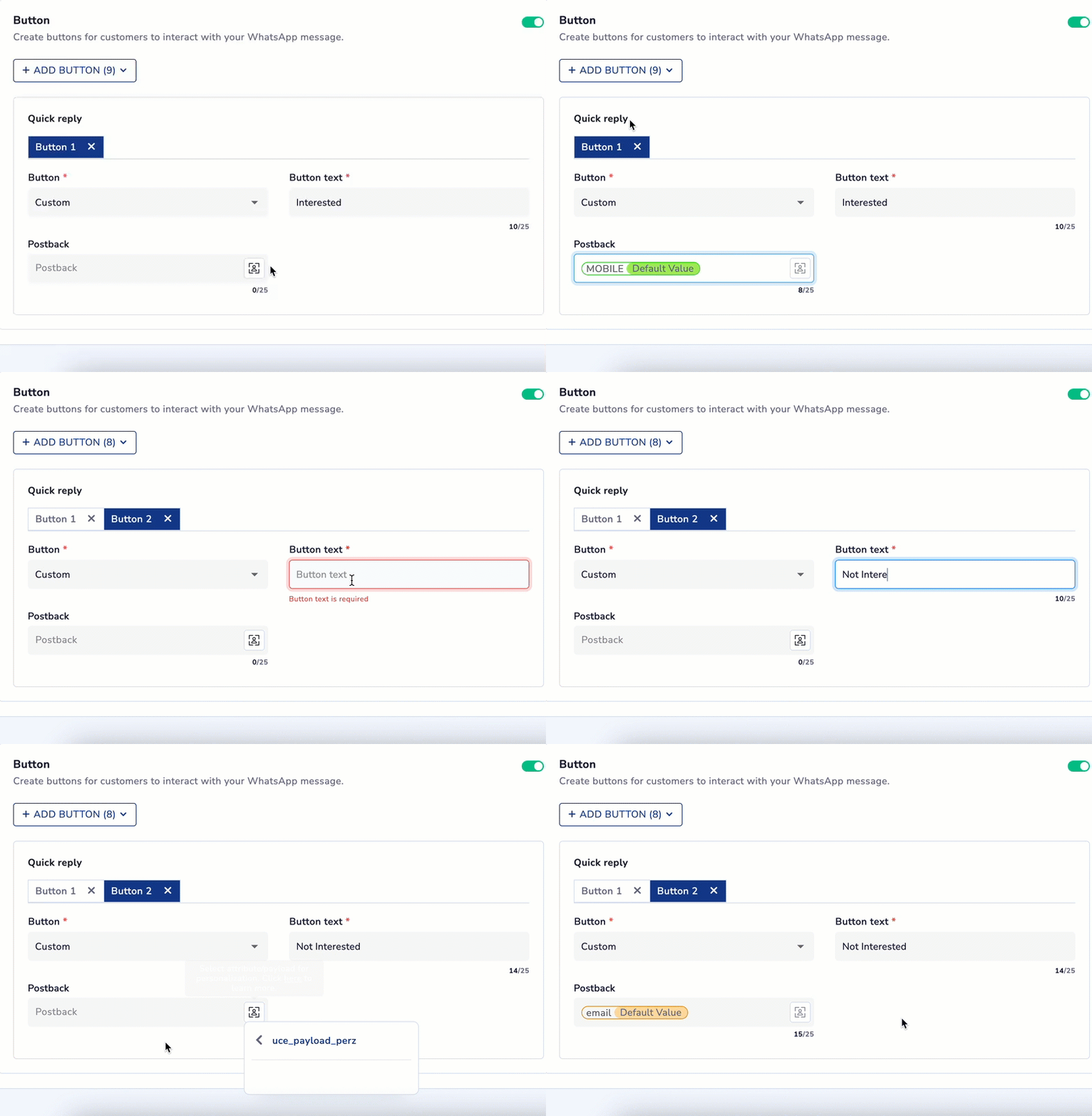
Setting Quick Reply Buttons
Each quick reply button will now contain the following:
- A user-friendly label, for example Blue Shoes.
- A Postback value, for example Category Blue Shoes. It is helpful for tracking, segmentation, and personalization. This value will only be visible to the marketers.
ImportantYou can add a static value or a dynamic value in the postback.
Use Cases:
When a user taps on a button like Red Shoes, you can save that interest like User is interested in Red Shoes. This helps you recommend relevant products later or send targeted messages. You can attach extra information behind the button, like a discount code or the user’s city. For example, if a user clicks Get Discount, the system can automatically apply a unique coupon code or track which city they are from.
These details (called Postback values) help you to segment users, analyze replies, and deliver more relevant campaigns.
Reporting Enhancements
The reports section includes the following
- Reply Text: The label shown on the quick reply button.
- Reply Postback: The postback value that is configured by the marketer.
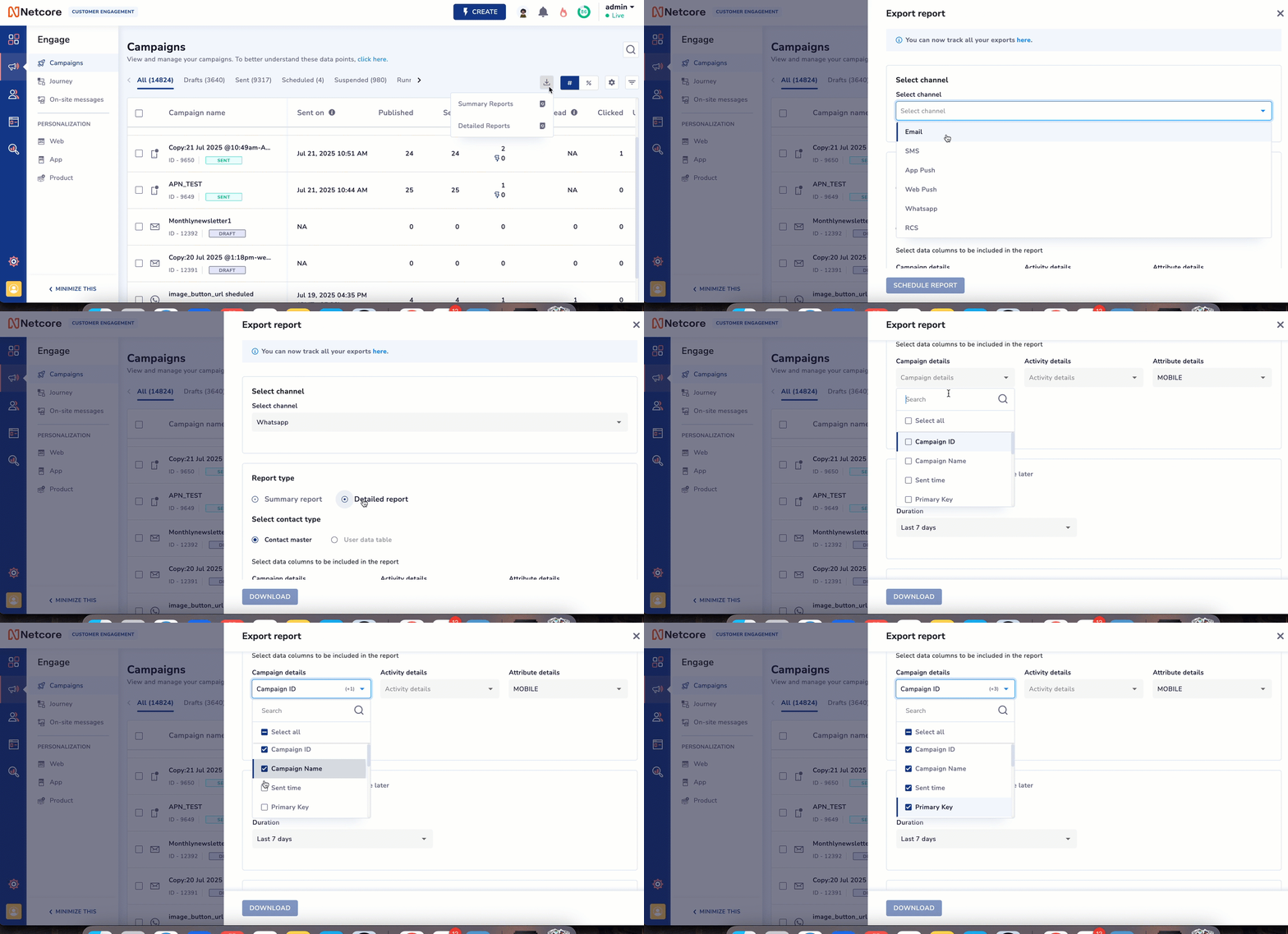
ImportantThese new columns must be manually enabled in the report to be visible.
Segmentation Capabilities
CE now supports segmentation based on Quick Reply interactions. You can create audience segments based on the specific buttons you click, and users can be filtered by Postback values, enabling precise targeting.
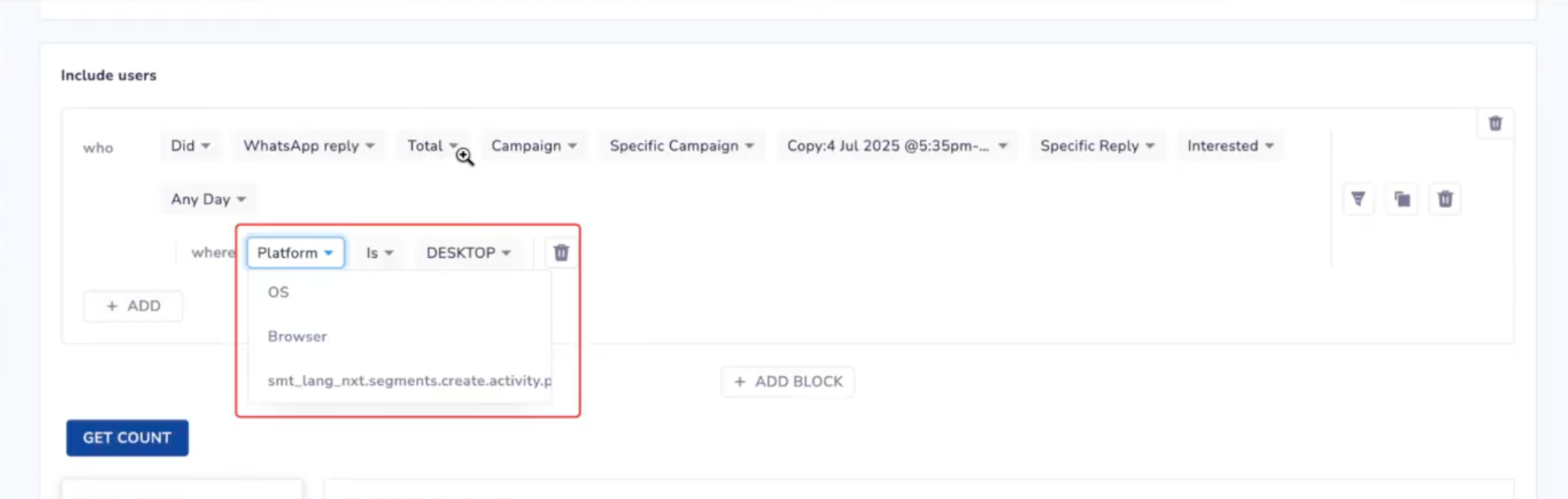
Segmentation based on Quick Reply
Journey & Campaign Configuration
You can send a follow-up message when a user interacts with your campaign. For example, if someone clicks a Quick Reply button, you can automatically trigger another message or campaign just for that user.
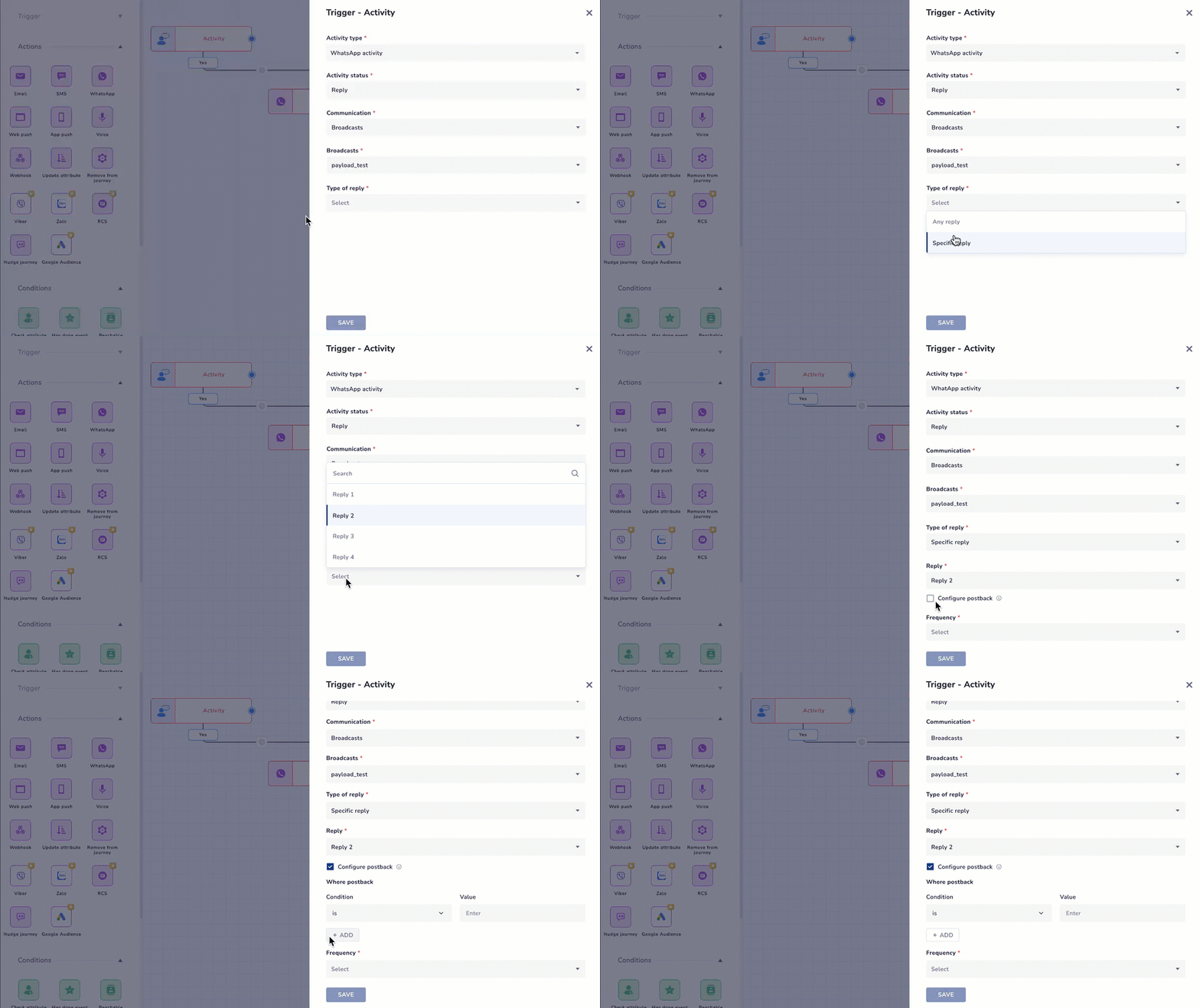
Creating a Campaign for a trigger-based message
Use Case: Send a personalized discount coupon to users who clicked a specific quick reply button in a WhatsApp broadcast, for example, Yes, I’m interested.
| Field | Value |
|---|---|
| Campaign Name | payload_test (WhatsApp broadcast) |
| Quick Reply Option | Yes, I'm interested |
| Postback Value | running_shoes_offer |
| Trigger Type | WhatsApp activity |
| Activity Status | Reply |
| Communication | Broadcasts |
| Broadcast Selected | payload_test |
| Type of Reply | Specific reply |
| Reply Selected | Reply 2 mapped to Yes, I'm interested |
| Postback Condition | running_shoes_offer |
| Action Triggered | Send a follow-up message with a coupon: Here’s your exclusive 20% off code: RUN20 |
NoteYou can follow the same steps for activity has done event and activity wait for event.
Webhook Trigger via Quick Reply
Similar to sending a message or triggering a new campaign based on a user’s quick reply, you can also send data to an external system using a webhook.
In a Journey, when a user clicks a Quick Reply button with a configured Postback, you can configure a Webhook node to trigger based on that activity.
Updated about 1 month ago