Track and analyze user activity across your app and website.
Overview
Get a real-time view of how users interact with your app and website. The Events dashboard helps you track key actions, monitor trends, and analyze engagement patterns. The Events dashboard contains two sections:
The Events section tracks key conversion events, showing data on actions like purchases, sign-ups, and checkouts. It helps you understand which events drive conversions so you can focus on improving the user experience and boosting conversion rates. The data displayed here is categorized into the following types:
The Overview section provides data on event performance, allowing you to track key metrics and trends over time. You can also add up to four events for comparison.
Download your data in various formats. Click to export data as per your preference. Available export options are:
Export as PDF
Export as PNG
Export as JPEG
Refer to the table to learn the options available in this section.
Field
Description
Event Performance
Displays event data for Today, Yesterday, and Last Week. You can compare the performance of up to four events side by side. This comparison helps you track trends and identify patterns across multiple events in real-time.
Top Payloads for the Selected Parameter
Shows the best-performing payload values for a selected parameter
Number of Events Performed by Users
Displays the total number of times users have performed a specific event.
Event Performance Throughout the Day
Shows how event activity changes throughout the day, helping you identify peak user engagement times.
Download Reports
This feature allows you to download event reports specifically for identified users.
There are two types of event reports available:
Complete Events Report: This report includes detailed data for every event performed by users. It provides information only for identified users.
Attributed Events Report: This report highlights events tied to specific user actions, offering insights into user behavior and engagement. For example, if you track an Add to Cart event, this report will show details like why the action was taken and the channel it occurred on, such as WhatsApp, app push, email, and so on.
To download a report, click and select your desired report type and desired email ID to receive it. If you wish to include event payload parameters, check the box before clicking Send. The report will be delivered to your specified email.
📘
Note
Event will be downloaded for identified users only.
Users
The Users section provides insights into the types of users engaging with tracked events. The data displayed here is categorized into the following types:
User type in this event: Pie chart showing Identified and Anonymous users who triggered the event.
Recent occurrences: Shows a list of recent event instances, including the User ID of those who triggered the event and the Received date when the event occurred.
View User Type and Recent Occurrences
Device and OS
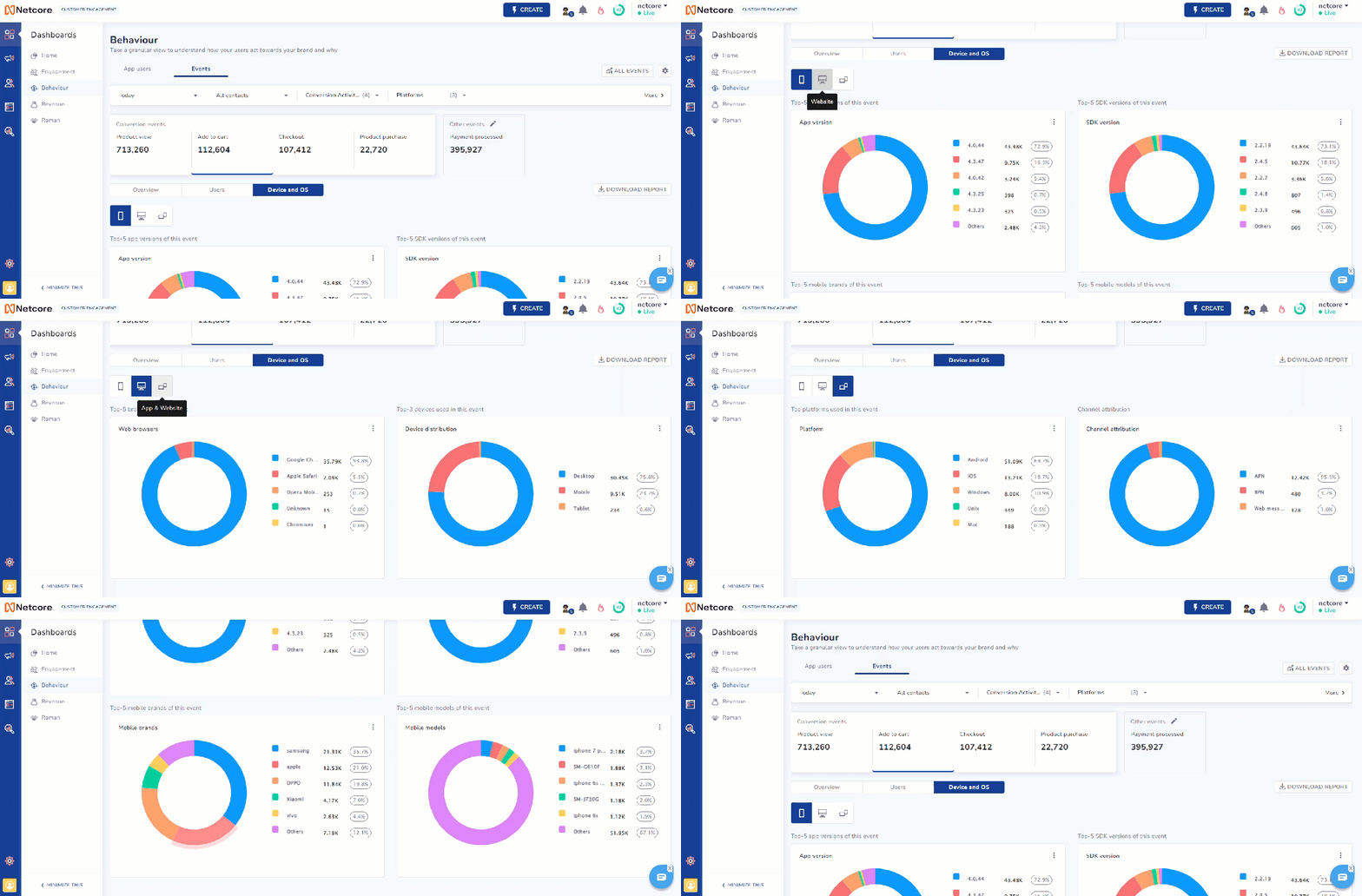
The Device and OS section breaks down event data by the devices and operating systems used. This allows you to enhance user experience based on device preferences and performance. Switch between to choose App, Website, or App & website.
Refer to the table to learn the options available in this section.
Option
Description
App
Top App Versions of this Event: Displays a pie chart showcasing the most-used app versions for the selected event.
Top-5 SDK Versions of this Event: Shows a pie chart of the top five SDK versions.
Top-5 Mobile Brands of this Event: Provides a pie chart highlighting the top five mobile brands used by users who performed at the event.
Top-5 Mobile Models of this Event: Displays a pie chart of the top five mobile models.
Website
Top-5 Browsers of this Event: Displays a pie chart of the top five web browsers used by users during this event, giving you a clear view of browser preferences.
Top-3 Devices Used in this Event: Displays a pie chart of the top three devices used by users for this event, helping you understand which types of devices are most commonly used.
App & Website
Top Platforms Used in this Event: Displays a pie chart of the leading platforms used by users, including Android, iOS, Windows, Mac, and Linux.
Channel Attribution: Displays how different communication channels, like push notifications or emails, have contributed to the event's performance.
View Event Data By Device And Operating System
Errors
The Errors section is designed to help users monitor and resolve errors. Using this feature, you can view the errors encountered in behavioral events tracked for your website and app users and get suggestions for solving them.
If an event fails to start at the Netcore end, it will be displayed in the error console. This helps you quickly identify and address issues that could impact your user experience and campaign effectiveness. Check the sample records to gain more insights into the types of errors and their potential causes.
Description: This error occurs when Add to cart event payload contains invalid characters such as & $ “ \ % > < ! [ ].
Key Benefits
Here are the key benefits of using this feature.
Monitor Errors in Real-Time: Identify errors in real time, allowing prompt detection and resolution.
Get Detailed Error Insights: Information about each error, including type, cause, and impact on your campaigns.
Receive Suggestive Actions: Get actionable recommendations for each error.
Enhance Campaign Performance: Ensure your campaigns run smoothly, improving deliverability and engagement rates.
Increase Efficiency: Reduce the time and effort required to identify and fix errors.
View Errors
You can follow these steps to view Event Errors.
Log in to the Netcore CE dashboard.
Navigate to Dashboard > Events > Errors.
📘
Daily Error Notification Popup
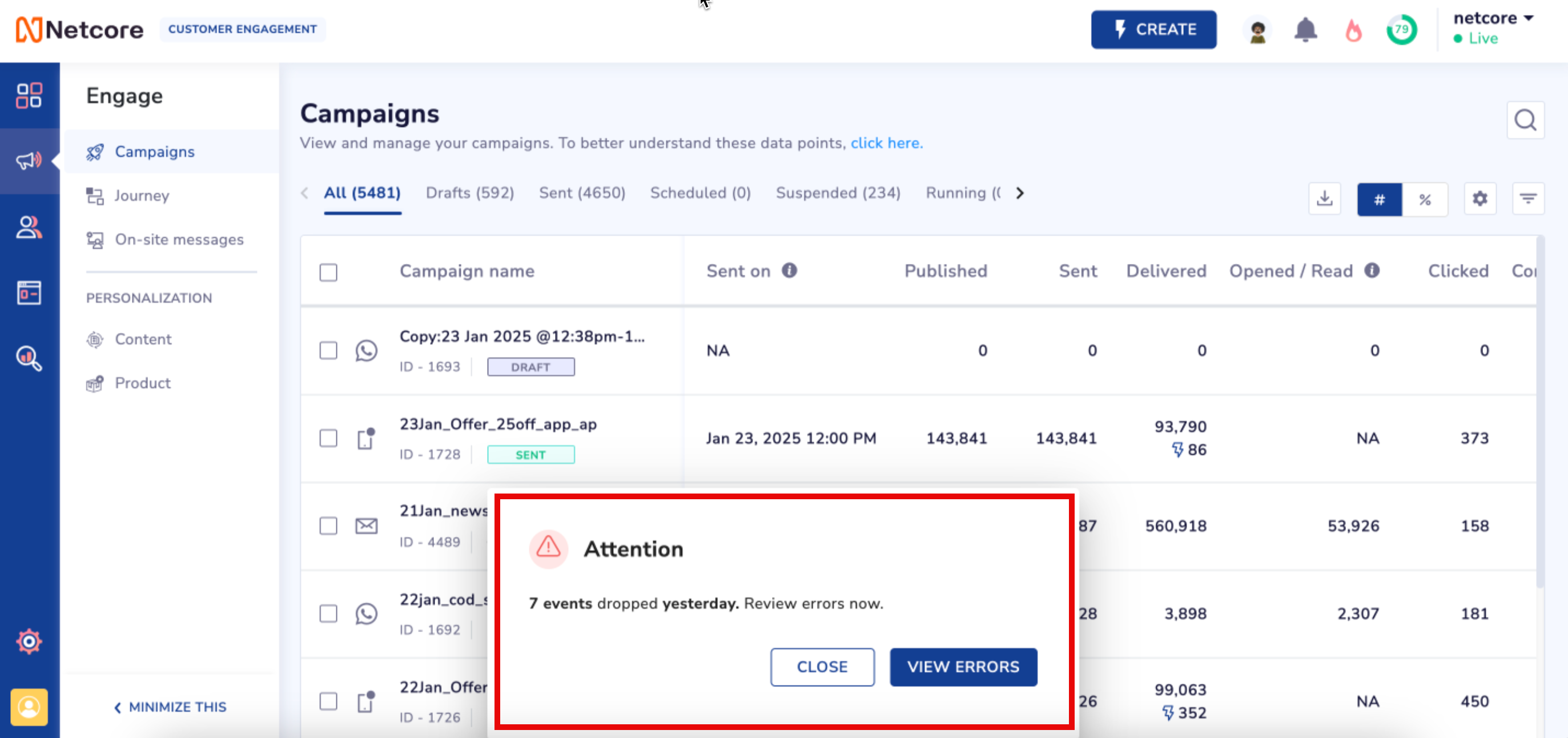
When you log in to the Netcore CE dashboard, a popup will appear displaying the number of events dropped the previous day.
This popup is shown only for the first login of the day.
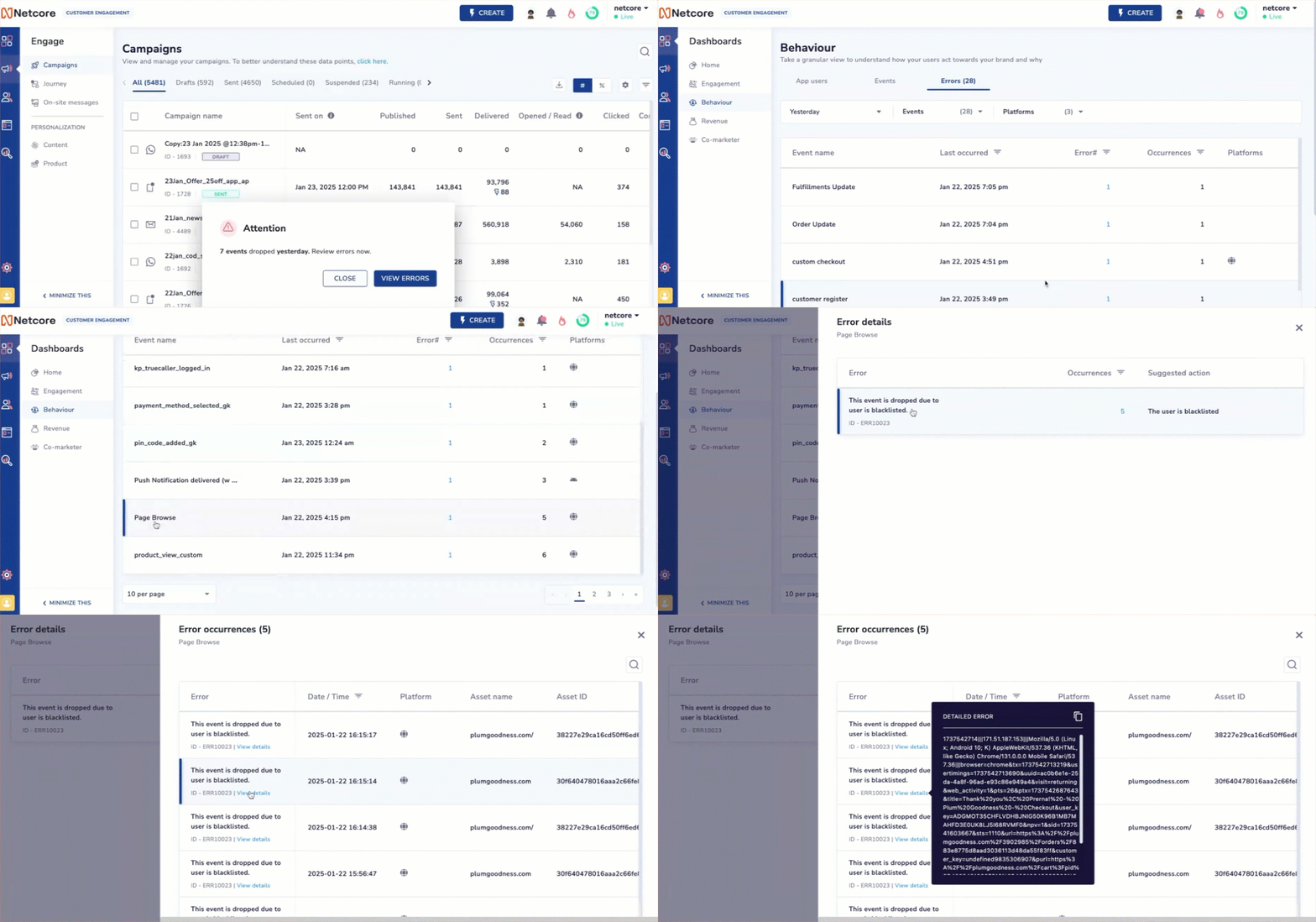
To view detailed error information, click on VIEW ERRORS in the popup.
View The Events Dropped Yesterday
The following UI elements are available here.
UI Element
Description
Event name
Name or description of the specific event or error.
Last occurred
Timestamp indicating when an error for your trigger event occurred.
Error code
Unique identifier for categorizing the type of error.
Occurrences
Number of times the error is logged.
Platform
Platform where the error occurred, like Android, iOS, or Web.
Click any Event name to view details for the event error.
You can click on any individual error to view detailed occurrences, which include date/time, platform, asset name, asset ID, and GUID. Refer to the table given to understand the headers available here.
Header
Description
Date / Time
The exact timestamp indicating when the event was dropped.
Platform
The platform where the error occurred, such as Android, iOS, or Web.
Asset name
The name of the asset configured on the dashboard.
Asset ID
A unique identifier associated with the asset name for tracking purposes.
GUID
A globally unique identifier assigned by the Netcore SDK to the user.
Identity
The user-specific identifier assigned for identifying the affected user.
Suggested actions
Recommended steps to resolve each error. Refer to the section below for detailed actions based on error type.
Monitor & Resolve Errors
Error Message List
Refer to the table below to understand the Error Messages.
Error Message
Error Code
Suggestive Action
Incorrect request format received internally
ERR10001
Ensure the request format adheres to the specified event structure.
This event is dropped due to invalid event id 0.
ERR10002
Verify that the event ID is valid and not zero.
The expected date format is ''yyyy-MM-dd HH:mm:ss''
ERR10003
Use the date format "yyyy-MM-dd HH:mm"
This event is dropped due to absence of user id / identity.
ERR10004
Include a valid user ID or identity in the event.
Userid skipped
ERR10005
Ensure the user ID is provided in the event.
Sourceid skipped
ERR10006
Include a source ID in the event.
This event is dropped due to duplicate event received within 30 seconds.
ERR10007
Avoid sending duplicate events within a 30-second window.
This event is dropped due to sourceid is blank.
ERR10008
Ensure the source ID is not blank.
This event is dropped because of siteid does not exist in the database.
ERR10009
Verify that the site ID exists in your Netcore panel.
This event is dropped due to siteid is NULL.
ERR10010
Ensure the site ID is not NULL.
This event is dropped because of eventid does not exist in the database.
ERR10011
Verify that the event ID exists in your Netcore panel.
User Already Registered, Skipping the event
ERR10012
This user is already registered; no action needed.
This event is dropped due to invalid user id.
ERR10013
Ensure the user ID is valid.
The maximum number of unique event limit is [100]. You have exceeded the limit.
ERR10014
Please reach out to Netcore Helpdesk for further assistance.
The maximum length of event name is 50 characters. [airport_15%-off-upto-rs-75-in-app-banner--29th-june-201911]
ERR10015
Shorten the event name to 50 characters or fewer.
Invalid Payload [matchingoptions] Data Type [java.lang.Boolean] . Supported Data Type - Integer, String, Float, Date
ERR10016
Use the supported data types: Integer, String, Float, or Date
The maximum key length of payload parameter [ key ] is 120 characters.
ERR10017
Ensure the payload key length is 120 characters or fewer.
The maximum length of payload parameter value for key [bbc_description] is 512 characters.
ERR10018
Ensure the payload parameter value length is 512 characters or fewer.
Ensure the event does not contain multiple object arrays.
This event is dropped due to user is blacklisted.
ERR10024
The user is blacklisted; no action needed.
Sandbox Client event processing limit exceeded
ERR10025
You have exceeded Sandbox event quota. Please wait for quota to get reset.
Mandatory params missing in payload
ERR20001
Include all mandatory parameters in the payload.
Max activity size exceed
ERR20002
Reduce the event size to within the allowed limit of 4KB.
Malformed json in payload
ERR20003
Ensure the JSON in the payload is well-formed.
Data type mismatch in payload
ERR20004
Correct any data type mismatches in the payload.
Illegal character in payload
ERR20005
Remove invalid characters & $ “ \ % > < ! [ ] from the payload parameter key
Database exception occurred
ERR20008
Investigate and resolve database exceptions.
System Error
ERR00000
Contact support for further assistance.
Event dropped due to bot activity
ERR10025
No immediate action is required.
Bot Activity
Netcore CE integrates the IAB Bot List to ensure accurate tracking and analytics. The bot list filters out bot traffic by matching user agents from incoming web traffic. Events identified as bot-driven are excluded automatically and do not enter the client dashboard. You can view the error logs to validate which events were dropped due to bot activity.
These logs indicate whether an event was dropped due to bot activity or other reasons, helping you distinguish between genuine and bot-driven events. Refer here to know more.

 to export data as per your preference. Available export options are:
 and select your desired report type and desired email ID to receive it. If you wish to include event payload parameters, check the box before clicking Send. The report will be delivered to your specified email.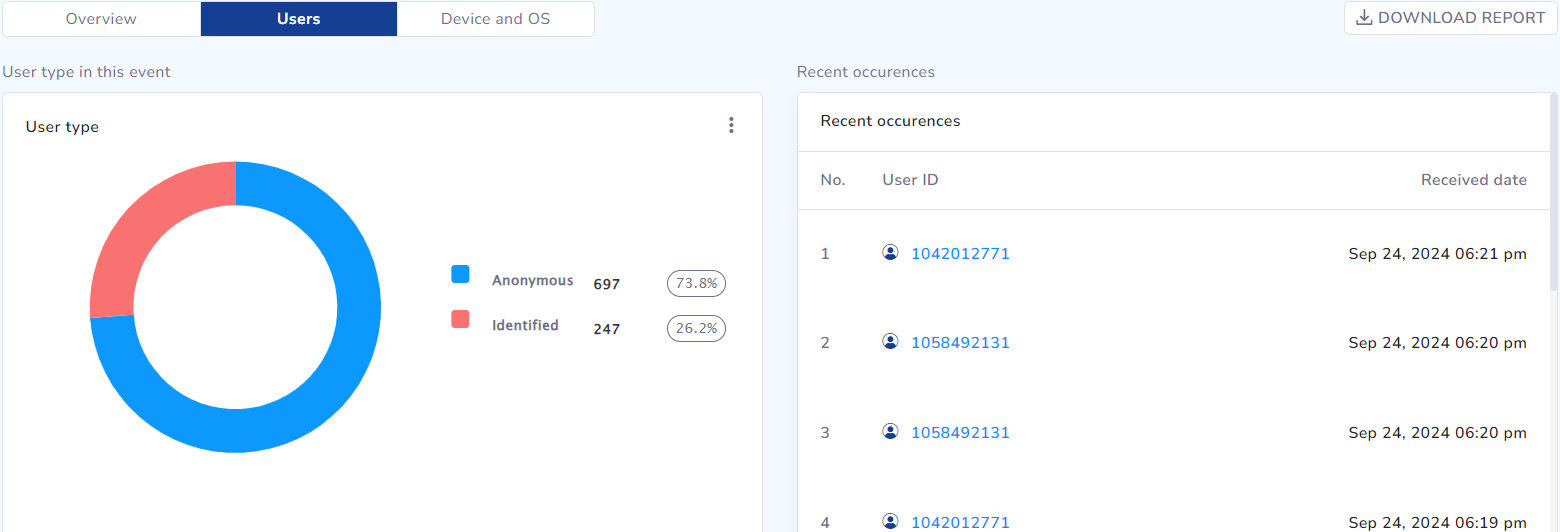
 to choose App, Website, or App & website.