
WhatsApp Limited Time Offer
Overview
Limited-Time Offer (LTO) templates help you send time-sensitive promotions on WhatsApp. These templates highlight an offer with a visible label, optional countdown timer, and structured button layout that encourages quick action. Limited Time Offer templates are ideal for flash sales, promo codes, expiring discounts, and other engagement-driven campaigns.
Key Features
Here are the available functionalities for building a Meta-compliant LTO template:
| Section | Description |
|---|---|
| Header |
|
| Limited-Time Offer | Add the main offer details.
|
| Body | Add the main content of your message.
|
| Buttons | Add interactive buttons to your LTO template.
|
Use Case: Holiday Flash Deal
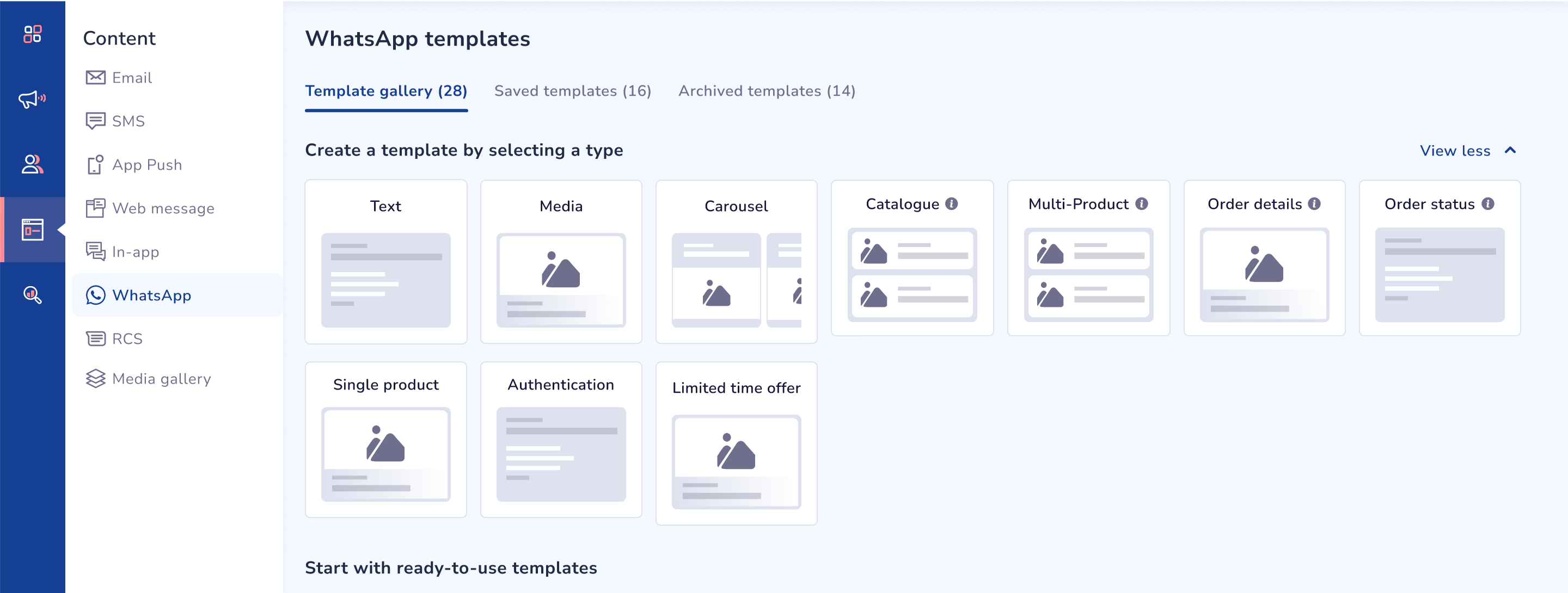
Log in to the Netcore CE dashboard and navigate to Content > WhatsApp. Select an LTO template from the Template Gallery.
- Add a template name such as Holiday Flash Deal and add a header for the template, you may upload an image or video to showcase the promotion.
- In the Body, add your message. For example:
Hi {{customer_name}}, You’ve unlocked an exclusive {{discount_value}}% discount on {{product_name}}! Use code {{coupon_code}} at checkout. Hurry—this offer expires on {{expiry_date}}.
Before You Proceed
- Ensure all variables are filled during sending.
- Keep the body within 550 characters.
- The expiration duration works differently based on where the template is used:
Campaigns: The duration counts from the moment the campaign is sent.
Journeys: The duration counts from the moment each message is triggered, since journeys fire per event or condition.
- In the LTO section:
- Add a label such as Limited-Time Offer or Buy 1 Get 1.
- Add a countdown timer to highlight urgency.
- Set a future expiration timestamp.
- Add buttons to make the template actionable:
| Type | Label | Action |
|---|---|---|
| Copy Code | (Auto-generated) | Copies the offer code {{4}} to the clipboard |
| CTA | Shop Now | Opens website URL (max 2000 chars, with optional variable) |
| Call | Contact Support | Dials a phone number (optional) |
| Quick Reply | Unsubscribe | Let users opt out (optional) |
Once the template is created, click on SAVE AS DRAFT to save it and use it later, or click on SAVE AND SUBMIT to send it for Meta Approval.
Copy Code
The Copy Code button is now available across all template types. When included, the offer code you enter is automatically linked to the button so users can copy it with one tap.
NoteTemplates that include Copy Code or Limited-Time Offer (LTO) elements are treated as Promotional by Meta. Because of this, they are not approved under the Utility category and must be submitted as Marketing templates to pass review.
Updated 19 days ago