
Export Data from Netcore to Salesforce
Set up an egress connection to push customer data from Netcore CE into Salesforce as Tasks, Events, or custom object records.
Overview
The egress flow lets you send high-intent signals from Netcore CE, like email opens, form submissions, or completed journeys, back into Salesforce, where your sales team can act on them. Once configured, every qualifying event automatically creates or updates a record on the matching Salesforce Lead, Contact, or custom object.
End-to-end, the egress flow looks like this:
- Connect: link your Salesforce org to Netcore CE by entering four credentials on the Basic Details screen (covered on this page).
- Configure: create a data transfer specifying which events to export and to which Salesforce object.
- Map: map Netcore CE fields to Salesforce fields so each event lands on the correct record.
- Go live: activate the data transfer; events begin flowing to Salesforce in real time.
Example: BFSI Sales Alerts
A bank's home-loan application form submission in Netcore CE creates a Task on the matching Salesforce Lead, assigned to the right relationship manager, with a 2-hour SLA, so sales can call while interest is hot.
Prerequisites
Before you configure the egress connection, make sure you have the following in place.
| Requirement | Details |
|---|---|
| Netcore Salesforce managed package | Installed in your Salesforce org from AppExchange. See the Installation Guide. |
| Permission set | Netcore Permissions assigned to the user configuring the integration. |
| External Client App | Created in Salesforce with OAuth enabled and Client Credentials Flow activated. See Step 3 of the Installation Guide. |
| Salesforce credentials | Consumer Key, Consumer Secret, and My Domain URL from your External Client App (details below). |
| Netcore CE access | Admin or equivalent role to configure integrations on the Netcore CE dashboard. |
| Network access | Outbound HTTPS access between Netcore CE and your Salesforce org. |
Where to find your Salesforce credentials
You'll need three values from your Salesforce org. Here's exactly where each one lives.
1. Consumer Key and Consumer Secret
These come from the External Client App you created during installation.
- In Salesforce, go to Setup → Platform Tools → Apps → External Client Apps → External Client App Manager.
- Open the Netcore Integration External Client App.
- Navigate to the Settings → OAuth Settings section.
- Click Consumer Key and Secret to reveal both values.
- Copy each value and paste them into Netcore CE in the next section.
Note: External Client Apps may take up to 10 minutes to activate after creation. If credentials aren't recognized, wait a few minutes and try again.
2. My Domain URL
The URL field on the Netcore CE Basic Details screen is your Salesforce My Domain URL; not the External Client App callback URL. This is what tells Netcore CE which Salesforce org to authenticate against.
- In Salesforce, go to Setup → Company Settings → My Domain.
- Locate Current My Domain URL. It looks like
https://your-domain.my.salesforce.com. - Copy the full URL.
Tip: Use your production My Domain URL for live syncs. For testing, create a separate connection pointing to your sandbox My Domain URL (typically ends in
.sandbox.my.salesforce.com).
Configure the Basic Details screen
On the Netcore CE dashboard, navigate to Settings → Integrations → Salesforce and complete the Basic Details screen.
Field descriptions
| Field | Required | Description |
|---|---|---|
| Connection name | Yes | A unique label to identify this Salesforce connection in Netcore CE. Use a descriptive name like salesforce-prod or salesforce-sandbox-test so you can distinguish multiple connections later. Maximum 100 characters. |
| Consumer key (from Salesforce) | Yes | The OAuth Consumer Key from your Salesforce External Client App. Find it under Setup → External Client Apps → Netcore Integration → Settings → OAuth Settings → Consumer Key and Secret. |
| Consumer secret (from Salesforce) | Yes | The OAuth Consumer Secret paired with the Consumer Key above. Found in the same location in Salesforce. Treat this value like a password — do not share it. |
| URL (from Salesforce) | Yes | Your Salesforce My Domain URL (for example, https://your-domain.my.salesforce.com). Find it under Setup → Company Settings → My Domain → Current My Domain URL. This tells Netcore CE which Salesforce environment to push data to. |
Save and verify
- After filling all four fields, click Save.
- Netcore CE validates the credentials against your Salesforce org. A green success toast confirms the connection is live: "Salesforce connection established."
- The new connection appears in your integrations list with an Active status badge.
If validation fails, check that:
- The Consumer Key and Secret were copied without leading or trailing whitespace.
- The My Domain URL uses
https://and matches the format shown in Salesforce exactly. - The External Client App has been active for at least 10 minutes.
- Client Credentials Flow is enabled on the External Client App's Policies tab.
What's next
With the connection saved, you're ready to create your first data transfer. Continue to Create Data Transfer to choose which events to export and how they should map to Salesforce records.
Create Data Transfer
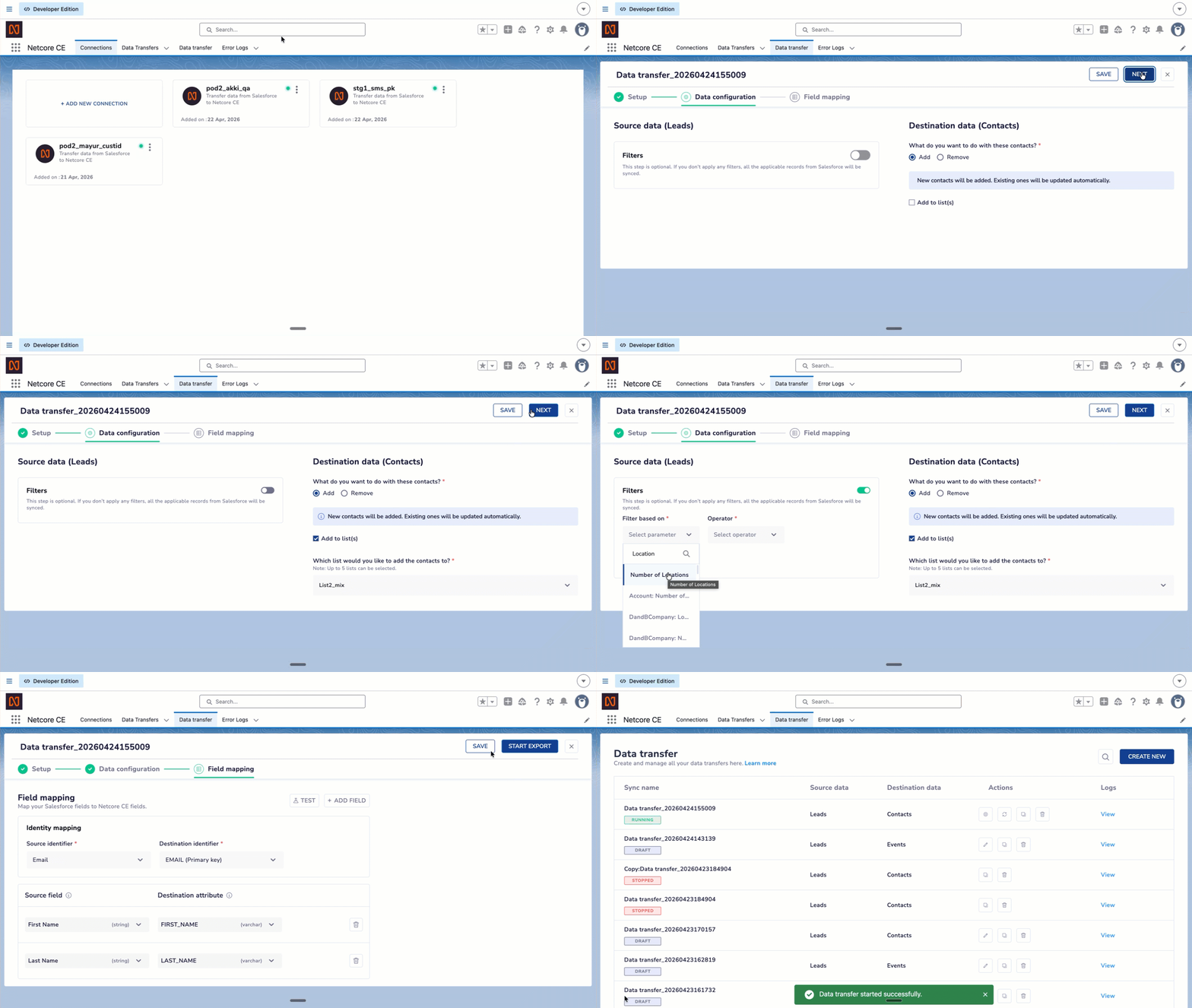
Create & Manage Data Transfer on Salesforce
Export Data from Netcore CE to Salesforce
Set up a data transfer to sync Salesforce records with your Netcore CE contacts in real time.
The Salesforce connector lets you push customer records from your Salesforce org into Netcore CE as contacts, keeping both systems in sync as records are created or updated. Once configured, attribute changes in Salesforce flow through to Netcore CE without manual exports, ensuring segmentation and campaigns always run on the latest data.
On the Netcore CE dashboard, click Settings > Integrations > Salesforce and select the Export Data from Salesforce to Netcore CE option. The Basic details screen appears.
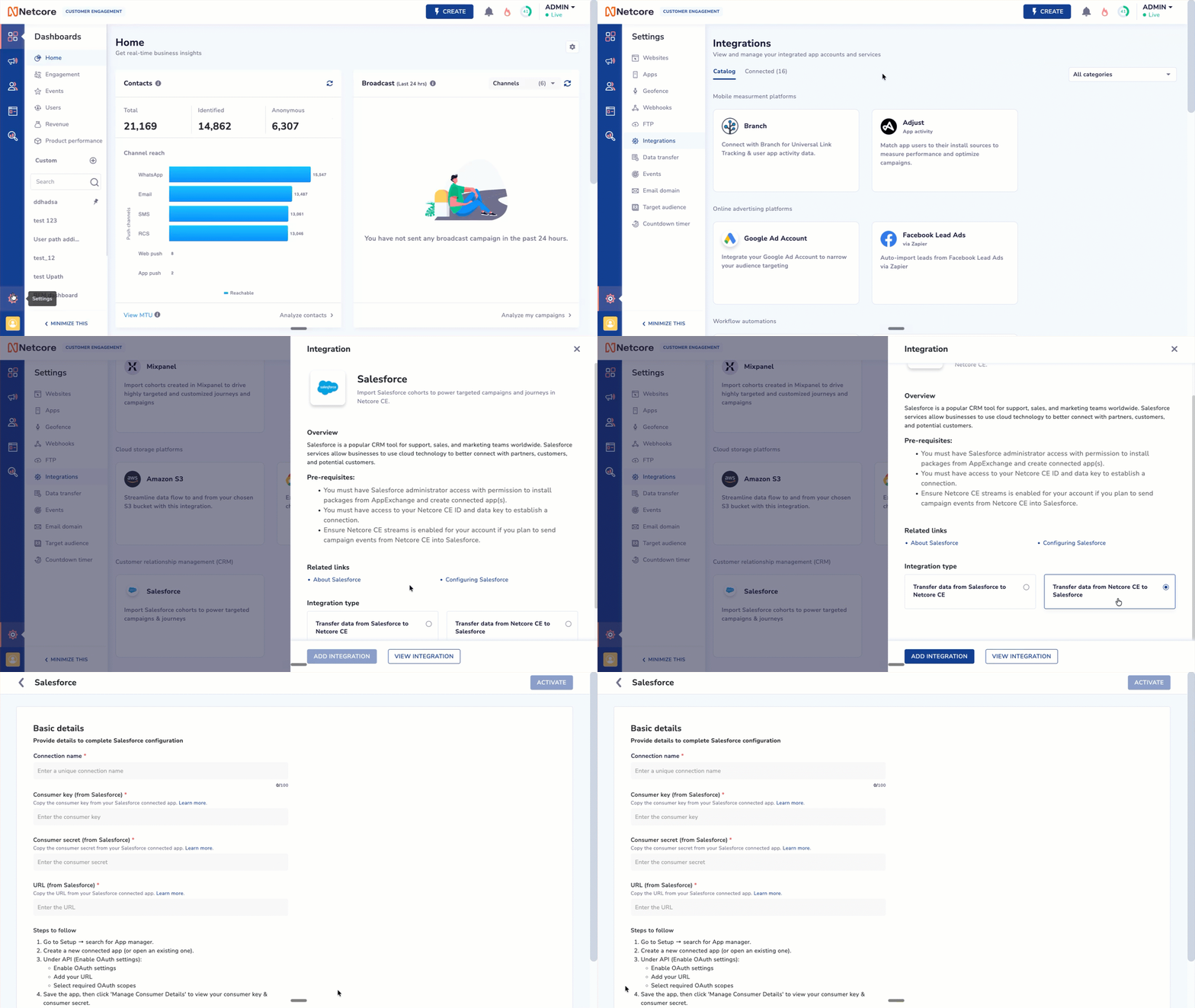
Export Data from Netcore CE to Salesforce
Refer to the table below to see the fields available here.
| Field | Required | Description |
|---|---|---|
| Connection name | Yes | Add an unique label to identify this Salesforce connection in Netcore CE. Use a descriptive name (for example, salesforce-prod-leads) so you can distinguish it from other connections later. |
| Consumer key (from Salesforce) | Yes | Add the OAuth consumer key generated by your Salesforce connected app. Copy this from Manage Consumer Details in the connected app settings and paste it here. |
| Consumer secret (from Salesforce) | Yes | Add the OAuth consumer secret paired with the consumer key above. Copy it from the same Manage Consumer Details screen in Salesforce. Treat this value like a password — do not share it. |
| URL (from Salesforce) | Yes | Add your Salesforce URL (for example, https://yourcompany.my.salesforce.com). This tells Netcore CE which Salesforce environment to authenticate against. Use your production URL for live syncs and a sandbox URL for testing. |
After all four fields are filled in, click Save to validate the credentials and activate the connection.
Steps to followRefer to the steps given below to copy & paste the required creds from Salesforce to Netcore CE.
- Log in to the Salesforce dashboard and navigate to Setup → search for App manager.
- Create a new connected app (or open an existing one).
- Under API (Enable OAuth settings):
- Enable OAuth settings
- Add your URL
- Select required OAuth scopes.
- Save the app, then click 'Manage Consumer Details' to view your consumer key & consumer secret. Copy these values and paste them here to complete your Netcore CE configuration.
Create an Events Export
On the Netcore CE dashboard, click Settings > Data Transfer > CREATE NEW > Salesforce.
Once your Salesforce connection is saved, you can create an events export to define what data syncs from Netcore CE to Salesforce and how it maps. Follow the three steps: Setup, Data selection, and Data mapping.
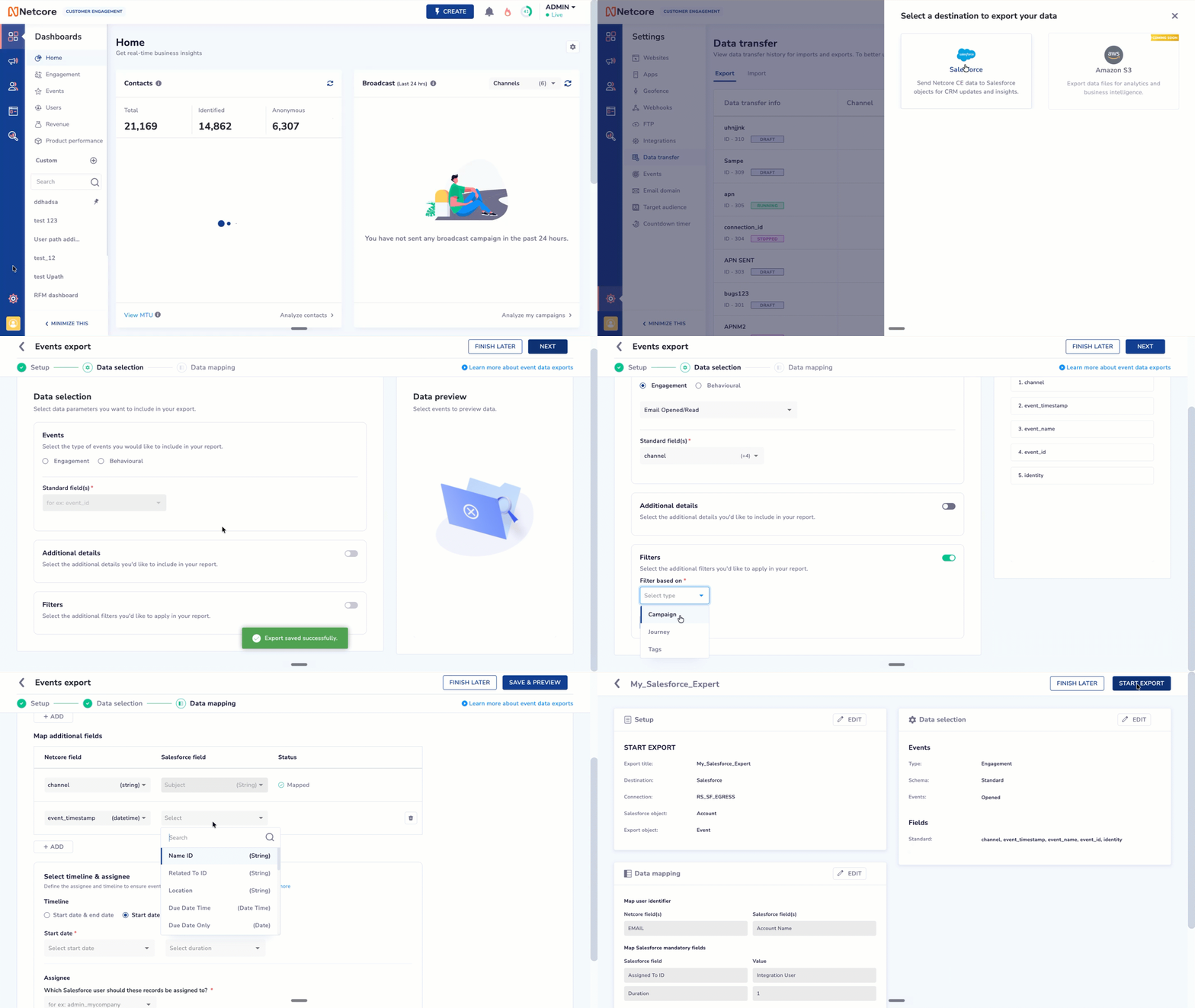
Create an Events Export
Step 1: Setup: Export details
Provide the basic details for your event export.
| Field | Required | Description |
|---|---|---|
| Export title | Yes | A unique name for this export (for example, email-engagement-to-sf). This is how you'll identify the export in the list view later. |
| Connection | Yes | The Salesforce connection to use for this export. Select the connection you configured earlier (for example, RS_SF_EGRESS) from the dropdown. |
| Export to which Salesforce object? | Yes | The Salesforce object where Netcore CE events will be written — for example, Lead, Contact, Task, or a custom object. Choose the object that matches how your team tracks engagement in Salesforce. |
Click Next to continue, or Finish later to save your progress as a draft.
Step 2: Data selection
Choose which events and fields to include in the export. The right panel shows a live Data preview of the fields that will be sent.
Events
| Field | Required | Description |
|---|---|---|
| Event type | Yes | Choose Engagement for channel-level events (email opens, clicks, SMS delivered, push received, etc.) or Behavioural for user actions tracked on your app or website. |
| Event | Yes | The specific event to export (for example, Email Opened/Read). The standard fields available will adjust based on this selection. |
| Standard field(s) | Yes | The default attributes attached to the event — typically channel, event_timestamp, event_name, event_id, and identity. Add or remove fields based on what your Salesforce object needs. |
Additional details (optional)
Toggle on to include extra context with each event.
| Field | Required | Description |
|---|---|---|
| Detail type | Yes (if enabled) | The category of additional data to include — for example, Attribute details for user profile attributes. |
| Select field(s) | Yes (if enabled) | The specific attributes to attach to each event record. |
Filters (optional)
Toggle on to limit the records that get exported.
| Field | Required | Description |
|---|---|---|
| Filter based on | Yes (if enabled) | The attribute or event property to filter on. Click + Add to layer multiple filters — useful when you only want to sync a specific segment (for example, opens from a particular campaign or geography) instead of all events. |
Click Next to continue.
Step 3: Data mapping
Map Netcore CE fields to the corresponding Salesforce fields on your chosen object. This step decides exactly how each event lands as a record in Salesforce.
Map user identifier
This mapping tells Salesforce which existing record an incoming event belongs to.
| Field | Required | Description |
|---|---|---|
| Netcore field(s) | Yes | The Netcore CE identifier used to match the user (for example, EMAIL). The data type is shown next to the field name. |
| Salesforce field(s) | Yes | The Salesforce field to match against (for example, the Email field on a Lead or Contact). Both fields must have compatible data types. |
| Status | — | Shows whether the mapping is valid after you run Test. |
Click + Add to map additional identifiers if you use more than one (for example, email and phone). Use the Test button at the top right to verify the mapping resolves correctly before saving.
Map additional fields
Map any non-identifier fields you want to populate on the Salesforce record.
| Field | Required | Description |
|---|---|---|
| Netcore field | No | The Netcore CE field whose value you want to send. |
| Salesforce field | No | The destination field on the Salesforce object (for example, Subject on a Task). The data type is shown alongside the field name to help you avoid type mismatches. |
| Status | — | Validation result for each row. |
Click + Add for each additional mapping. Use the trash icon to remove a row.
Select timeline & assignee
These settings only apply when exporting to time-bound Salesforce objects like Task or Event.
| Field | Required | Description |
|---|---|---|
| Timeline | Yes | Choose Start date & end date if you want to map both endpoints to Netcore fields, or Start date with duration to set a fixed length (for example, a 30-minute follow-up task). |
| Start date | Yes | The Netcore field that defines when the Salesforce record begins. |
| Duration / End date | Yes | Either a fixed duration (15 min, 30 min, 1 hr, etc.) or a Netcore end-date field, depending on the timeline option chosen above. |
| Assignee | Yes | The Salesforce username (for example, admin_mycompany) that owns the records created by this export. Pick a user with permission to create records on the selected object. |
Click Save & Preview to review your export, or Finish later to save as a draft. Once saved, the export begins syncing events to Salesforce in real time based on your configuration.
Data Transfer Listing Page
The Data Transfer tab shows all your data syncs in one place. Click Create New to set up a new sync.
| Fields | Description |
|---|---|
| Data transfer info | The name and ID you gave the data transfer when you created it, along with its current status badge. Use this to identify the transfer in the list. |
| Channel | The channel associated with the events being transferred (for example, Email, SMS, Push). |
| Last transfer date | The timestamp of the most recent successful sync. Shows NA for transfers that haven't run yet. |
| Next transfer date | The timestamp for the next scheduled sync is determined by the configured frequency. Shows NA for one-time or draft transfers. |
| Destination | The external system to which the data is being sent or from which it is being received (for example, Salesforce). |
| Module | The type of data being transferred (for example, Events, Contacts). |
| Frequency | How often the transfer runs (for example, Real-time, Hourly, Daily). |
Status Labels
| Status | Meaning |
|---|---|
DRAFT | The transfer has been created but not yet activated. No data is syncing. |
ACTIVE | The transfer is live and syncing data based on the configured frequency. |
STOPPED | The transfer was activated but has since been paused. No data is syncing until it's restarted. |
Actions
Each row on the Data Transfer list has a context menu with the following actions.
| Action | Description |
|---|---|
| Edit | Opens the data transfer in the configuration wizard so you can update its setup, data selection, or mapping. Available for transfers in DRAFT or STOPPED status. |
| Duplicate | Creates a copy of the data transfer with all settings preserved. Useful for setting up multiple similar exports — for example, one transfer per Salesforce object. The duplicated transfer is created in DRAFT status so you can review before activating. |
| Delete | Permanently removes the data transfer. This action cannot be undone. |
NoteThe actions available vary by status. For example, Edit appears only for drafts, and Stopped syncs show only Duplicate and Delete.
Updated 6 days ago