
Import data to Netcore from Salesforce
Import Salesforce cohorts to power targeted campaigns and journeys in Netcore CE.
Overview
Salesforce is a popular CRM tool for support, sales, and marketing teams worldwide. Salesforce services allow businesses to use cloud technology to better connect with partners, customers, and potential customers.
Pre-requisites
- You must have Salesforce administrator access with permission to install packages from AppExchange and create connected app(s).
- You must have access to your Netcore CE ID and data key to establish a connection.
- Ensure Netcore CE streams are enabled for your account if you plan to send campaign events from Netcore CE into Salesforce.
Connect Salesforce Integration
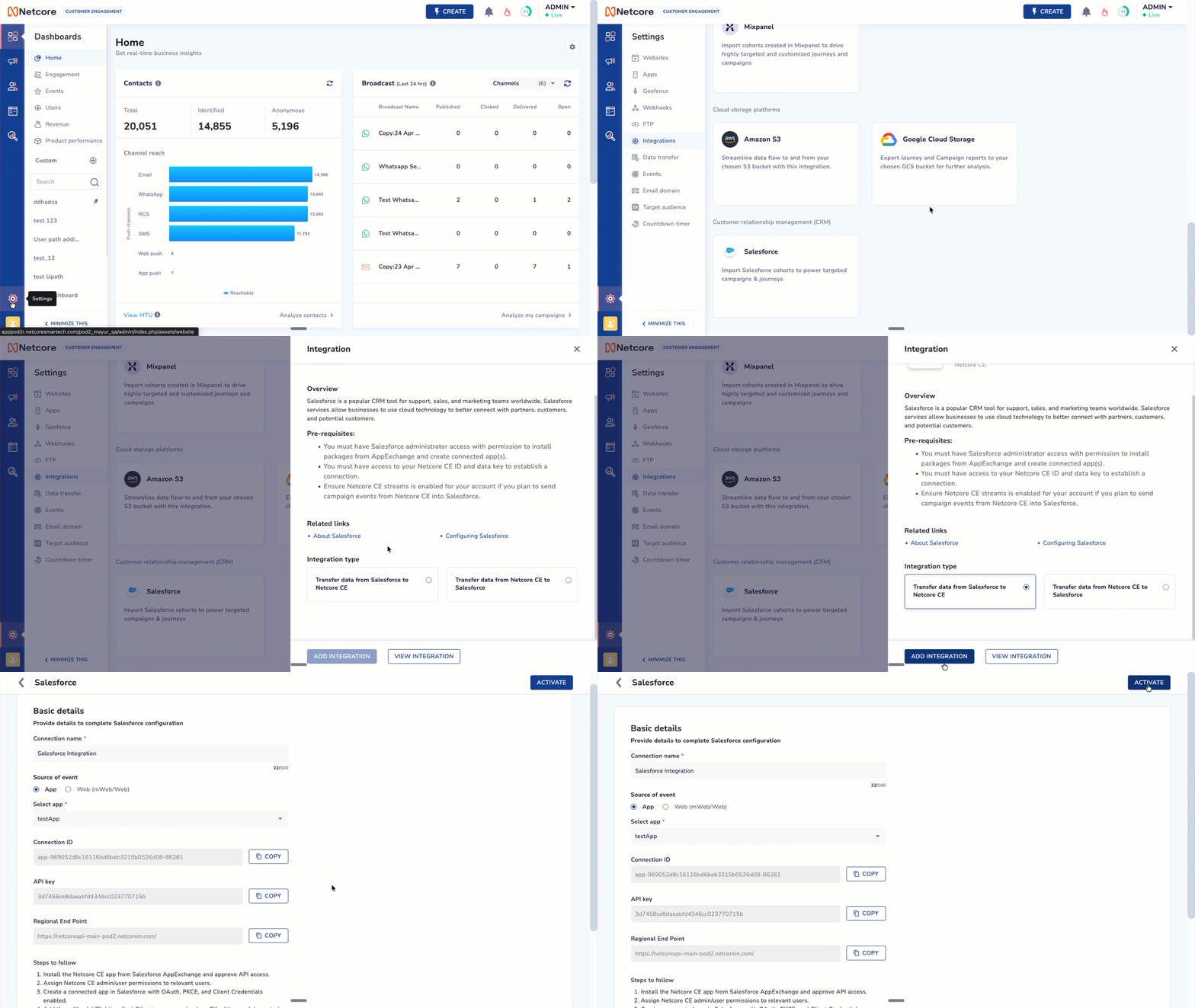
Activate Salesforce Integration on Netcore CE
Follow the steps below to activate Salesforce on the Netcore CE dashboard.
-
Log in to the Netcore CE dashboard and navigate to Settings.
-
Click Integration > Customer relationship management (CRM) > Salesforce. The integration modal opens up.
-
The two integration types available here are:
Integration type Description Transfer data from Salesforce to Netcore CE Imports Salesforce records (Leads, Contacts, and custom objects) into Netcore CE to trigger campaigns and personalized messaging based on CRM status changes. Transfer data from Netcore CE to Salesforce Exports Netcore CE engagement data back into Salesforce, such as automatically creating a Task for a Lead Owner when a prospect interacts with a campaign.
-
Select the desired type and click ADD INTEGRATION.
-
The Basic details page appears. Enter a connection name, then copy these details into Salesforce to integrate the account. The fields available here are:
| Field Name | Description |
|---|---|
| Connection Name | Add a unique internal identifier you create to label this specific Salesforce integration. |
| Source | Select the origin category of the data, like App or Web. |
| Select App/ Web | Select the exact application/ website source within the Netcore ecosystem. |
| Client ID | A unique public identifier used by Salesforce to identify your Netcore account during the handshake. |
| API Key | A secure token that authenticates requests between Netcore and Salesforce to ensure data privacy. |
| Regional End Point | The specific server URL used to transmit data is determined by your data centre's location. |
Steps to follow
- Install the Netcore CE app from Salesforce AppExchange and approve API access.
- Assign Netcore CE admin/user permissions to relevant users.
- Create a connected app in Salesforce with OAuth, PKCE, and Client Credentials enabled.
- Add the callback URL
https://api-0X.netcorece.com(replace 0X with your data centre).- Copy the consumer key/secret key from the connected App.
- In Salesforce, open the Netcore CE app, go to connections & click on add new connection.
- Enter your workspace ID, data key, and data centre.
- Click ACTIVATE once done. A test event will be sent to your configured Salesforce connection. View the integration in the Connected tab of the Integrations screen.
Activate Netcore on Salesforce
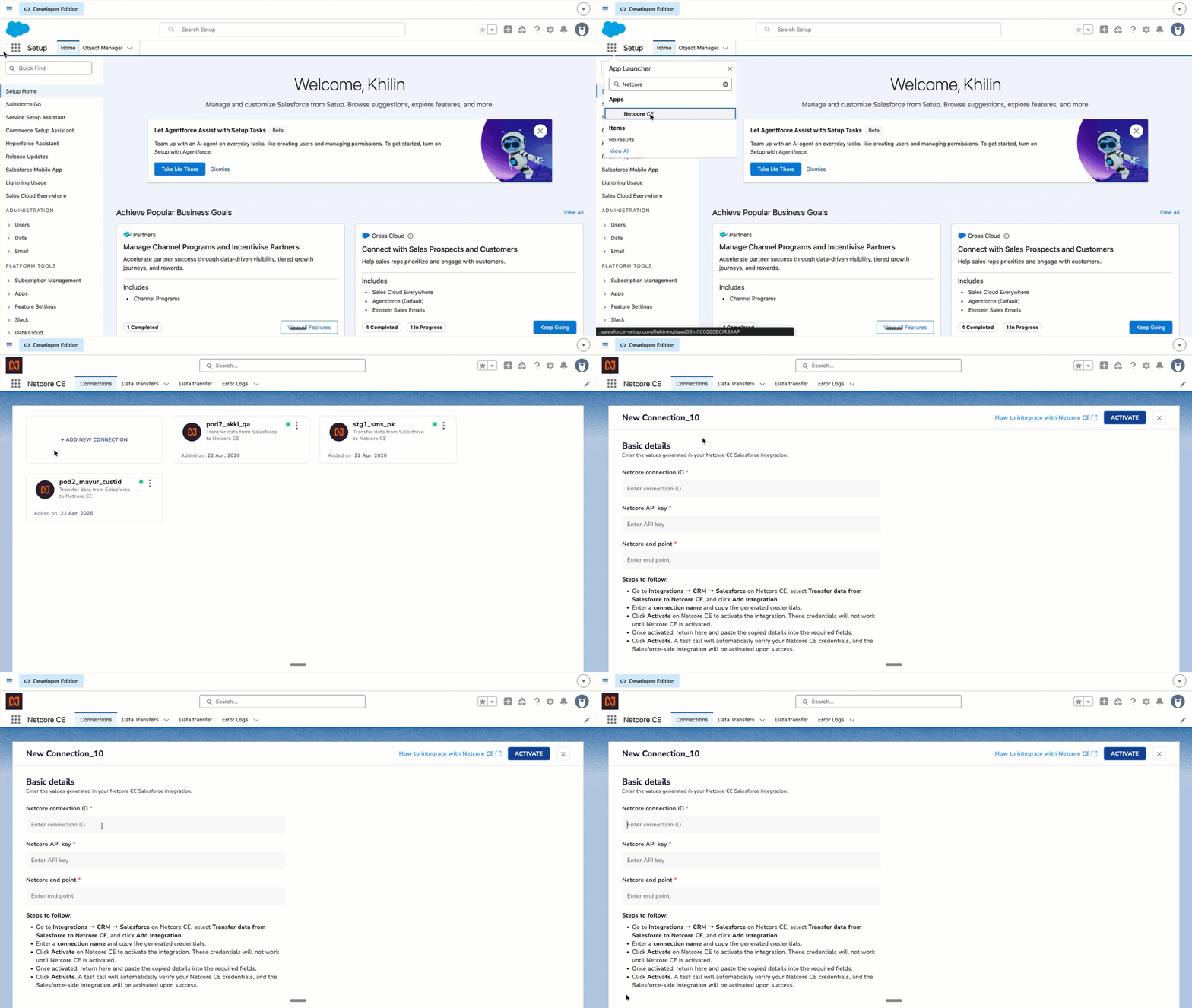
Activate Netcore on Salesforce
Follow the steps given below to Activate Netcore on Salesforce.
- On your Salesforce homepage, click App launcher and search and select Netcore.
- Integrate Salesforce CRM with Netcore CE screen appears.
- Before you begin, ensure your Salesforce integration is activated in the Netcore CE dashboard.
- Click CONNECT. Your Netcore connection is now set up on the Salesforce dashboard.
- The Basic details page opens up. Copy and paste the values generated in your Netcore CE Salesforce integration. Refer to the table below to see the available fields.
| Field Name | Simple Description |
|---|---|
| Netcore connection ID | The unique ID (Client ID) generated in your Netcore dashboard to identify this link. |
| Netcore API key | The secure password/token that authorises Salesforce to talk to your Netcore account. |
| Netcore endpoint | The specific digital address (URL) where Salesforce sends your data. |
NoteEnsure you hit Activate on the Netcore CE side first, otherwise, the credentials you paste here will be rejected during the test call.
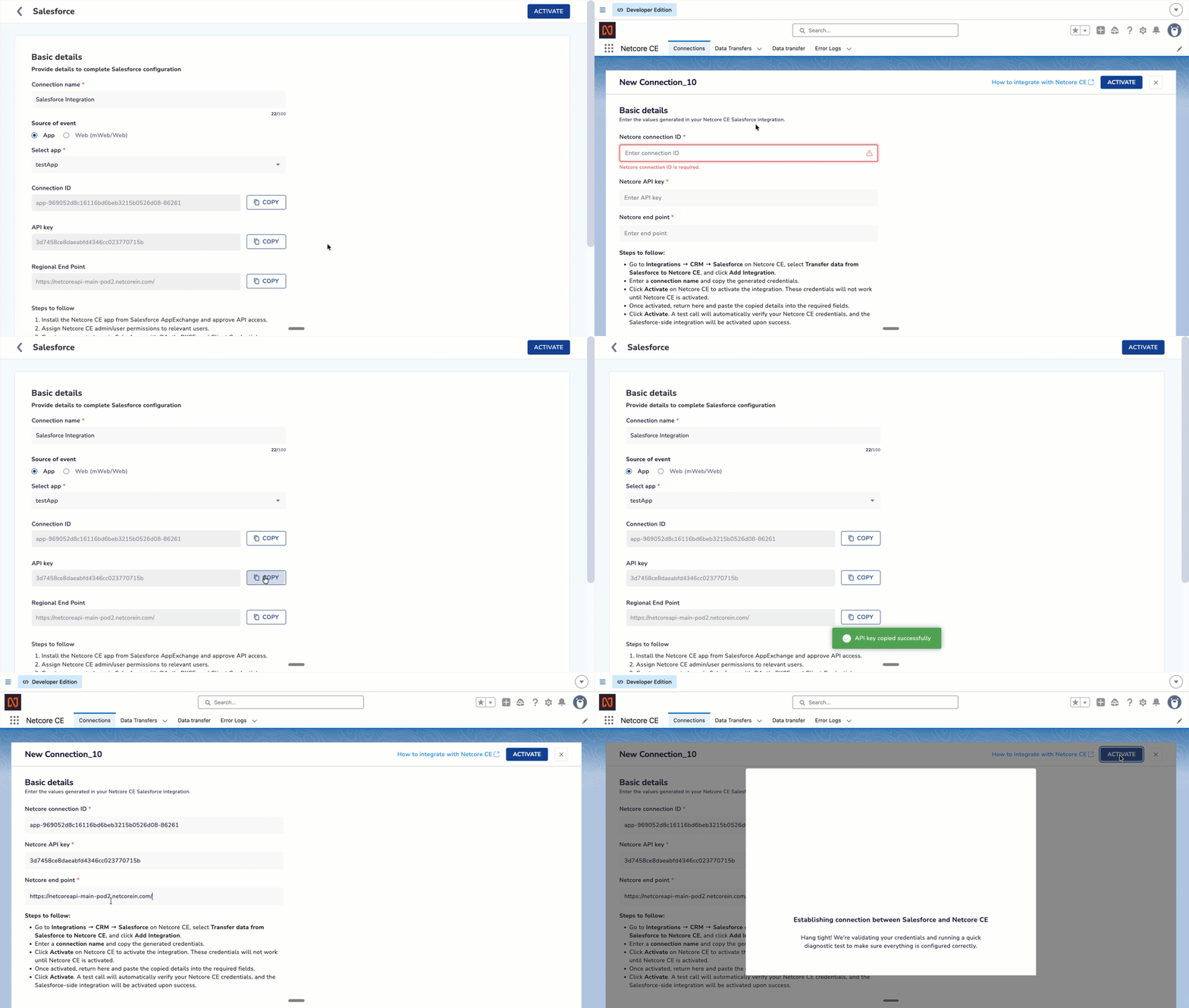
Copy & Paste Netcore CE details to Salesforce
Steps to follow to copy & paste Netcore CE details to Saleforce:
- Go to Integrations > CRM > Salesforce on Netcore CE, select Transfer data from Salesforce to Netcore CE, and click Add Integration.
- Enter a connection name and copy the generated credentials.
- Click Activate on Netcore CE to activate the integration. These credentials will not work until Netcore CE is activated.
- Once activated, return here and paste the copied details into the required fields.
- Click Activate. A test call will automatically verify your Netcore CE credentials, and the Salesforce-side integration will be activated upon success.
Transfer data from Salesforce to Netcore CE
Set up a data transfer to sync Salesforce records with your Netcore CE contacts in real time.
Step 1: Setup
Name Your Data Transfer
A default name is generated automatically in the format Data transfer_YYYYMMDDmmss. You can keep this name or edit it before proceeding.
Select a Salesforce Object
From the Salesforce Object dropdown, select the object you want to export. The following objects are available:
- Lead
- Contact
- Account
- Opportunity
- Task
- Activity
Select a Netcore Entity
From the Netcore Entity dropdown, select the Netcore CE entity you want to sync records into.
NoteSelecting Contact as the Netcore entity adds a third step; Field Mapping.
Set the Transfer Trigger
Choose when records are exported to Netcore CE:
| Trigger | When it exports |
|---|---|
| On Update | When at least one mapped field changes on an existing record, or when a new record is created and a mapped field is populated. |
| On Create or Update | When at least one mapped field changes on an existing record, when a new record is created with mapped fields populated, or when a new record is created even if no mapped fields have a value yet. |
Click Next to continue.
Step 2: Data Configuration
Use this step to control which records sync to Netcore CE and how contacts are managed upon arrival.
Add Source Filters (optional)
Source filters let you sync only the records that meet specific criteria. For example, sync only Leads where Region = West.
To add a filter condition:
- Click Add Filter.
- Select a field from your Salesforce object.
- Select an operator based on the field's data type:
| Field type | Available operators |
|---|---|
| Integer, Float | Equal to, Greater than, Less than |
| String, URL | Is, Is not |
| Timestamp, Date | Before, After, On |
- Enter the filter value manually.
You can add multiple filter conditions. All conditions must be met for a record to sync.
Validation: If you select an operator that does not match the field's data type, an error appears when you click Next. Correct the mismatch before proceeding.
Using Fields from Linked Objects
If a field on your primary Salesforce object links to another object — for example, a Lead field linked to a Product via a Product ID — you can filter on fields from that linked object too.
When you open the field dropdown, linked object fields appear alongside the primary object's fields. For example, if a Lead is linked to a Product, you see options like Product: Name, Product: SKU, and Product: Family.
Configure the Destination
Select how Netcore CE handles the incoming records:
- Add Contact: All synced records are added to the Netcore CE contact master. If the contact already exists, their mapped attributes are updated. Optionally, you can also add them to up to 5 specific lists.
- Remove Contact: Synced records are removed from either the contact master or from up to 5 specific lists.
Click Next to continue.
Step 3: Field Mapping
This step appears only when Contact is selected as the Netcore entity in Step 1.
Map Salesforce fields to Netcore CE contact attributes. This tells Netcore CE which data goes where when a record syncs.
Map the Contact Identifier
Before you can proceed, you must map the Netcore Contact Identifier to a Salesforce field. This is the unique key Netcore CE uses to match incoming records to existing contacts.
- For a standard Netcore dashboard: The Contact Identifier dropdown shows your panel's primary key label.
- For an Addressable Anonymous Netcore dashboard: The Contact Identifier dropdown offers three options — your primary key label, Email, or Mobile.
ImportantThe Contact Identifier must map to a field on the primary Salesforce object only. Fields from linked objects (for example, Account.Email pulled through a Lead's account relationship) cannot be used as the identifier.
Map Additional Fields
The mapping interface shows two columns:
- Left column: Salesforce field (select from a dropdown)
- Right column: Netcore CE contact attribute (select from a dropdown)
The Netcore attribute dropdown includes both existing attributes from your Netcore panel and any attributes previously created from Salesforce.
Add as many field mappings as needed.
Create a New Netcore Attribute
If a matching Netcore attribute does not exist, you can create one directly from this screen.
- Click Create New Attribute. A side drawer opens.
- Select the Salesforce field on which to base the new attribute.
- The attribute name is auto-populated — it uses the Salesforce field name converted to lowercase, with spaces replaced by underscores.
- The data type is auto-populated from the Salesforce field and cannot be changed.
- Click Save and Create.
The attribute is created in Netcore CE in the background. It is then available to use in your field mapping.
NoteIf you delete a newly created attribute after saving, a confirmation prompt appears before the attribute is removed.
Click Next to continue.
Step 4: Test Configuration
Testing is optional but recommended. It lets you validate your field mappings and confirm the connection is working correctly using a single real record, before activating the full sync.
Before You Test
The Test button checks that:
- At least one Contact Identifier (Email, Mobile, or Primary Key) is mapped.
- No obvious data type mismatches exist between mapped fields.
If either check fails, an error appears. Resolve the issue before running the test.
Run a Test
-
Click Test on the Field Mapping screen. A side drawer opens.
-
In the search bar, enter a value for your Contact Identifier (for example, a valid email address like
[email protected]). -
Netcore CE queries Salesforce and fetches the matching record.
-
The data preview grid displays the fetched values alongside their Salesforce field names.
You can edit any value in the grid manually — useful for testing edge cases before the full sync runs.
-
Click Run Test.
Test Results
| Result | What it means |
|---|---|
| Success | The record is created or updated in your Netcore CE panel. Your mapping and connection are working correctly. |
| Failure | The Netcore CE API returned an error. The raw error details are displayed so you can identify and fix the issue. |
Step 5: Sync Activation
Once you are satisfied with your configuration and test results, click Start Export to activate the data transfer.
The sync runs in real time from this point forward, based on the trigger you selected in Step 1.
NoteRunning a test before activating the sync is optional. You can click Start Export at any time after completing the field mapping step.
Updated 6 days ago