
Auto-Save in UCE
With Auto-Save, every change you make on the canvas is automatically saved in near real-time.
Overview
Auto-Save ensures that every change you make while creating or editing an email template is automatically saved in near real-time. This eliminates the need for manual saves and reduces the risk of losing work.
Important Point
- This feature is currently available only for Email channel.
- This is a flag-based feature and not enabled for all accounts by default. Please contact your Account manager to get it enabled.
Key Benefits
- No manual saving required
- Prevents loss of work due to refresh, navigation, or unexpected interruptions.
- Seamless editing experience with continuous progress capture.
- Confidence while creating your work is always safe.
How Auto-Save Works
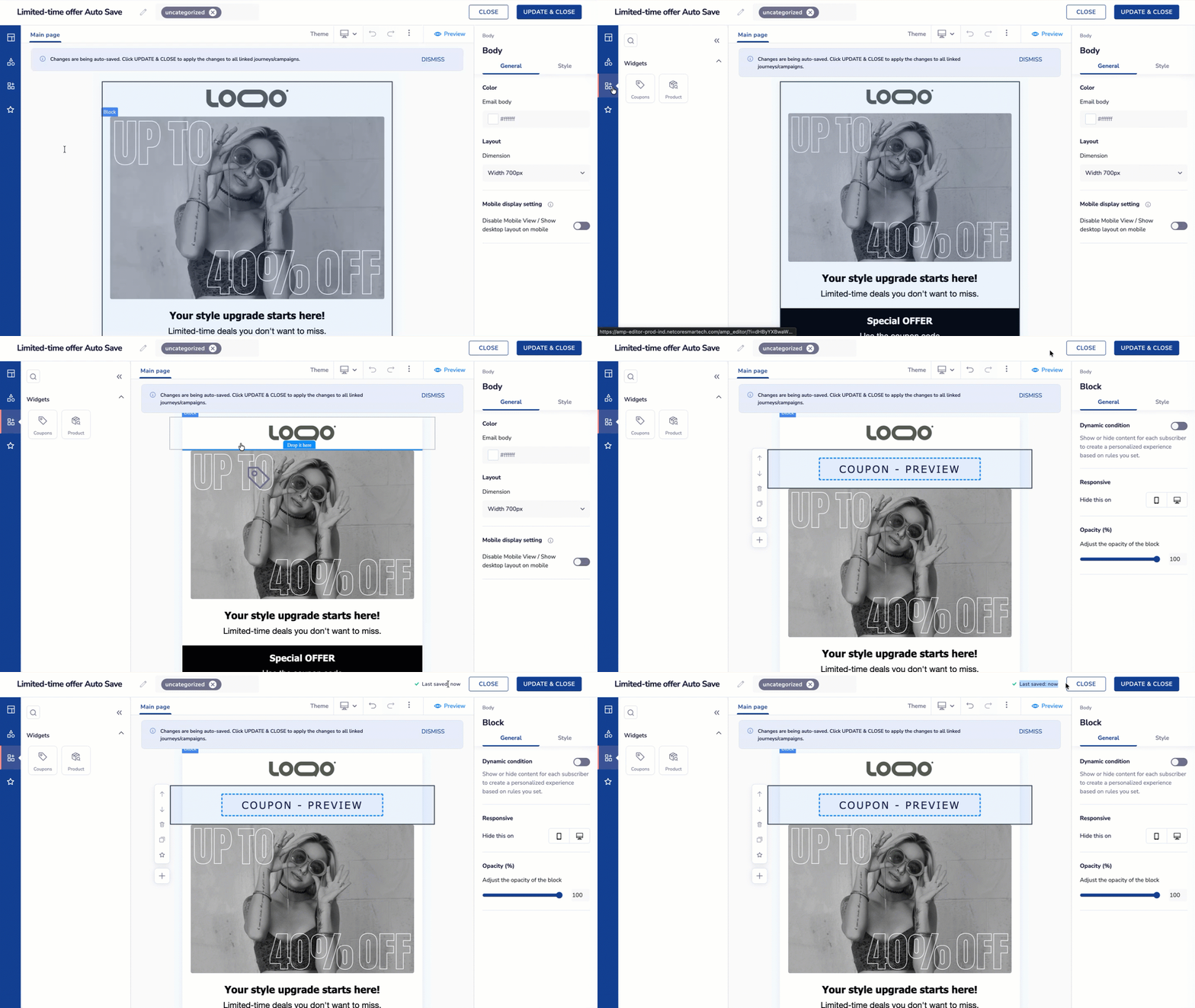
No more Manual Saving
- Any change made on the canvas (e.g., adding text, images, buttons, layout updates) is automatically saved within a few seconds.
- Auto-save runs in the background without interrupting your workflow.
- The latest version is continuously updated as you make edits.
Restore Versions
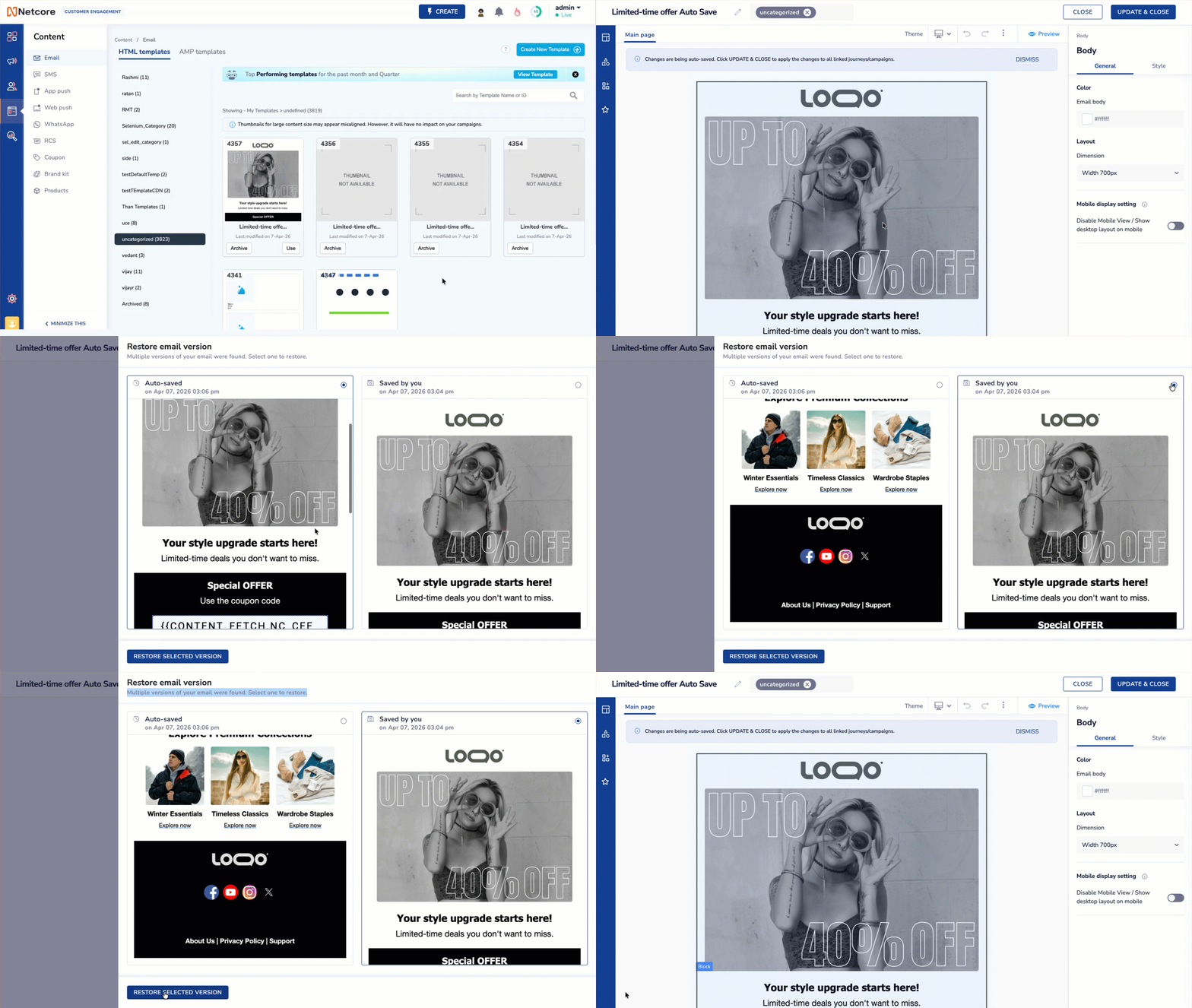
Restore Auto Save or Manually Saved Versions
UCE allows you to restore previous versions of your template:
Available Versions
-
Auto-Saved Version: The most recent version captured automatically during editing.
-
Last Saved by You: The last version that you have explicitly saved of the template before your current editing session.
How to Restore a Version
-
Select either:
- Auto-Saved version
- Last saved by you version
-
Click Restore Selected Version
Important Notes
- If restoring an auto-saved version fails, the editor will automatically load the Last saved by you version and notify you.
- Restoring a version only affects the current template in the editor and does not impact any live campaigns or journeys using that template.
Discard Changes
The Discard Changes option allows you to revert all edits made in the current session.
Behavior
- Restores the template to the state it was in when you opened the editor
- Removes all changes made during the current session, even if they were auto-saved
Example
- Open template
- Add a new block (e.g., button or table)
- Auto-save runs
- Click Discard Changes
Result: The template will revert to its original state, and the newly added block will be removed.
Edge Cases & Fallbacks
-
If an auto-saved version cannot be restored (e.g., due to data inconsistency), the system will:
- Load the Last saved by you version
- Show a notification indicating the issue
-
For templates already used in journeys or campaigns:
- The editor will directly load the Last saved version
- The restore drawer will not be shown after discard
Best Practices
- You no longer need to manually save frequently
- Use Restore Version if you want to revert to a previous state
- Use Discard Changes to undo your current session completely
Updated about 2 months ago