
Viber Action Node in Journeys
Learn to send Viber messages in a journey using predefined templates.
Overview
The Viber Action Node enables users to send messages to customers via Viber within a journey/workflow. It allows selecting a configured Viber gateway, choosing a pre-approved message template, and optionally personalizing the message using dynamic attributes.
This node is typically used in customer engagement flows where businesses want to deliver transactional, promotional, or conversational messages over Viber.
Use Cases
The Viber Action Node is suited for a broad range of customer communication scenarios, including:
- Transactional Alerts: Send OTPs, payment confirmations, order updates, or account balance notifications to customers in real time.
- Onboarding Flows: Welcome new users with a rich Viber message containing product information, getting-started guides, or deep-links to your app.
- Promotional Campaigns: Deliver time-sensitive offers, discount codes, or event invitations using image-rich templates.
- Appointment Reminders: Notify customers of upcoming appointments, renewals, or deadlines as part of a drip or reminder workflow.
- Re-engagement: Reach inactive customers on Viber with personalised messages to drive re-activation.
- Post-transaction Follow-ups: Send receipts, feedback requests (CSAT/NPS), or loyalty reward notifications after a transaction completes.
- Banking & Fintech Alerts: Dispatch account activity alerts, loan approval notices, or KYC status updates through a trusted channel.
Configure the Viber Action
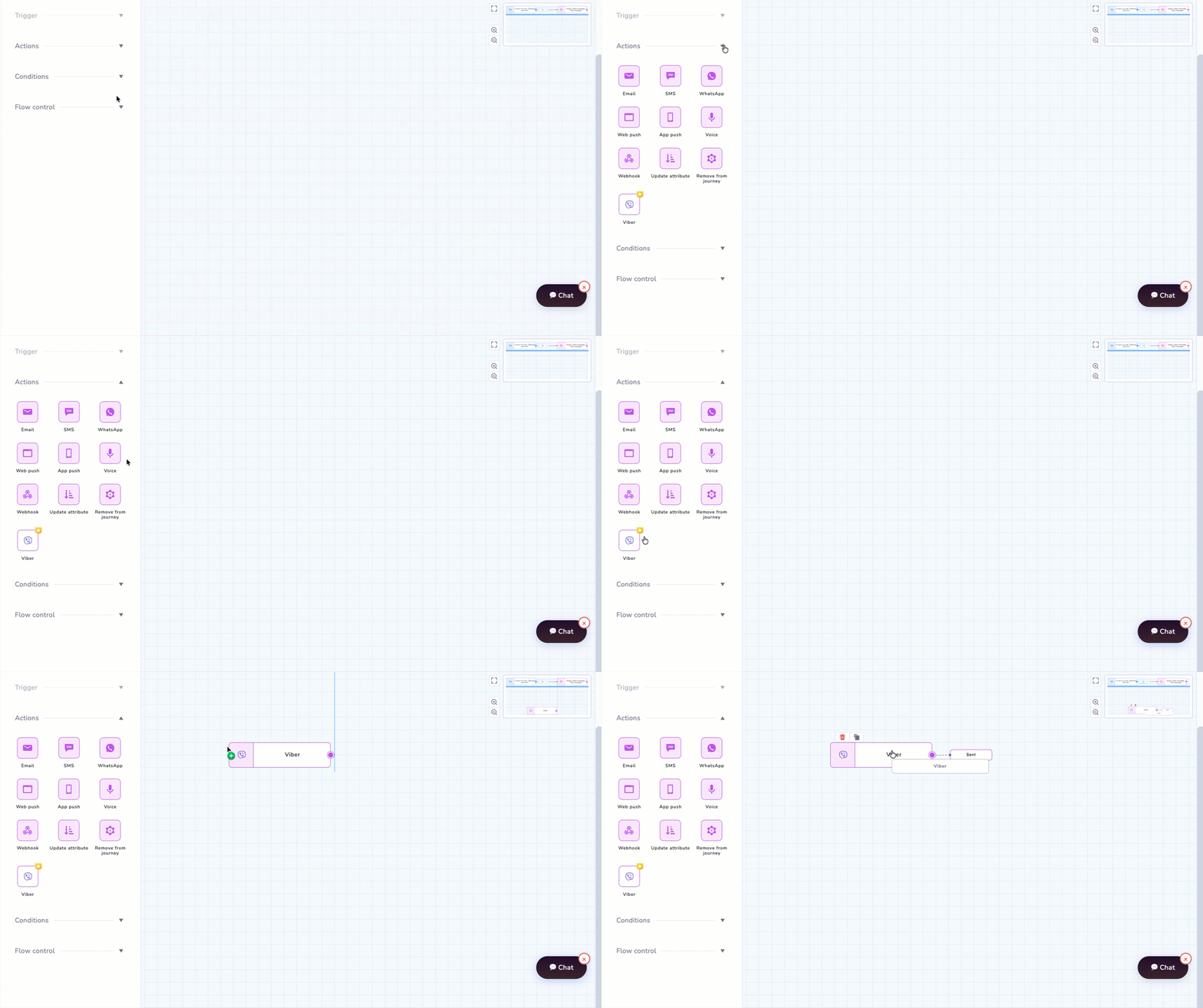
Add Viber Action Node in Journeys
- Log in to the Netcore CE dashboard and click CREATE > Engage with users > Journey.
- Drag & drop the Viber action node on the Journey canvas.
- Click the Viber node to set the conditions. When this node is added to the canvas, a configuration panel opens where the settings can be defined. Refer to the table for the fields available here.
| Field | Required | Description |
|---|---|---|
| Gateway | Yes | Select the pre-configured Viber gateway (service account) through which the message will be sent. |
| Message name | Yes | Provide an identifier for the Viber message. |
| Template | Yes | Select the pre-approved Viber message template to use for the message. |
| Personalization | No | Toggle to enable dynamic personalization keys within the selected template. Map data attributes to template placeholders at send time. |
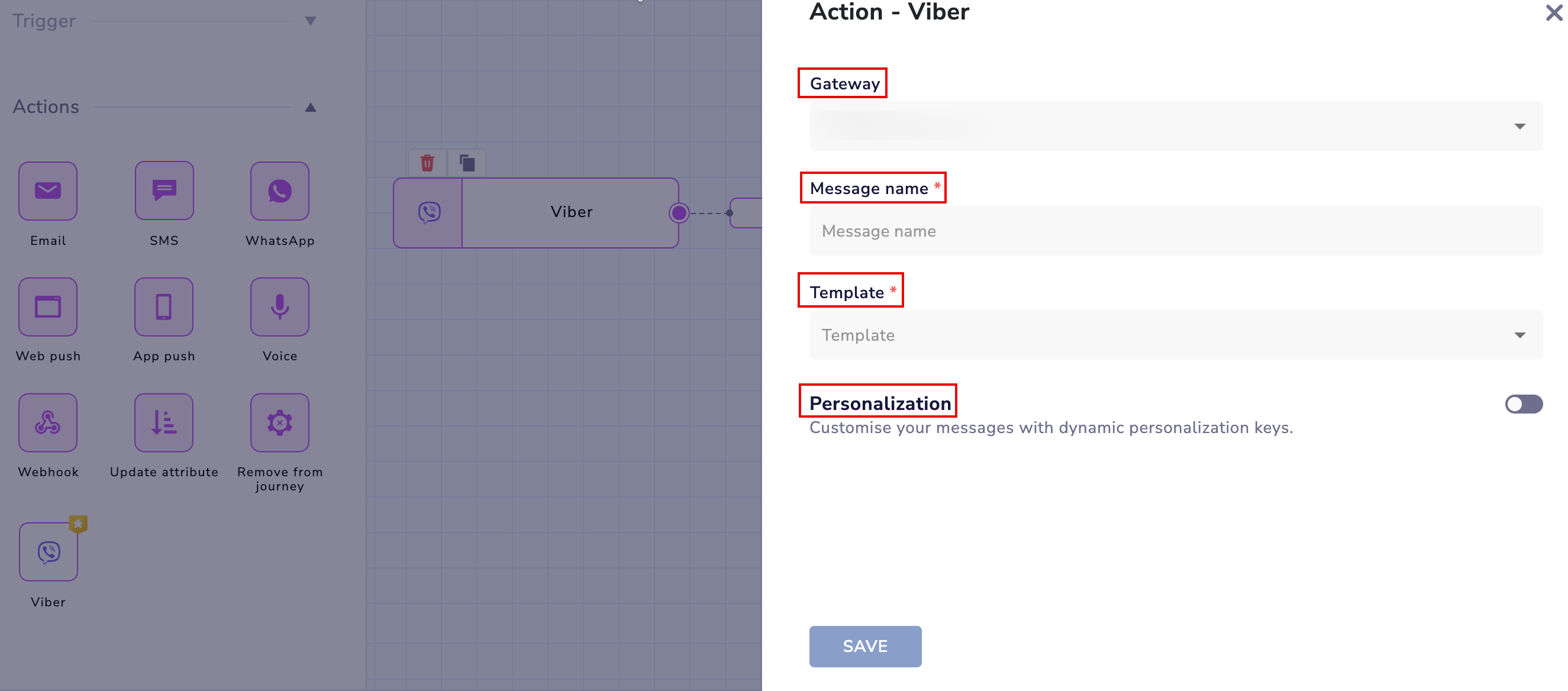
Configure Viber Action Node
- Once done, click SAVE.
Updated about 1 month ago
Did this page help you?