
Blocklist Contacts
Learn how to manage contacts, apply channel-specific blocks, handle opt-outs, and improve campaign compliance across channels.
Overview
Blocklisted contacts are those who will not receive campaigns because they have been manually blacklisted or opted to unsubscribe/hard bounce, and let you prevent specific contacts from receiving campaign messages across all communication channels: Email, SMS, WhatsApp, and RCS, all from a single, unified interface.
Log in to Netcore CE panel and navigate to Audience > Blocklist contacts.
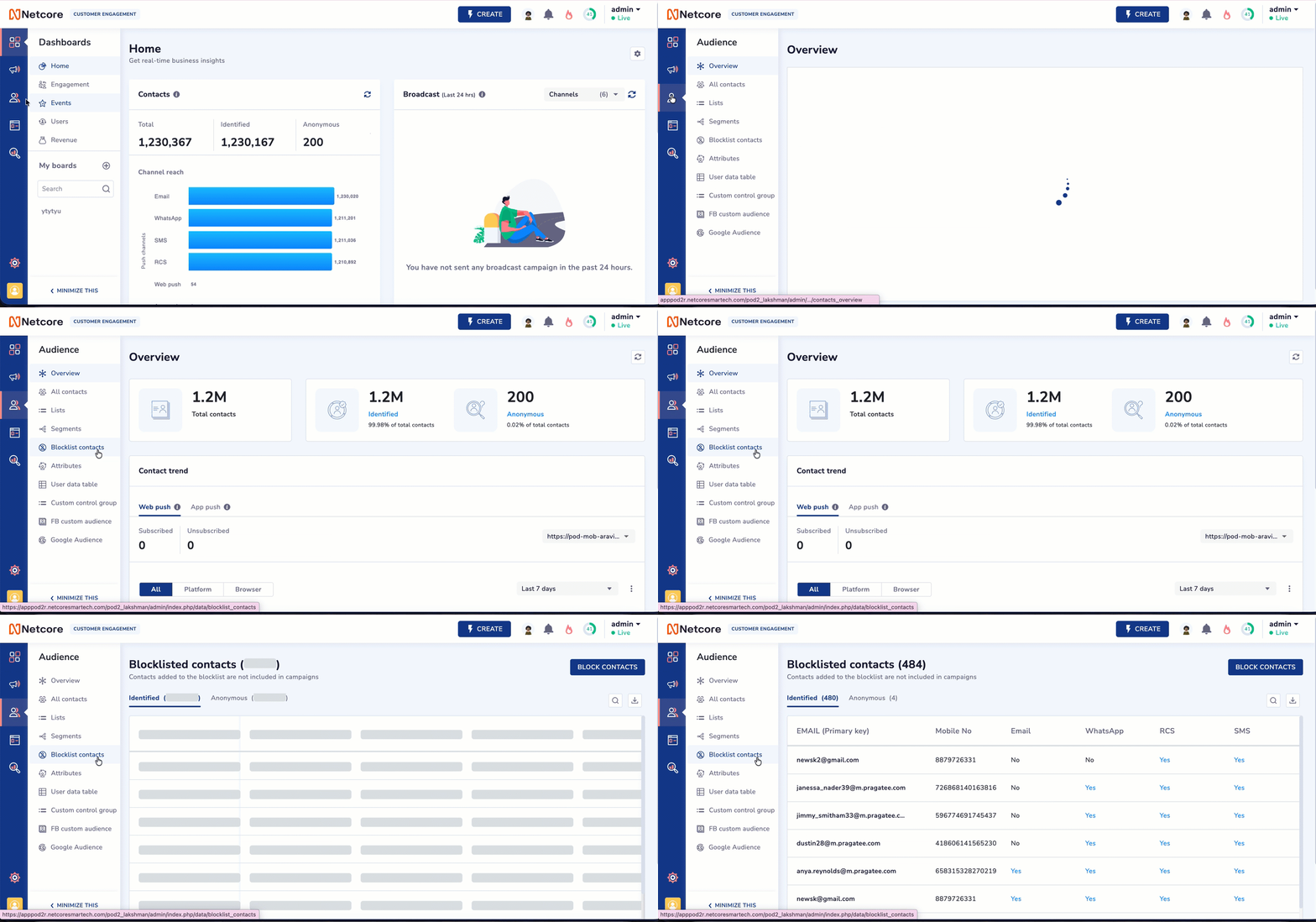
Navigate to Blocklist contacts
The overview page shows all contacts currently on the blocklist, along with their status for each communication channel. This has two types of contacts:
- Identified Contacts: Contacts that have a primary key (Customer ID / Email). This is the default view.
- Anonymous Contacts: Contacts without a primary key. The count is shown in brackets on each tab.
Refer to the table below to understand the different columns given on the listing page.
| Column | Description |
|---|---|
| EMAIL (Primary key) | This is the primary identifier for the contact. It is the email address used as the system key. |
| Mobile No | It is the mobile number linked to the contact. It displays N/A if no mobile number is associated. |
| It shows Yes or No, indicating whether the contact is blocklisted for Email. | |
| Shows Yes or No, indicating whether the WhatsApp channel is on the blocklist. | |
| RCS | Shows Yes or No, indicating whether the RCS channel is on the blocklist. |
| SMS | Shows Yes or No, indicating whether the SMS channel is on the blocklist. |
Importance Points to Remember
- Filters and Pagination have been removed for a cleaner, faster interface.
- Click on Yes on the channel specific columns for a detailed insights. You can now view Blocklist Category, Reason, and Date for each channel directly from the listing view.
- It is recommended to search using an exact match.
- You can now easily search using Email ID or Mobile Number with improved accuracy. A maximum of 5 searches is allowed per session.
- The listing UI has been redesigned for better visibility and usability.
Functionality Available
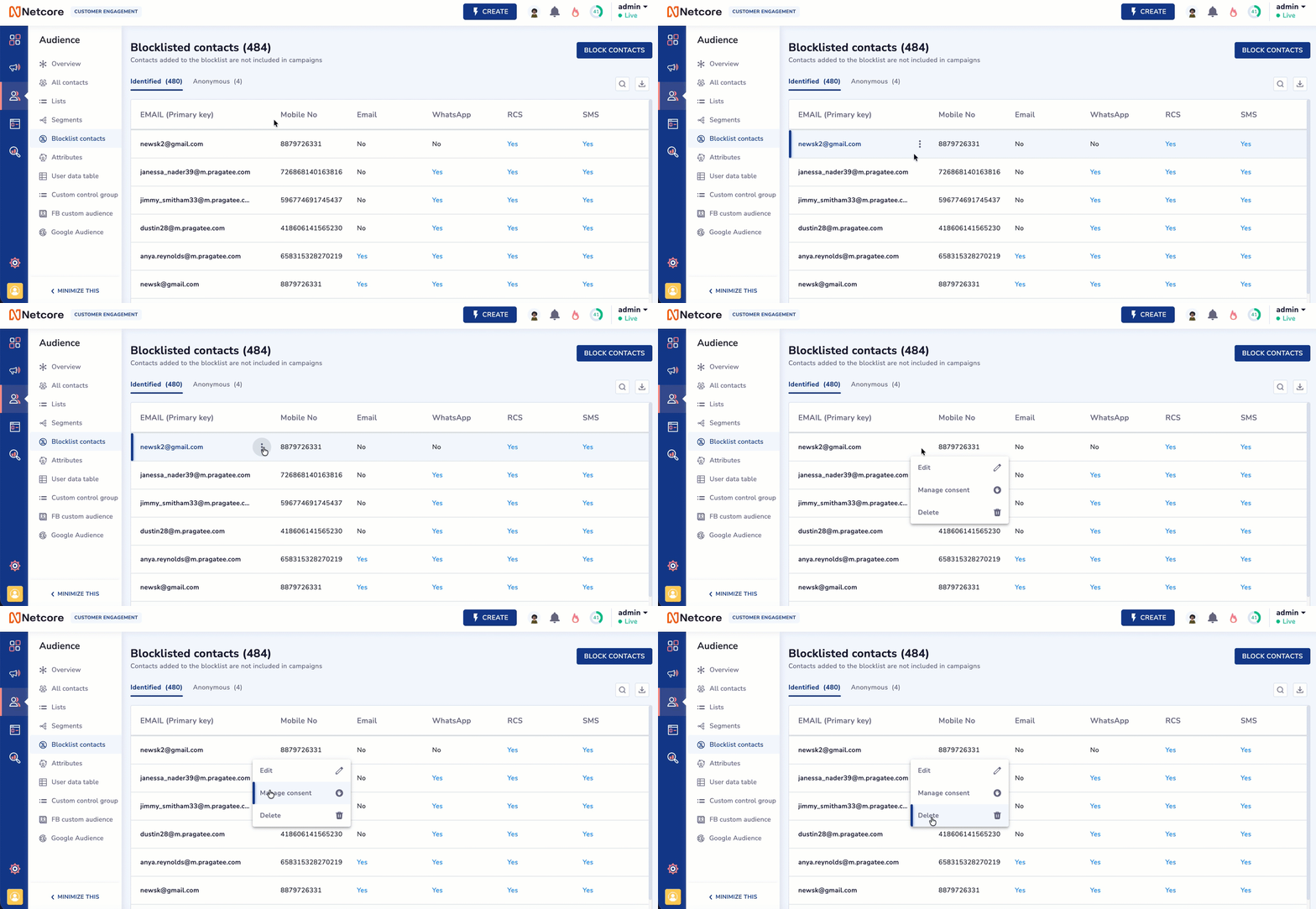
Functionality Available on Listing Page
| UI Element | Functionality | Description |
|---|---|---|
Three-dot menu | Edit | It allows updating the contact details. |
| Manage Consent | It enables managing communication consent/preferences for the contact. | |
| Delete | It removes the contact from the blocklist. | |
| Search | It allows users to search for specific contacts in the blocklist. | |
| Download | It downloads the blocklist data (typically as a file like CSV). |
Blocklist a Contact
Click the BLOCKLIST CONTACT button to open a new page with the following options.
Blocklist Using
| Option | When to use it |
|---|---|
| Customer ID/EMAIL (Primary Key) | Use this when you have the unique Customer ID assigned in your CE account. Blocklisting by Customer ID applies the block across all channels selected in the next step. |
| Email ID | Use this to blocklist contacts by their email address. Typically used to stop email communications specifically. |
| Mobile | Use this to blocklist contacts by mobile number. You must also select the channels: SMS, WhatsApp, RCS, the block applies to. |
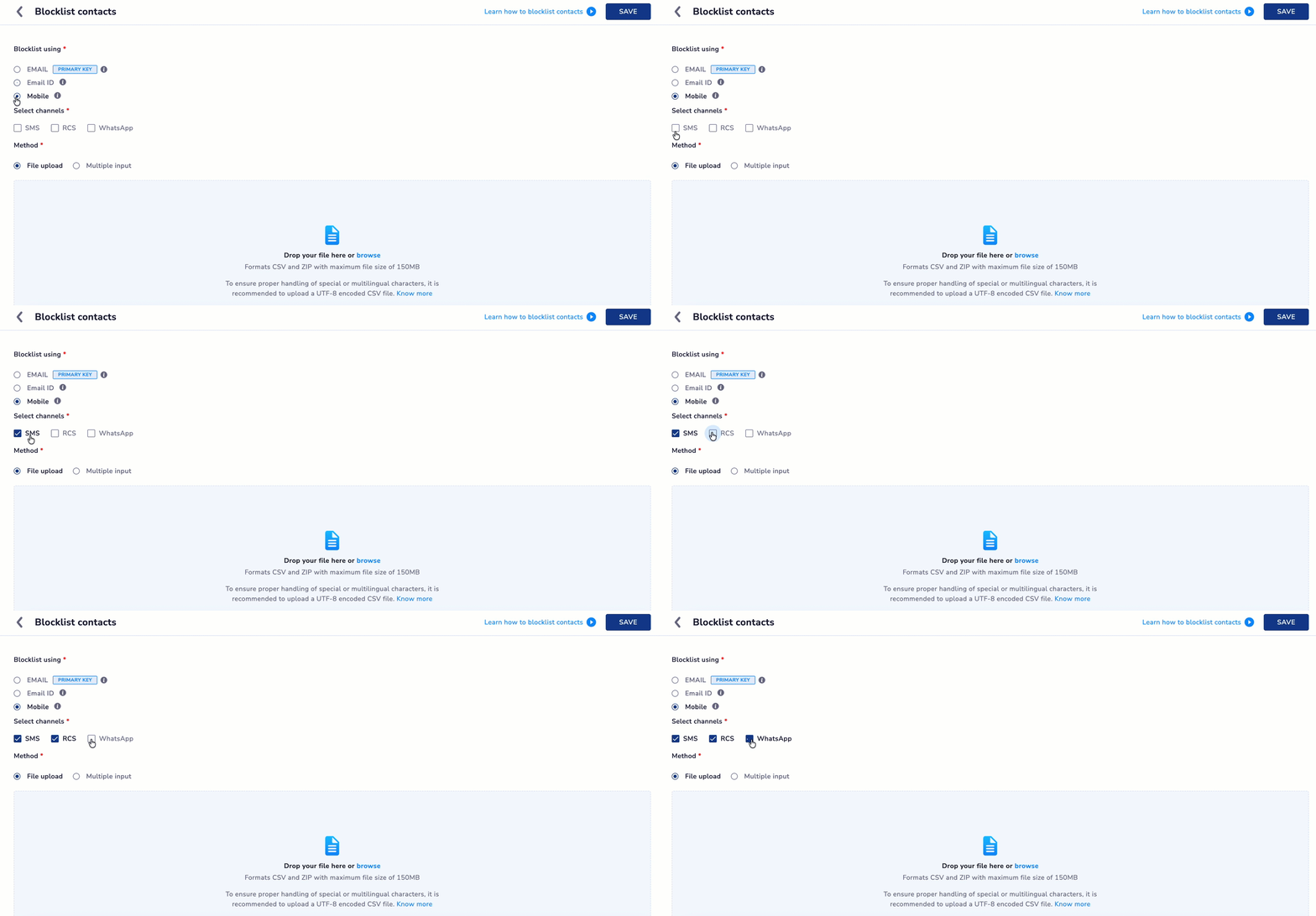
Channels supporte for Mobile Option
Upload List of Blocklist Contacts
Select how you want to provide the list of contacts to blocklist:
- File Upload: Upload a CSV, ZIP, or TXT file containing the contact identifiers. Maximum file size is 150 MB. Follow the steps below to upload a file.
- Drag and drop your file into the upload area, or click browse to select it.
- Download the sample file link is available if you need a template to format your data.
For best results with special or multilingual characters, upload a UTF-8 encoded CSV file.
- Multiple Input: Select Multiple input to type or paste contact identifiers directly. No file input is required. This is suitable for small, one-off additions.
Click SAVE in the top-right of the panel. The contacts will be queued for processing. If you requested an email notification, you will receive a confirmation once the process is complete.
Automated Opt-Out for WhatsApp and RCSFor WhatsApp and RCS, opt-outs are handled automatically. When a contact replies with STOP or sends an opt-out message on either channel, the signal is captured by CPaaS and pushed directly to the CE Blocklist in real time.
Channel-wise Blocklist Behaviour
Blocklisting and opt-out mechanisms behave across different communication channels. Refer to the table below to understand the different levels of automation and control for managing user preferences and compliance.
| Channel | Blocklist Behaviour |
|---|---|
| For this channel, contacts can be blocklisted or whitelisted. Unsubscribe flows remain unchanged. | |
| It supports blocklists and opt-outs. STOP or opt-out replies from contacts are auto-captured and synced to CE in real time. | |
| RCS | This supports blocklist and opt-out. Automated opt-out is managed locally within CPaaS until a native feed is available. |
| SMS | SMS channel is supported in the blocklist UI. Full opt-in/opt-out behaviour is available. |
Important Point to RememberBlocklisted contacts are now counted as Not Sent instead of Sent / Failed. This removes failed blocklist attempts from the denominator, resulting in a slightly higher delivery rate. The actual delivery performance of your campaigns has NOT changed.
Troubleshoot and FAQs
Q. Can I blocklist a contact on one channel and leave them active on another?
A. Yes. The blocklist is channel-specific. When blocklisting by Mobile, you choose which channels the block applies to. A contact blocklisted on WhatsApp will still receive SMS messages unless SMS is also selected.
Q. What happens to contacts that were on the old email-only blacklist?
A. All previously blacklisted contacts have been migrated into the new unified blocklist. Their email blocklist status is preserved and visible in the Email column of the listing page.
Q. Why can I only see 10 contacts when I open the blocklist page?
A. The page loads 10 randomly selected records by default to keep load times fast. Use the search function to find a specific contact by their Primary Key, Email ID, or Mobile Number.
Q. I've hit the search limit. What should I do?
A. A maximum of 5 searches are allowed per session. Once you reach this limit, further searches are blocked for the current session. Start a new session to search again, or refine your search terms to find what you need within the limit.
Q. Why can't I see the export button anymore? How do I export my blocklist?
A. The export feature has been permanently removed. Blocklist data cannot be exported from the UI. If you have a specific business need, contact your Netcore account manager.
Q. What does it mean when a contact shows Yes in multiple channel columns?
A. It means that contact is blocklisted across all those channels. Click any Yes to see the specific Blocklist Category, Reason, and Date for that contact on that channel.
Updated about 1 month ago