
Egress Data Transfer
Export event-level data to your preferred destination, with scheduling and field transformations for file-based exports.
Overview
The Data transfer-Exports feature in Netcore CE allows you to extract large volumes of behavioural and engagement event data. This feature is best for your data teams, providing control, flexibility, and automation for how customer engagement data flows into your ecosystem.
Netcore CE enables CDP-level data exchange through customizable exports, a unique feature in the martech industry.
You can:
- Select your destination. Amazon S3, GCS, and Salesforce are supported.
- Select the file format supported by your destination (see the destination guide for the exact list).
- Select all/or event types and schemas.
- Apply filters and transformations, such as selecting events from a specific campaign, renaming fields, masking PII, and more.
- Schedule one-time or recurring exports.
Let us understand this with a simple example:
A bank exports application step events to S3 to analyze user drop-offs during credit card applications. Data is filtered, transformed, and delivered hourly to match their CRM, enabling the identification and resolution of drop-off points.
Use Cases
Refer to the table below to see the use cases for this feature across different industries.
| Industry | Use Case | Example Fields | Transformations |
|---|---|---|---|
| Finance | Export real-time transaction events and loan application touchpoints for fraud analytics and regulatory audits. | transaction_id, event_timestamp, user_id, credit_score | Mask PII fields (e.g., phone numbers) before exporting to S3 for audit teams. |
| E-Commerce | Export product views, add-to-cart, and purchase events to build conversion funnels in a data warehouse. | user_id, product_id, event_type, device_type | Rename product_id to sku_id and reformat timestamps. |
| Marketing | Export email clicks, notification opens, and campaign engagement data to optimize targeting strategy. | campaign_id, event_name, click_time, user_segment | Convert timestamps to YYYY-MM-DD and apply filters for campaign types. |
How to Enable Egress
- Log in to the Netcore CE dashboard and navigate to Settings > Data Transfer.
- Click CREATE NEW.
- Select a destination to export your data. The options available are: Amazon S3, GCS, Salesforce.
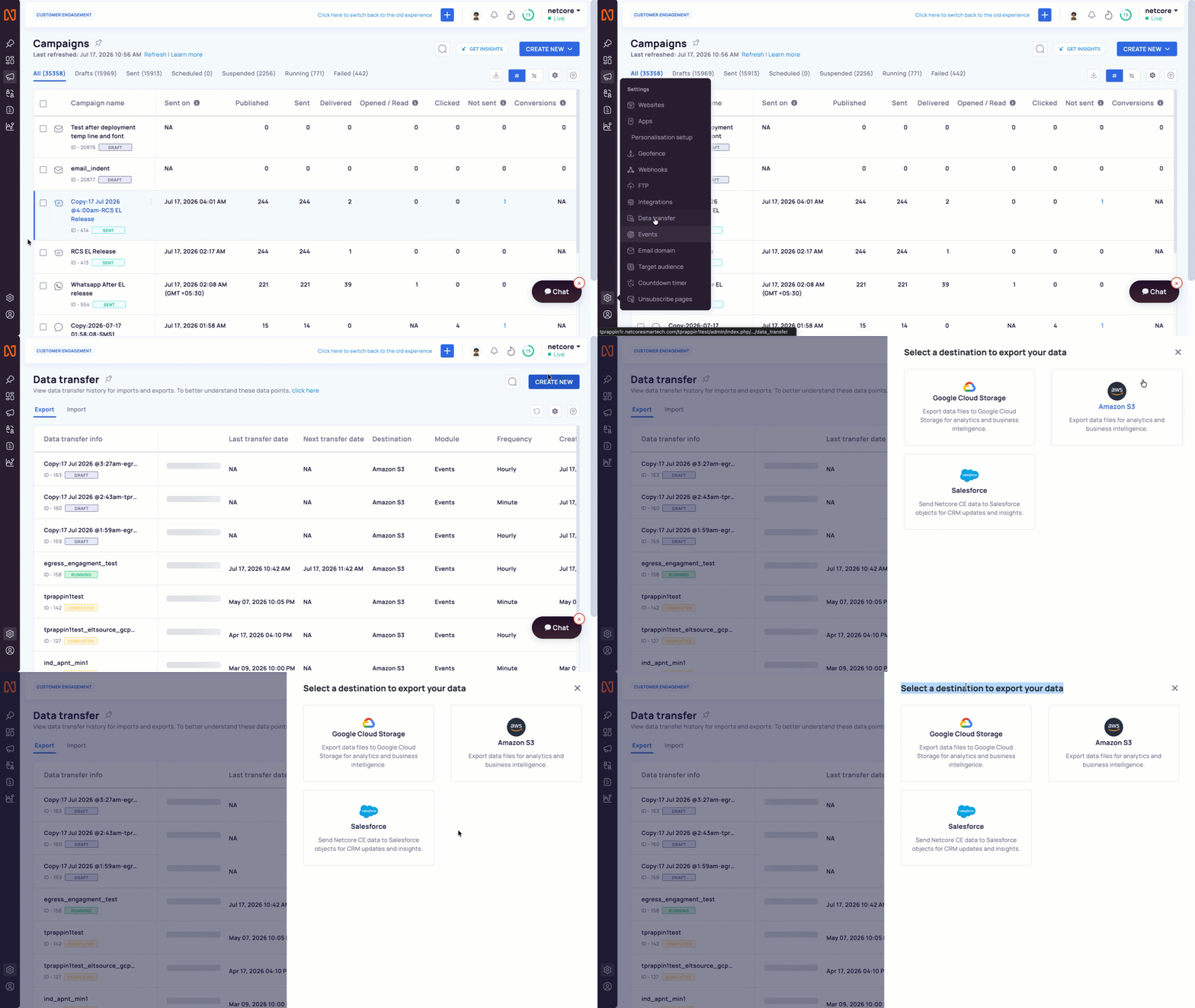
Select a destination to export your data
-
Setup: Provide the basic details for your event export.
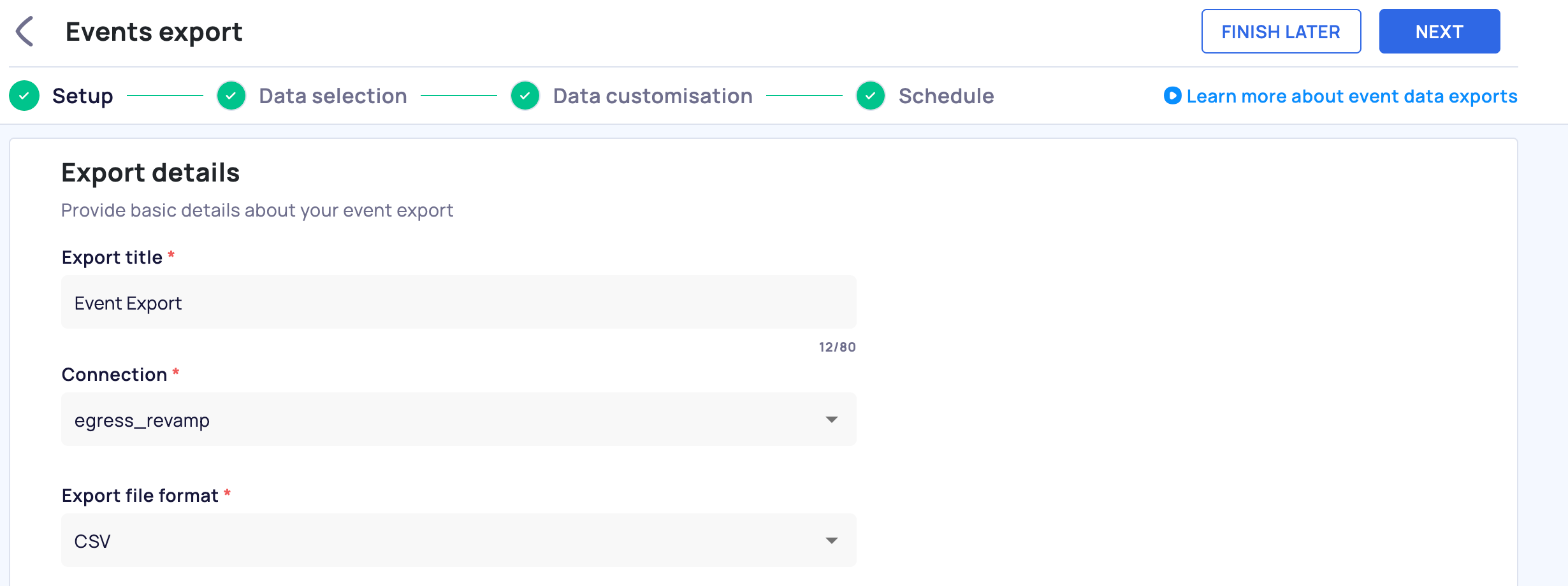
Setup your Export Details
-
Data selection: Choose which events and fields to include in the export. The right panel shows a live Data preview of the fields that will be sent.
NoteBehavioural events and hourly export of engagement events are a paid add-on. By default, you'll only see engagement events with daily/monthly frequency. To enable behavioural events and hourly export of engagement events, contact your account manager.
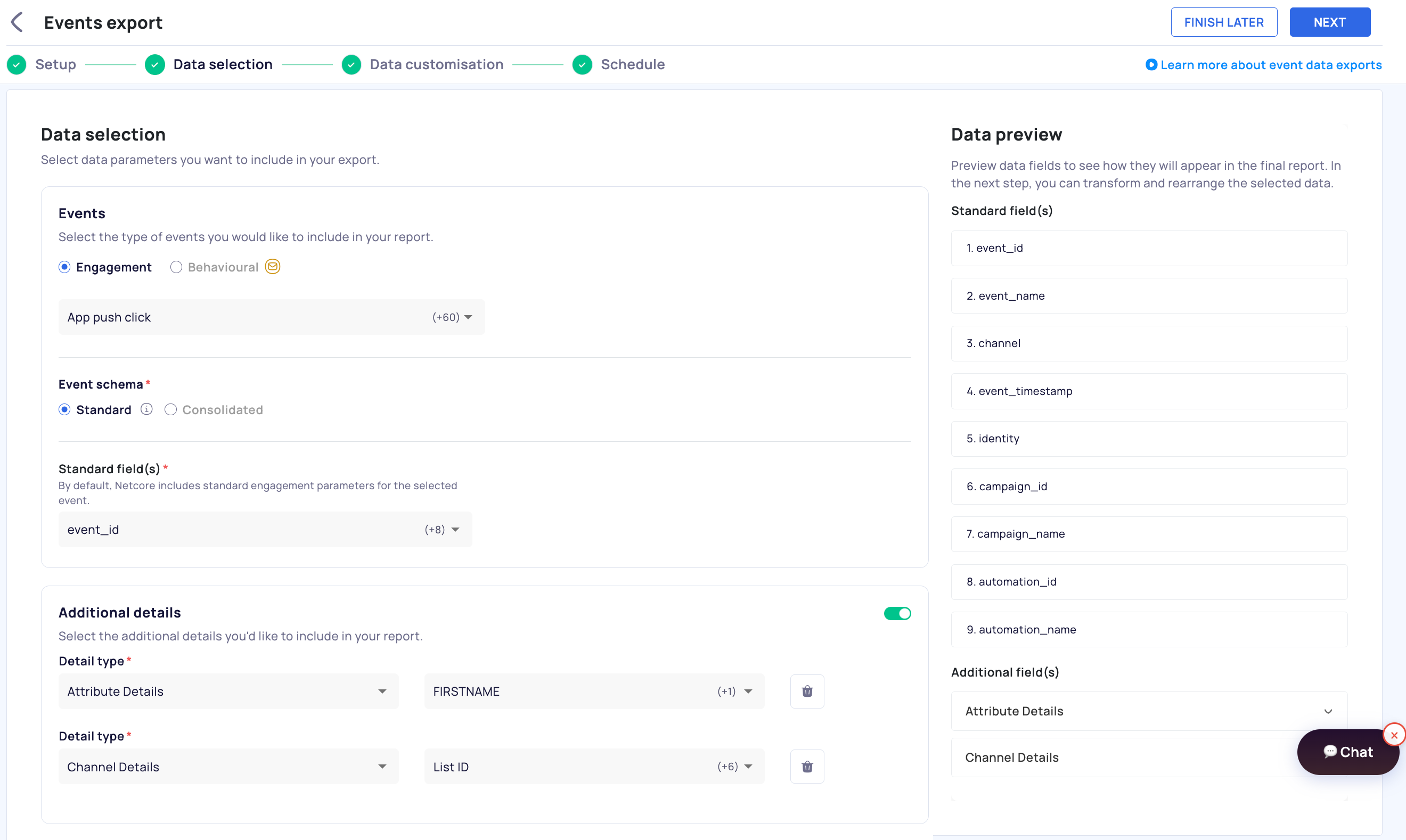
Select Data Parameters you want to include in your export
-
Data mapping: Map Netcore CE fields to the corresponding Integration fields on your chosen object. This step decides exactly how each event lands as a record in your integration.
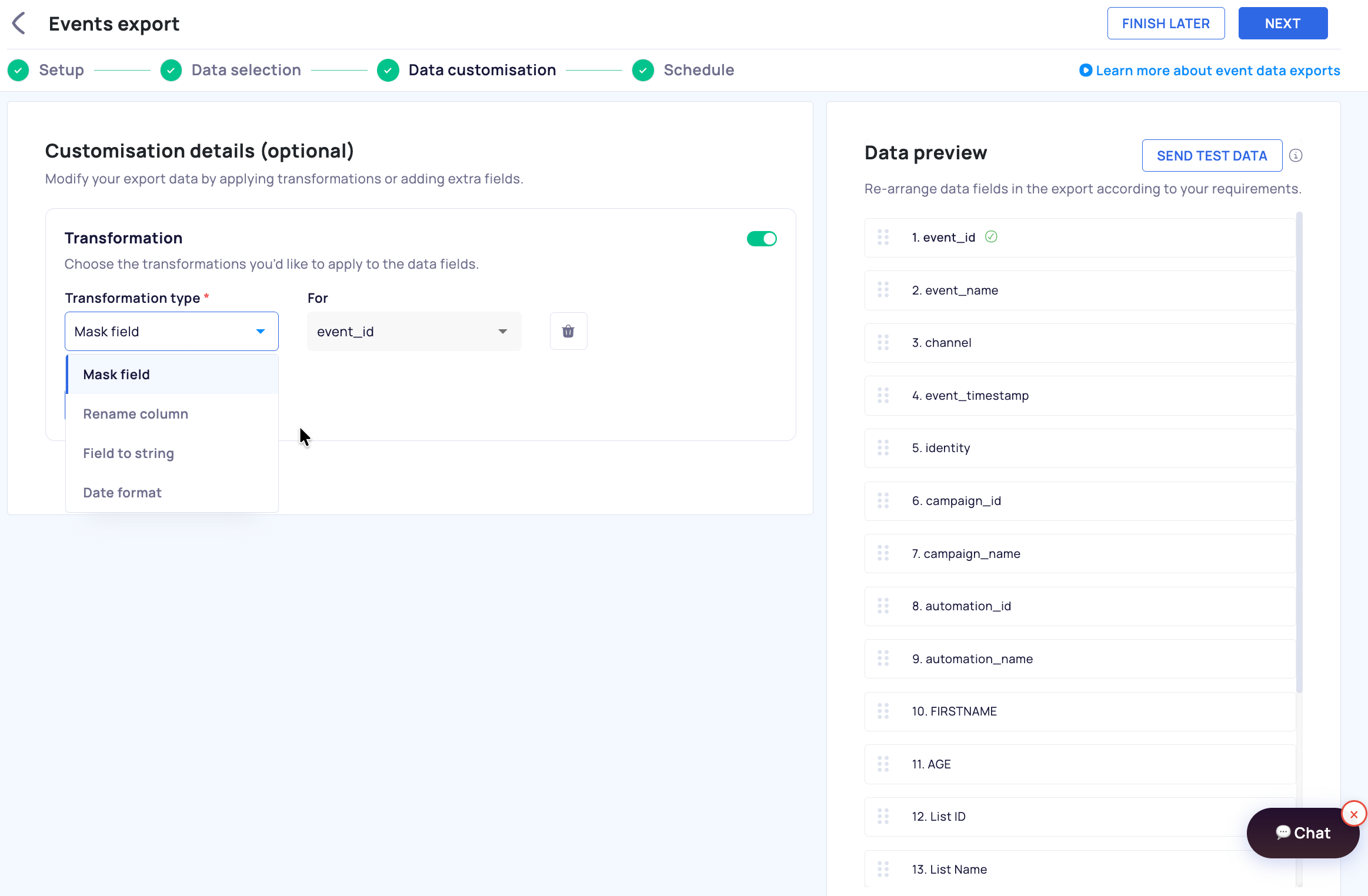
Modify your export data by applying transformations or adding extra fields.
-
Export schedule: Set the schedule for exporting your event reports.
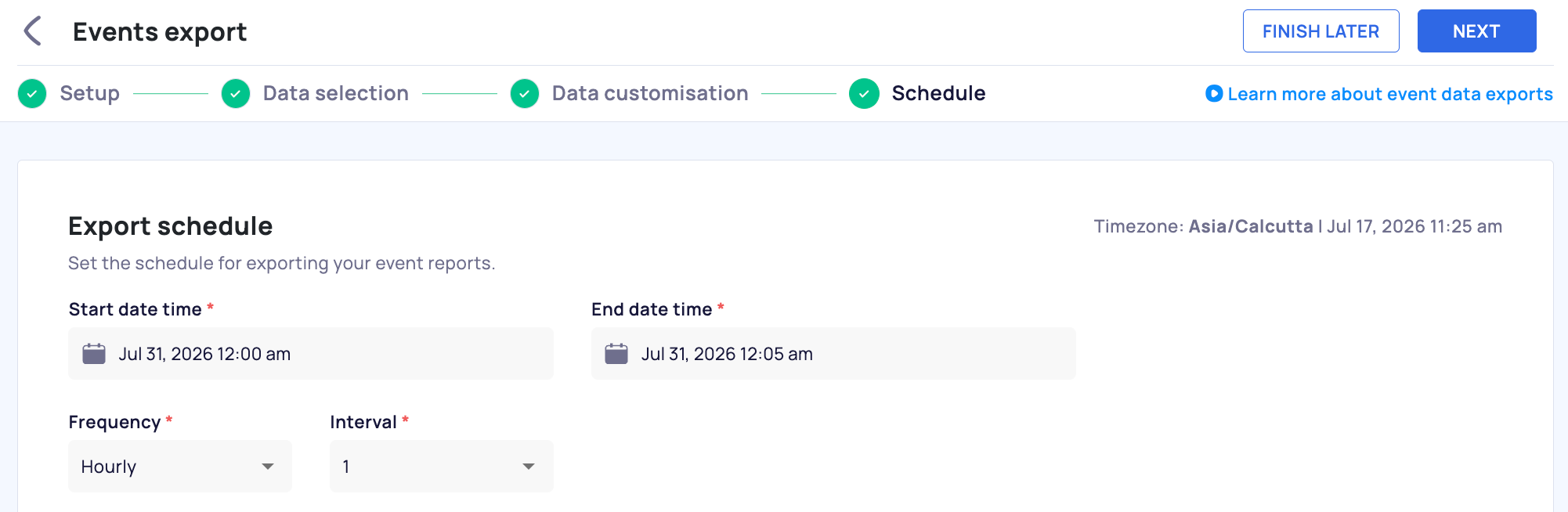
Schedule your Export
Select Your Destination
Each destination has its own setup guide, covering setup, data selection, transformations, scheduling, transfer logs, and file naming. Continue to the guide for the destination you selected:
- Export Events to Amazon S3- CSV, JSON, and Parquet file export to Amazon S3, with Batch mode, scheduling, and field transformations.
- Export Events to Google Cloud Storage (GCS)- CSV, JSON, and Parquet file export to GCS, with scheduling and field transformations.
- Export Data from Netcore to Salesforce- Sync Netcore data directly into your Salesforce org.
Updated 18 days ago