
Edit Campaigns
Make changes to a scheduled or suspended campaign directly, without suspending, duplicating, or recreating it.
Overview
Edit scheduled and suspended campaigns directly, without suspending, cloning, or recreating them. You can make change the audience, fix a typo, adjust the send time, or swap a template, all in the campaign you already built. Updates apply in place, right up to 15 minutes before send (in case of scheduled campaigns, so last-minute corrections stay quick and low-risk.
The Edit Workflow
The Edit button is active for Suspended Campaigns only when the following condition is true:
- The Edit button opens only before the 15-minute window. It is active only when Current Time < Scheduled Time − 15 min. Once inside the window, the button is disabled.
- Saving is checked again at save time. Opening the editor before the window does not give you an unlimited save window. If the clock crosses into the final 15 minutes while you are editing and you then try to save, the save is blocked with an error and your changes cannot be applied.
- The campaign stays live in the queue until a successful save. Opening Edit does not pause the send. So if you open Edit just before the window, keep editing past the scheduled time, and never save (or are blocked from saving), the original campaign goes out as scheduled and your unsaved changes are discarded.
Within the 15-Minute Window
If the current time is within 15 minutes of the scheduled send time, the Edit button is disabled. Hovering over it shows: Editing is disabled within 15 minutes of campaign execution. Once the campaign is in this window, it cannot be edited.
Workflow
Scheduled
In send queue
15-min Gate
Scheduled − 15 min
Edit
Checked at click
Draft
Drops on save
Reschedule
Goes live again
Within 15 minutes of send, editing is disabled. Saving clears the send queue. Open the editor but never save, and the original campaign still sends on time.
NoteIf you open the edit view but exit without saving, the campaign remains in its original scheduled state and sends at the scheduled time.
Example: The campaign is scheduled for 2:00 PM. You click Edit at 1:30 PM and begin making changes. At 2:00 PM, you have not yet saved. The campaign sends at 2:00 PM as originally scheduled. Your unsaved changes are discarded.
Edit Campaign Flow
To edit a campaign, navigate to the campaign listing page and select the status of the campaign based on your edit requirement between:
- Scheduled: It refers to the campaigns that are planned and scheduled for future dispatch.
- Suspended : It is the campaigns that got temporarily halted or stopped from sending.Refer here for details on reasons why a campaign got suspended.
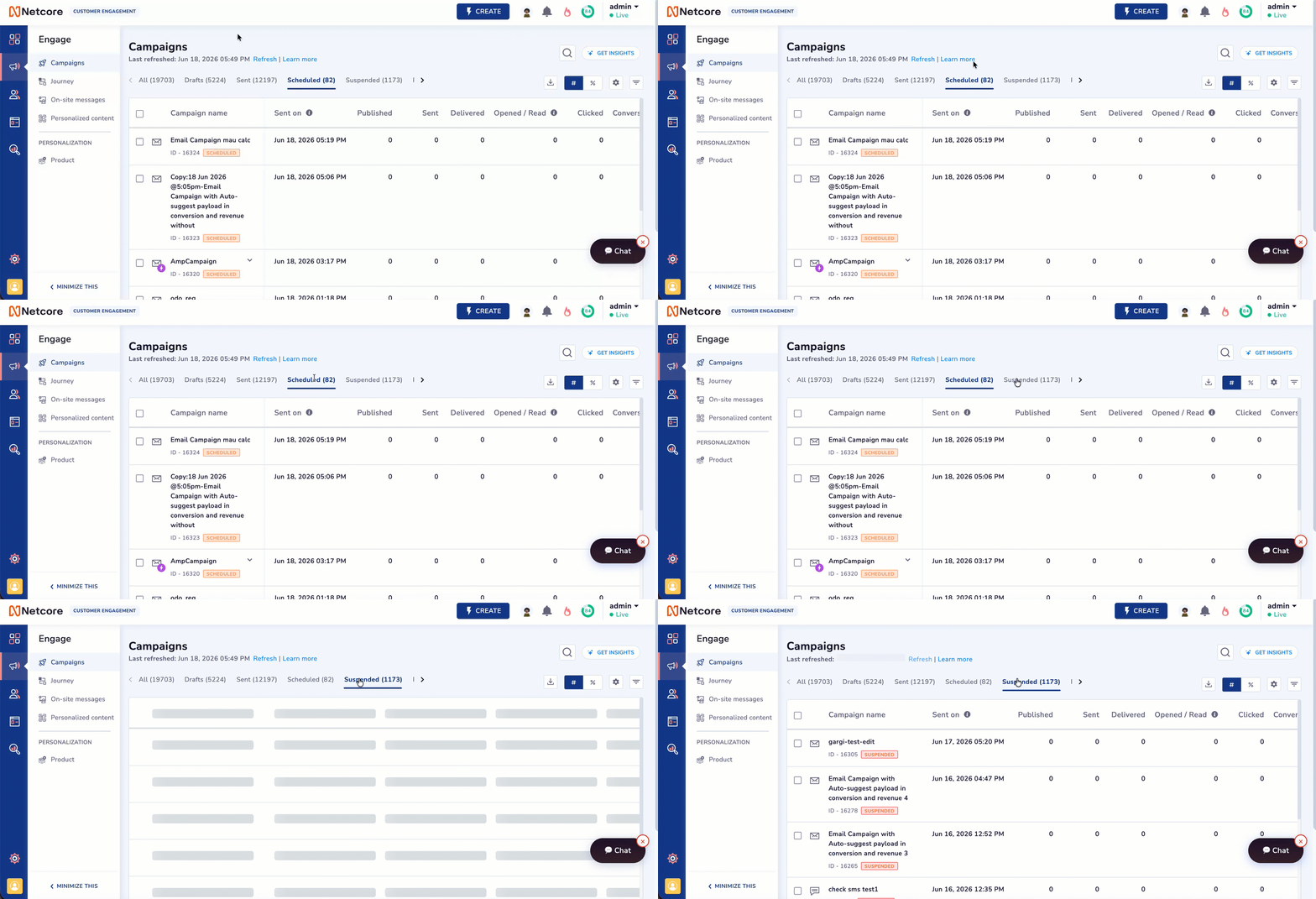
Navigating to Scheduled or Suspended Campaigns
Scheduled Campaign
- Select the scheduled campaign you want to edit. Click on the three dots and click Edit.
Important Note for Scheduled Campaign
- When you edit a scheduled campaign, it moves the campaign to Draft status and removes it from the send queue.
- A Draft campaign does not send until you reschedule it. Always reschedule after saving, or the campaign will not go out.
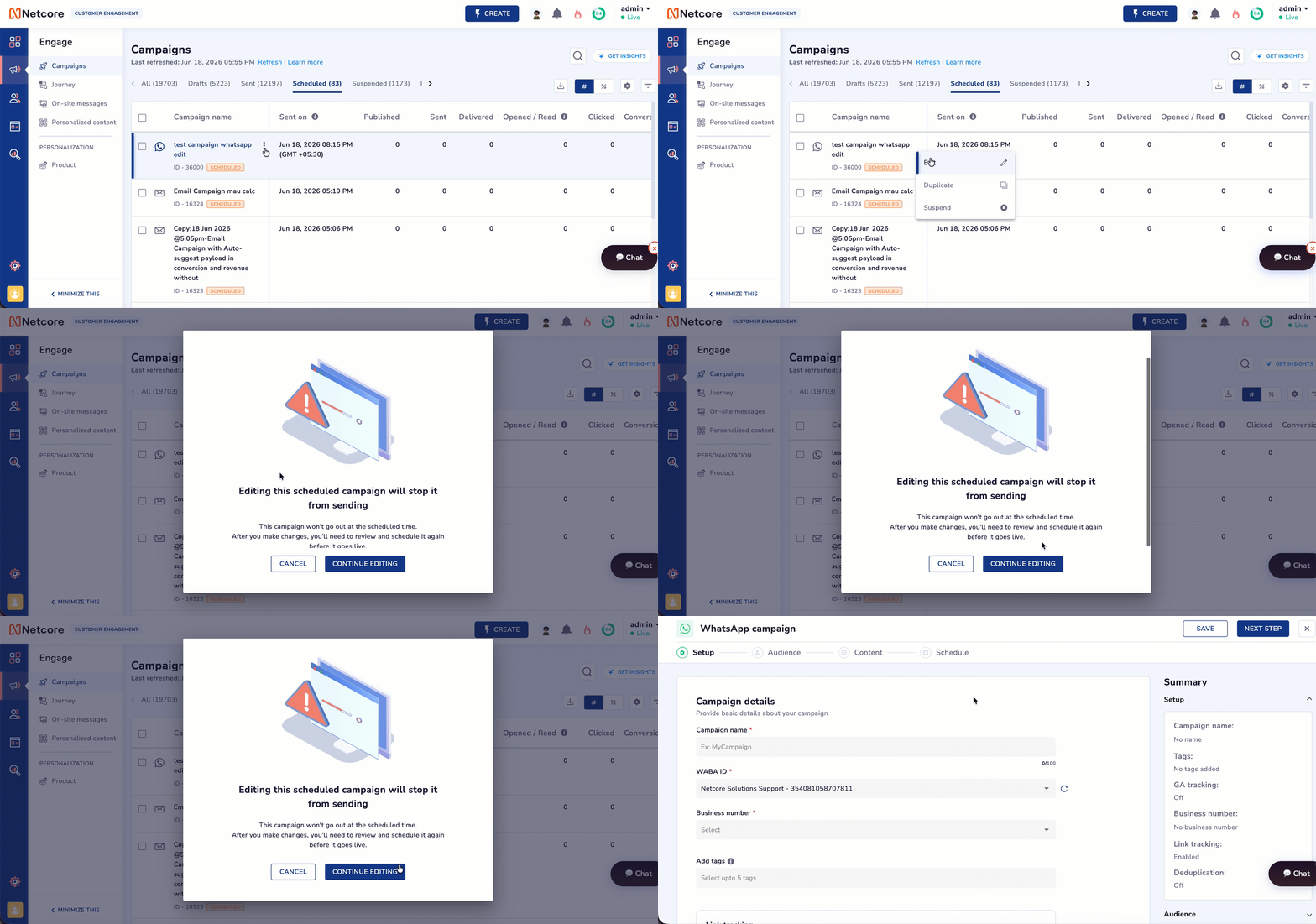
Editing a Scheduled Campaign
- Update any field across all sections of the campaign:
- Setup (name, tags, and campaign-level settings)
- Audience (segments, filters, and targeting rules)
- Content (message, template, subject line, and other channel-specific fields)
- Schedule (send date, send time, and frequency settings)
- Ensure you SAVE & PUBLISH > SEND the campaign to re-schedule it.
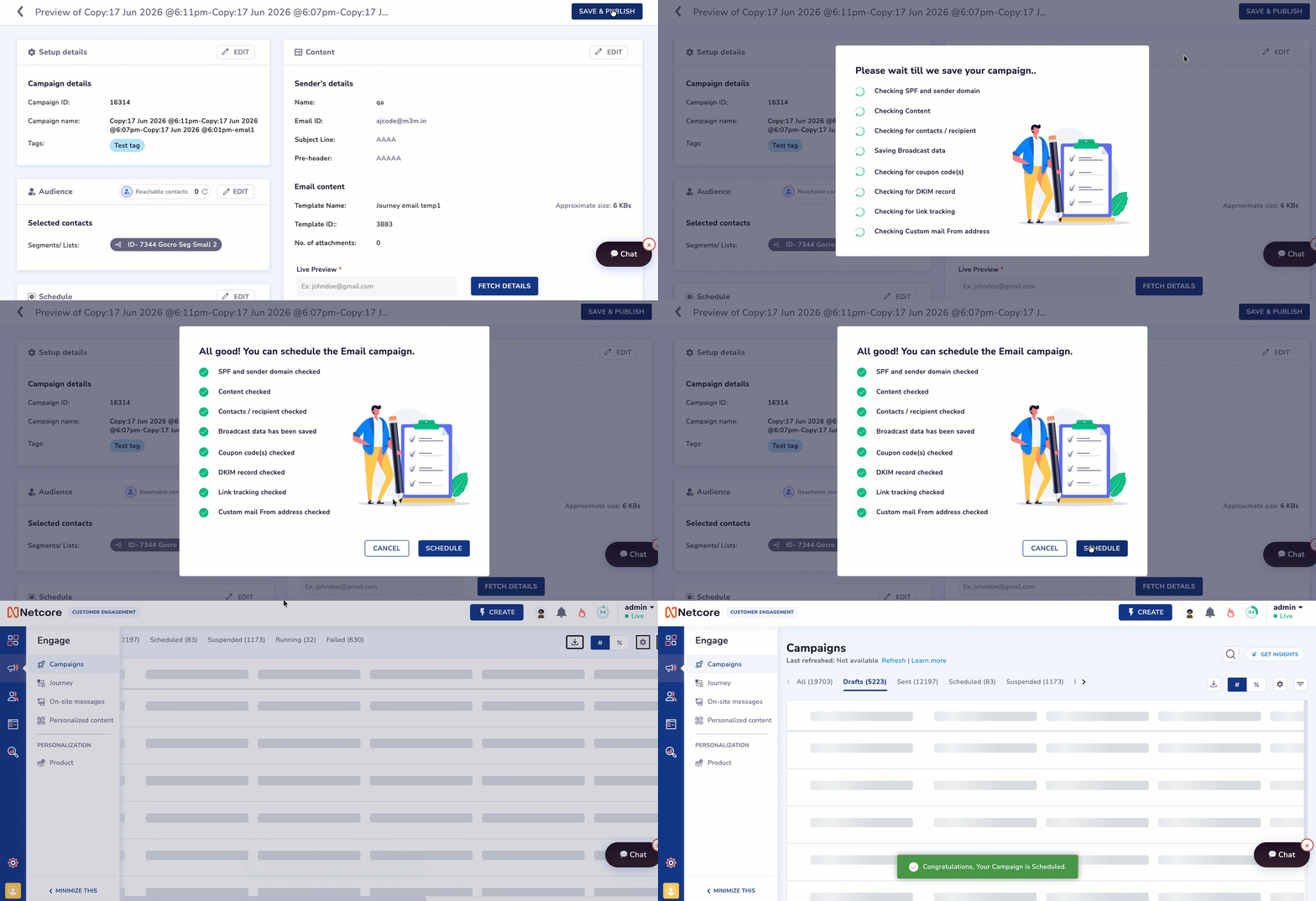
Rescheduling a Scheduled Campaign
Suspended Campaign
- Select the suspended campaign you want to edit. Click on the three dots and click Edit.
- Make changes to the campaign across all sections of the campaign:
- Setup: Name, Tags, and Campaign-level settings)
- Audience: Segments, Filters, and Targeting rules)
- Content: Message, Template, Subject line, and other channel-specific fields)
- Schedule: Send date, Send time, and Frequency settings)
- Save your changes.
- Reschedule the campaign.
Data Handling for Suspended Campaigns
- If a suspended campaign had already collected send data before it was suspended, editing and republishing merges the data from the original send with the data from the new send. Both sets of data are combined in campaign reporting.
For example: A campaign targets a segment of 50 contacts. It sends to 20 contacts and is then suspended. You edit the audience to add a filter and republish to the remaining 30 contacts. Campaign reporting does not start over. It combines both sends, so delivered, opened, and clicked metrics reflect the full set of recipients across the original 20 and the new 30.
- Refer here for details on reasons why a campaign got suspended.
Channels in Scope
This feature applies to broadcast campaigns across the following channels:
| Channel | Supported campaign types |
|---|---|
| Regular, AMP, A/B, Split | |
| SMS | Regular |
| App Push (APN) | Regular, A/B, Split, Multimessage |
| Web Push | Regular, A/B, Split |
| Regular | |
| RCS | Regular |
| Onsite: Web Message | Regular |
| Onsite: In-app | Regular |
Troubleshoot and FAQ
Q. Why is the Edit button grayed out on my campaign?
A. The Edit button is disabled when the current time is within 15 minutes of the scheduled send time. At this point, the campaign is locked for execution and cannot be changed. If the window has not yet closed and the button is still disabled, check whether the campaign is an STO campaign, which is excluded from this feature.
Q.I started editing before the 15-minute cutoff but did not save in time. Why did my campaign send?
A. Yes. If you did not save your changes before the campaign was due to send, the original campaign sent at the scheduled time. Saving is what removes a campaign from the send queue. Unsaved changes do not affect the campaign.
Q. I saved my changes. Now the campaign shows as Draft. Will it send?
A. No, not until you reschedule it. Saving moves the campaign to Draft and removes it from the send queue. You must reschedule the campaign for it to go out.
Q. Can I change the campaign type while editing? For example, switch from Regular to A/B?
A. Yes. Because saving moves the campaign to Draft, you can change the template type during the edit flow before rescheduling. This applies to both scheduled and suspended campaigns.
Q. What happens to the performance data from a suspended campaign after I edit and republish it?
A. If the campaign had already sent to a portion of the audience before it was suspended, editing and republishing merges the original send data with the new send data. Both are reflected in campaign reporting.
Q. Can I edit a campaign that is currently running or already completed?
A.No. This feature applies only to scheduled and suspended campaigns. Campaigns that are in-progress or completed cannot be edited.
Q. Does editing a campaign change its original scheduled time?
A. Yes, effectively. Saving your changes moves the campaign to Draft, which clears it from the original schedule. You set a new send time when you reschedule.
Updated about 1 month ago