
Content Fetch in APN Campaign
Learn how to insert Content Fetch labels into App Push Notification campaignn.
Content Fetch labels behave exactly like user attributes. If you can insert {{ first_name }} into a push title, you can insert {{ product_price }}.
Supported ChannelCurrently, Content Fetch is only supported for Campaigns in App Push Notification channel.
Insert Content Fetch Label
Log in to the Netcore CE panel and follow the steps below to use content fetch in campaigns.
- Open the APN campaign editor. Refer here to learn more how to set up App push notification campaign.
- Enter the details for the campaign like Title, Body, Image URL, or Deep Link. (These fields accept Liquid tags)
- Click the Personalisation icon, choose Content Fetch, pick your active Content Fetch source, and select the label you want.
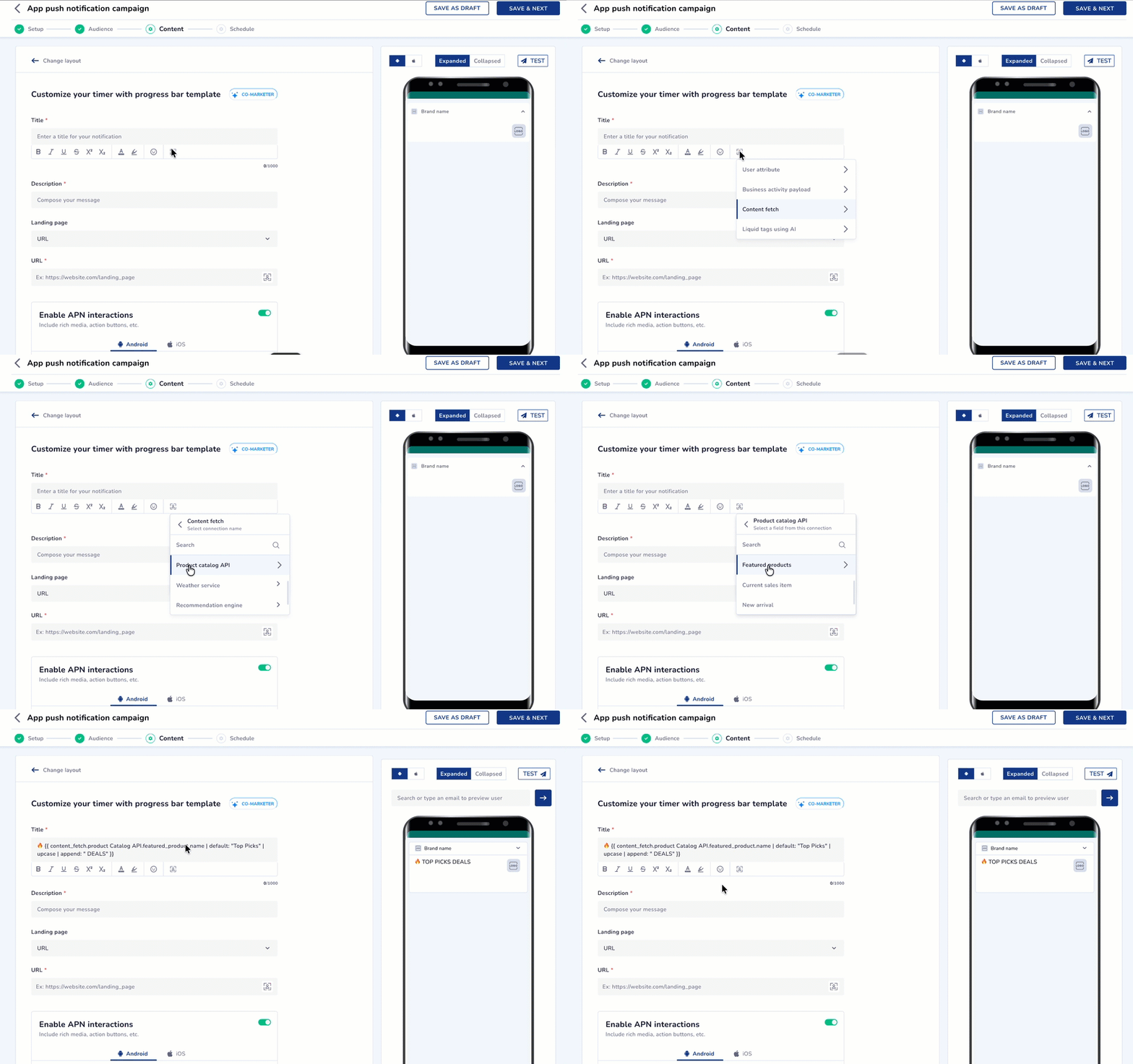
Using Content Fetch in APN Template
Example title:
Hey {{ first_name }}, your pick is back at ₹{{ product_price }}Conditional logic
Because labels are Liquid variables, use them inside if, case, and for blocks:
{% if stock_status > 0 %}
  Back in stock at ₹{{ product_price }}.
  Only {{ stock_status }} left.
{% else %}
  Sold out again. We'll let you know.
{% endif %}
Before You Send Campaign
- It is recommended that you always preview the campaign before sending it live.
- Preview resolves the message using a test user or your dummy mappings and it shows the rendered output, and flags any missing mappings so you catch gaps before the campaign goes out.
Connection State
Every connection moves through a defined set of states, which controls what you can do and whether the connection is usable in the editor.
| State | How it's reached | Usable in editor? |
|---|---|---|
| Active | Activated from a current successful test. | Yes |
| Inactive | An active connection was deactivated. | No new usage; live usage is preserved with a warning. |
Manage a connection: edit, deactivate, remove
Active connections expose three actions. Each opens a confirmation pop-up listing every campaign and journey that could be affected, with Okay to proceed and Cancel to back out.
| Action | What it does |
|---|---|
| Edit | Full reconfiguration — request, URL, auth, headers, parameters, body, and label mappings. Test-integrity rules re-apply on save (you'll need to re-test). |
| Deactivate | Removes the connection from the editor's variable picker. Live campaigns already using it keep running against the last-tested config until you migrate them. |
| Remove | Permanent. Requires all dependencies to be cleared first; affected items fall back per the rules below. |
Needs verificationConfirm the Edit / Deactivate / Remove confirmation pop-up and its dependency list render as described and list of all your all your live/scheduled campaigns and journey are shown.
Deactivate vs. Remove: Deactivate is reversible and non-breaking for existing campaigns; Remove is permanent and blocked until nothing depends on the connection.
Failure Handling and Fallbacks
Content Fetch is built to degrade gracefully rather than break a send.
| Failure | Behaviour |
|---|---|
| Missing / null value | Optional labels render the fallback; required labels skip the message. |
| API failure (timeout, 4xx, 5xx) | Fail open (send with fallback) or fail closed (skip) — configurable per label. |
| Invalid response shape | Required labels fail closed; optional labels fall back. |
| Partial failure (one field in one API) | Fallback for the missing label; message fails only if that label is required. |
| Multi-API message, one connection down | The message still sends using fallbacks for the failed connection, unless a required label failed. |
If API Goes Down In BetweenThe send does not stop and the remaining users get fallbacks. To skip users instead of sending them a fallback, mark the relevant labels required, or add an
abort_messageguard in the campaign Liquid.
Updated 1 day ago