
Social Proof
Overview
Social Proof is an inline widget in Web Personalization that displays real viewer and purchase
activity on your website, for example, Someone from Mumbai just purchased this product or
5,000 people are viewing this right now. Because it's an inline widget, it's native to the
page, and it never appears as a popover.
Setup
Follow the steps below to set up social proof for your website.
Integrate Your Website
The first entry point to use Web Personlisation is to integrate your website with the CE
dashboard. Refer to the steps here to do so.
Enable Social Proof
- Log in to Netcore CE panel and navigate to Settings > Website > Select website or Add website.
-
Define your Product Purchase event and Product View event.
-
This tells CE which events to pull activity from.
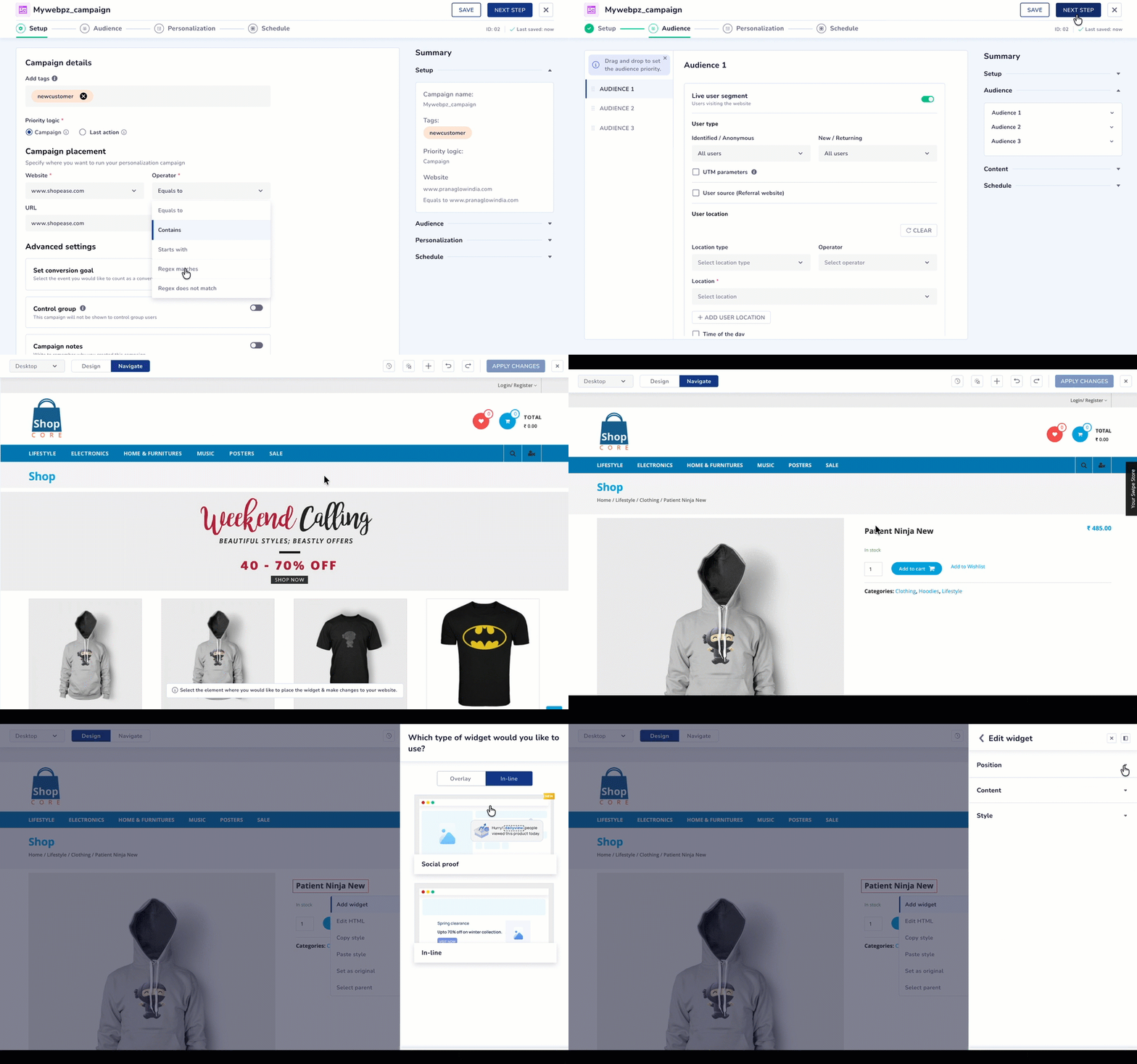
Adding Social Proof in Website
-
Create a Social Proof Campaign
Follow the steps below to create a campaign using social proof widget:
- Start creating a campaign from your Web Personalization campaign flow. Refer here to know more.
- Right click and select Social Proof as the widget. The Edit widget panel opens with three tabs: Position, Content, and Settings.
- Position: Set where the widget sits relative to the page element you have selected.
- Content: Opens up the content editor where you can set up Product View or Product Purchase for this campaign.
- Settings: Under this section, adjust the widget's raw number display using the value display rules.
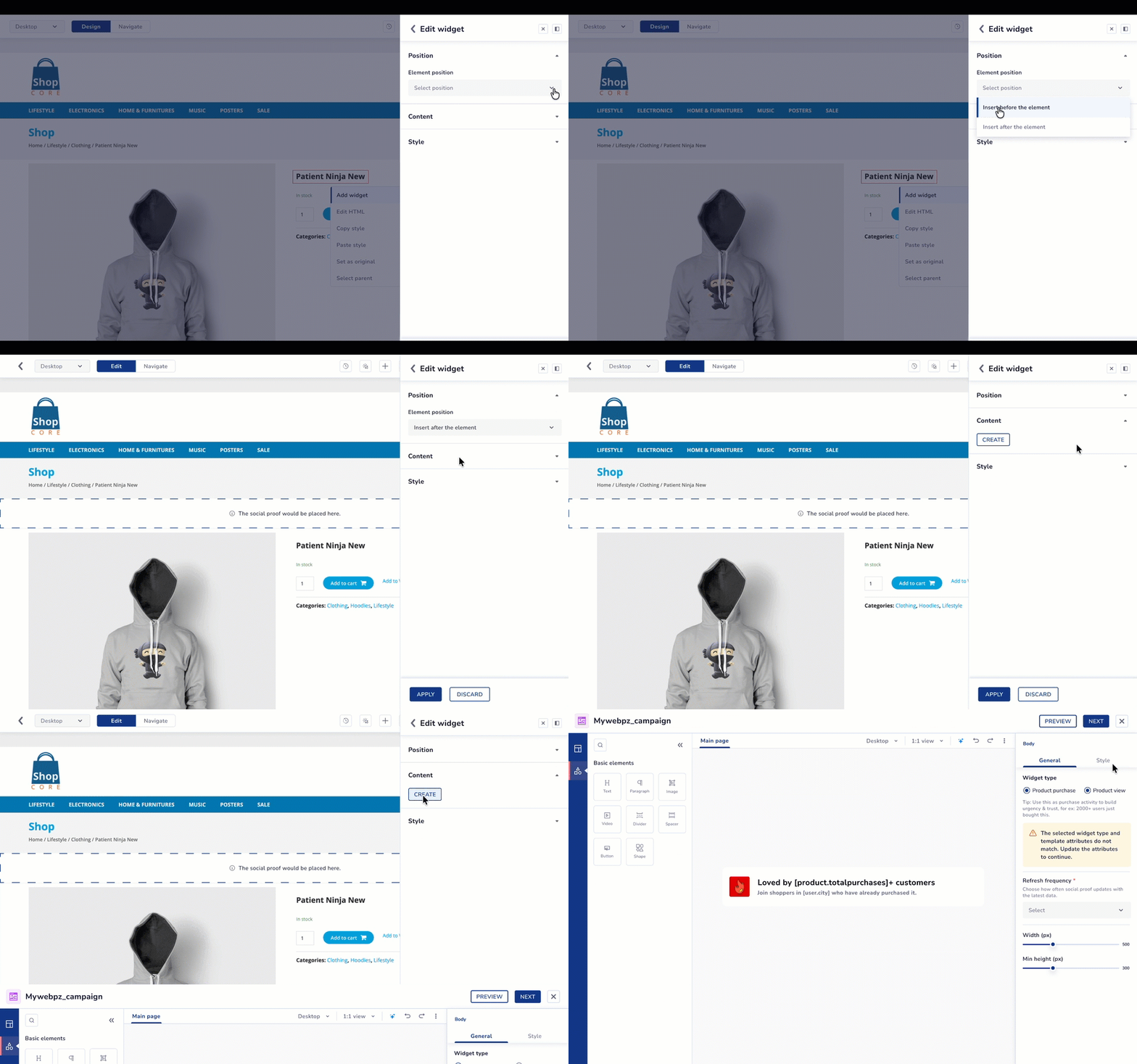
Configuring Social Proof
Use Cases
Social Proof runs off two event types and each supports two display variants.
- Product View:
- Total viewers. For example: 5,000 people are viewing this right now.
- City-based viewers. For example: Someone from Mumbai just viewed this product.
- Product Purchase:
- Total purchasers. For example: Someone from Mumbai just purchased this product.
- Quantity sold, For example: 4 units are sold!
Value Display Rules
Showing the raw, real-time number isn't always good for the brand, for example, 5 people are
viewing this right now can look worse than showing nothing. Social Proof lets you adjust how the
number displays with four triggers:
| Setting | What it does | Example |
|---|---|---|
| Minimum value for product purchases | Displays the widget only after the actual purchase count reaches the specified minimum value. | If set to 25, the widget remains hidden until at least 25 purchases are recorded. |
| Add random values | Adds a random value to the actual purchase count before displaying it. When enabled, configure the random range. | Actual count 100, random range 10–20, it displays 110–120 (varies each time). |
| Multiply original values | Multiplies the actual purchase count by the factor specified in How many times should the value be multiplied? | Actual count 25, multiplier 3 and displays 75. |
| Add to original number | Adds the value entered in Value to be added to the number to the actual purchase count. | Actual count 25, Value to be added to the number = 10 and displays 35. |
Troubleshoot and FAQs
Q. Can I enable multiple value display settings at the same time?
A. Yes. You can enable multiple settings together. They are applied in the following order:
- Minimum value for product purchases
- Add random values
- Multiply original values
- Add to original number
Each enabled setting builds on the result of the previous one.
Q. Does Social Proof always display the actual purchase or view count?
A. No. The widget displays the actual event count only when no value display settings are enabled. If you configure one or more value display settings, the displayed value is adjusted based on your configuration while the underlying event count remains unchanged.
Q. What happens if the minimum value for product purchases is not reached?
A. The widget remains hidden until the actual purchase count reaches or exceeds the configured minimum value.
Q. Does the random value remain the same for every visitor?
A. No. When Add random values is enabled, a random number within the configured range is added to the actual count whenever the widget is rendered. As a result, the displayed value may vary.
Q. Can I use Social Proof for both product views and product purchases?
A. Yes. Social Proof supports both Product View and Product Purchase events. The available message templates depend on the event type selected while configuring the widget.
Q. Where does Social Proof get its data from?
A. Social Proof uses the Product View and Product Purchase events configured under Settings > Website. Ensure these events are correctly mapped before creating a campaign.
Q. Does Social Proof appear as a pop-up or notification?
A. No. Social Proof is an inline widget that is rendered as part of your webpage. It does not appear as a pop-up, toast, or overlay.
Q. Can I display city-based messages without location data?
A. No. City-based messages require location information to be available in the configured event payload. If location data is unavailable, the city name cannot be displayed.
Q. What is the difference between the actual value and the displayed value?
A. The actual value is the real event count captured by CE. The displayed value is what visitors see after any configured value display settings, such as random addition, multiplication, or fixed addition, have been applied.
Updated 1 day ago