
Trigger
In Netcore CE Journey Builder, a Trigger is the starting node of every journey. It defines the condition or event that initiates the automated workflow for a contact. Without a trigger, a journey cannot be deployed, as it is the entry gate through which all users enter the journey flow.
Triggers are based on the IFTTT (If-This-Then-That) principle, which means when a specific condition is met (the trigger fires), the defined sequence of actions and conditions executes automatically for the qualifying contact.
Add a Trigger
Drag and drop a Trigger node from the left-hand panel onto the Journey Builder canvas. The canvas will display Start with Trigger! as a placeholder until a trigger node is placed.
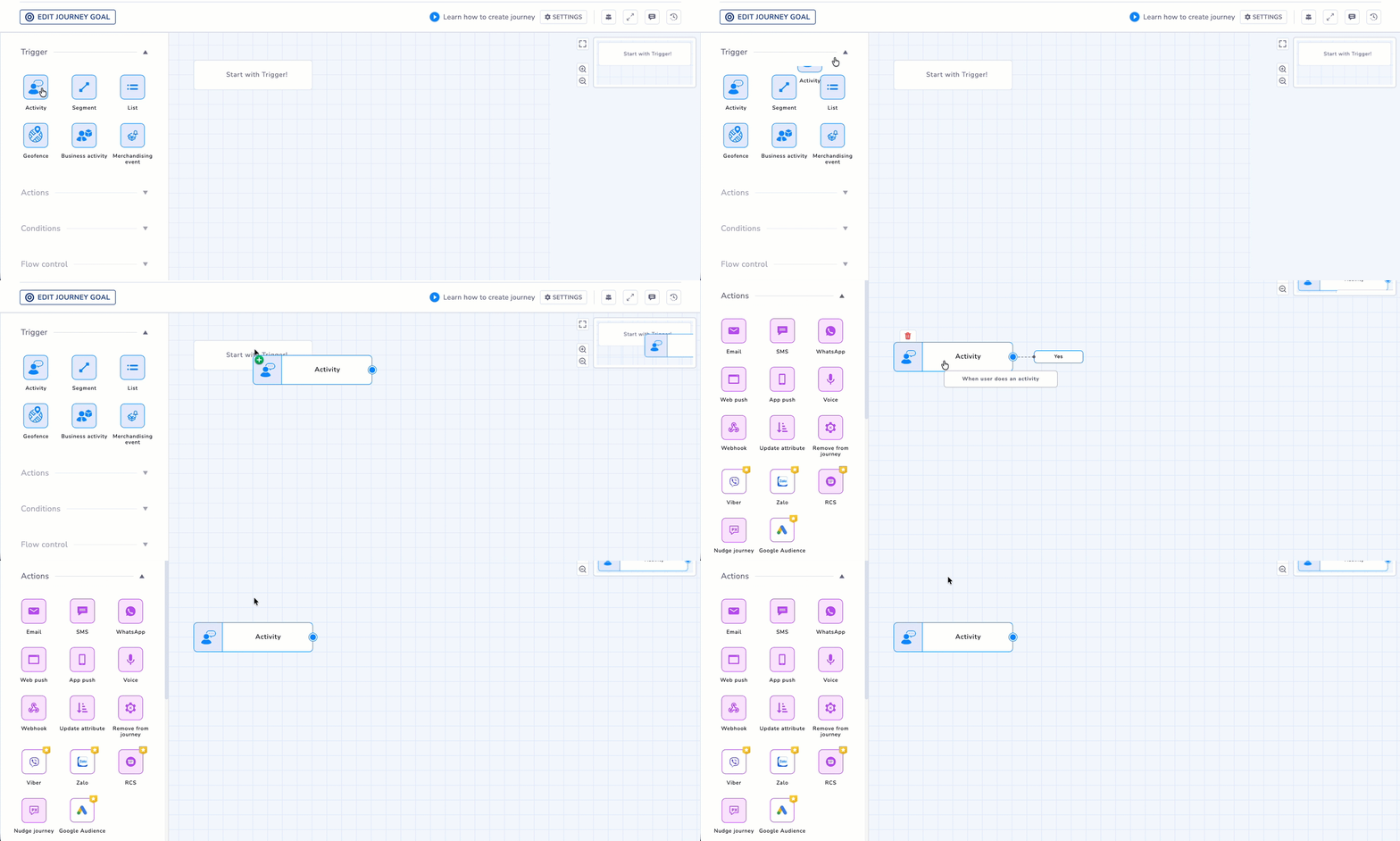
Drag and drop Activity Trigger on Journey Builder Canvas
NoteOnly one trigger node can be the entry point of a journey.
Types of Trigger
The Journey Builder canvas provides six trigger options, all accessible from the Trigger section of the left panel:
| Trigger Type | Description | Common Use Cases |
|---|---|---|
| Activity | A real-time user event such as an email click, app action, or website visit. | Behaviour-based, real-time journeys triggered by user actions. |
| Segment | A contact becomes part of a defined segment based on specific conditions. | Broad audience campaigns using segmentation rules. |
| List | A contact belonging to a static contact list. | Batch campaigns, newsletters, or communications to uploaded contact lists. |
| Geofence | Triggered when a contact enters or exits a defined geographic boundary. | Location-aware campaigns and proximity-based engagement. |
| Business Activity | A business-side event such as a price drop or new product arrival. | Event-driven notifications triggered by backend systems. |
| Merchandising Event | A product or catalogue-level event within an eCommerce environment. | Product lifecycle alerts and catalogue-driven automation. |
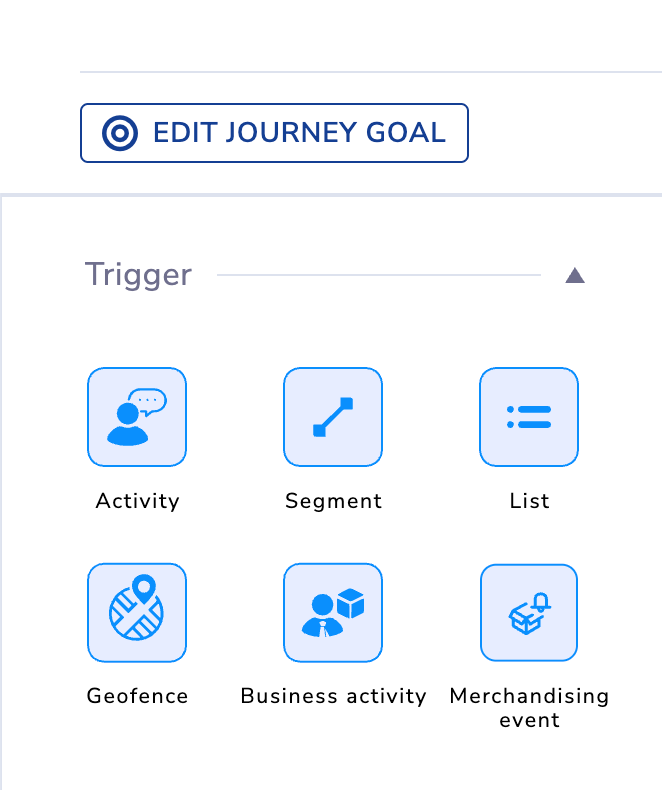
Types of Trigger Nodes
Activity Trigger
The Activity trigger starts a journey in real time when a contact performs a tracked action on any supported channel. Because the trigger reacts instantly to user behaviour, it is the most responsive and granular trigger type.
The following is how an Activity Trigger performs:
- A contact performs an activity (for example: clicking an email link).
- Netcore CE detects the event instantly. The system checks whether the activity matches the trigger conditions.
- If the conditions match, the contact enters the journey immediately.
Configure Activity Trigger
Follow the given steps to use this condition.
- Drag & drop the Activity trigger on the Journey canvas.
- Click the Activity trigger to set the conditions. The Trigger- Activity screen appears. First, select the activity type. Refer to the table for the options available here.
| Activity Type | Description | Example Use Case |
|---|---|---|
| Web/App Activity | Actions performed by users on your website or mobile application tracked via CE SDK or web tracking. | Trigger a cart abandonment journey when a user adds an item to cart but does not purchase. |
| Contact Activity | Events related to contact records such as creation or attribute updates. | Start a welcome journey when a new user signs up. |
| Email Activity | Interactions with emails sent from CE. | Trigger a product recommendation journey when a user clicks a category link in an email. |
| WhatsApp Activity | Interactions with WhatsApp messages sent via CE. | Send follow-up offers when a user clicks a link inside a WhatsApp message. |
| RCS Activity | Events triggered by interactions with RCS messages. | Trigger a journey when a user engages with an RCS promotional message. |
| Viber Activity | Interactions with Viber messages sent through CE. | Trigger a promotional flow when a user clicks a link inside a Viber message. |
Common Activity Trigger Examples
| Scenario | Trigger | Journey Outcome |
|---|---|---|
| User signs up on the website | Contact Activity > Contact Added | The welcome series journey begins |
| User clicks a product link in an email | Email Activity > Link Clicked | Product recommendation journey starts |
| User abandons cart on website | Web/App Activity > Add to Cart | Cart abandonment reminder sent |
| User clicks a WhatsApp promotion | WhatsApp Activity > Link Clicked | Upsell campaign trigger |
Optional SettingsFrequency : You can select if you want the journey to get triggered each time the real-time event happens, or just when it happens for the first time.
Specifying Captured Parameter : You can specify maximum up to 5 parameters along with the trigger activity.
2. Segment Trigger
The Segment Trigger starts a journey for contacts who belong to a defined segment in Netcore CE. Segments are dynamic groups of contacts built using conditions such as attributes, behavioural data, or device activity. This makes segment triggers ideal for targeting specific audiences based on predefined rules.
Segment Configuration Options
| Configuration | Description |
|---|---|
| Segment Selection | Choose an existing segment from the dropdown list. |
| Repeat Frequency | Define how often CE re-checks the segment (Once, Daily, Weekly, Monthly, or custom interval). |
| Segment Conditions | Conditions were defined when the segment was created (attributes, activity, device data). |
TipUse a Segment Trigger when your audience is defined by behaviour or attributes, rather than a static list of contacts.
3. List Trigger
The List Trigger enters contacts into a journey based on membership in a static list. Lists typically contain contacts imported manually, uploaded via CSV, or added through APIs.
This trigger is commonly used for batch campaigns and fixed audience targeting.
List Configuration Options
| Option | Description |
|---|---|
| List Selection | Select an existing contact list from CE. |
| Contact Master | Select the full contact database as the entry source. |
| Repeat Frequency | Controls how often the list is re-evaluated to add new contacts. |
Good to Know Scenarios!
Scenario Recommended Trigger Sending to a CSV upload audience List Sending a newsletter to subscribers List Targeting users based on behaviour Segment Audience should update automatically Segment
4. Geofence Trigger
The Geofence Trigger starts a journey when a contact enters or exits a defined geographic boundary. Geofences are virtual perimeters defined using latitude, longitude, and radius, enabling location-based marketing automation.
Geofence Configuration
| Option | Description |
|---|---|
| Geofence Selection | Select a predefined geofence location. |
| Event Type | Trigger when contact enters, exits, or both. |
| Dwell Time | Optional delay requiring the user to remain in the geofence for a defined period. |
5. Business Activity Trigger
The Business Activity Trigger starts journeys based on events from backend systems, rather than direct user actions. These events are sent to Netcore CE through API integrations.
Business activity triggers are commonly used for event-driven notifications tied to business operations.
Business Activity Trigger Configuration
| Event Type | Description | Examples |
|---|---|---|
| System Events | Automatically tracked events | Email opened, App installed |
| Custom Events | Events defined by marketers | Product viewed, Add to cart |
| Business Events | Backend operational events sent via API | Price drop, Flight rescheduled |
6. Merchandising Event Trigger
The Merchandising Event Trigger is designed specifically for eCommerce catalogue events. It allows journeys to start when product lifecycle changes occur. These triggers integrate directly with product catalogue data.
Common Merchandising Events
Examples include:
- Price drop on a product
- Back-in-stock notifications
- New product launches
- Low inventory alerts
- Product reviews published
Updated about 1 month ago