
Email Action Node
The Email Action node sends an email to contacts as they move through a journey. This node allows you to:
- Configure sender details
- Select and edit an email template
- Personalise email content
- Test the email before activating the journey
The Email Action supports inline template editing and node-level testing, allowing you to validate content without leaving the Journey Builder canvas.
To get started, create a new journey. Then on the Journey canvas, drag and drop the Email action node on the Journey canvas.
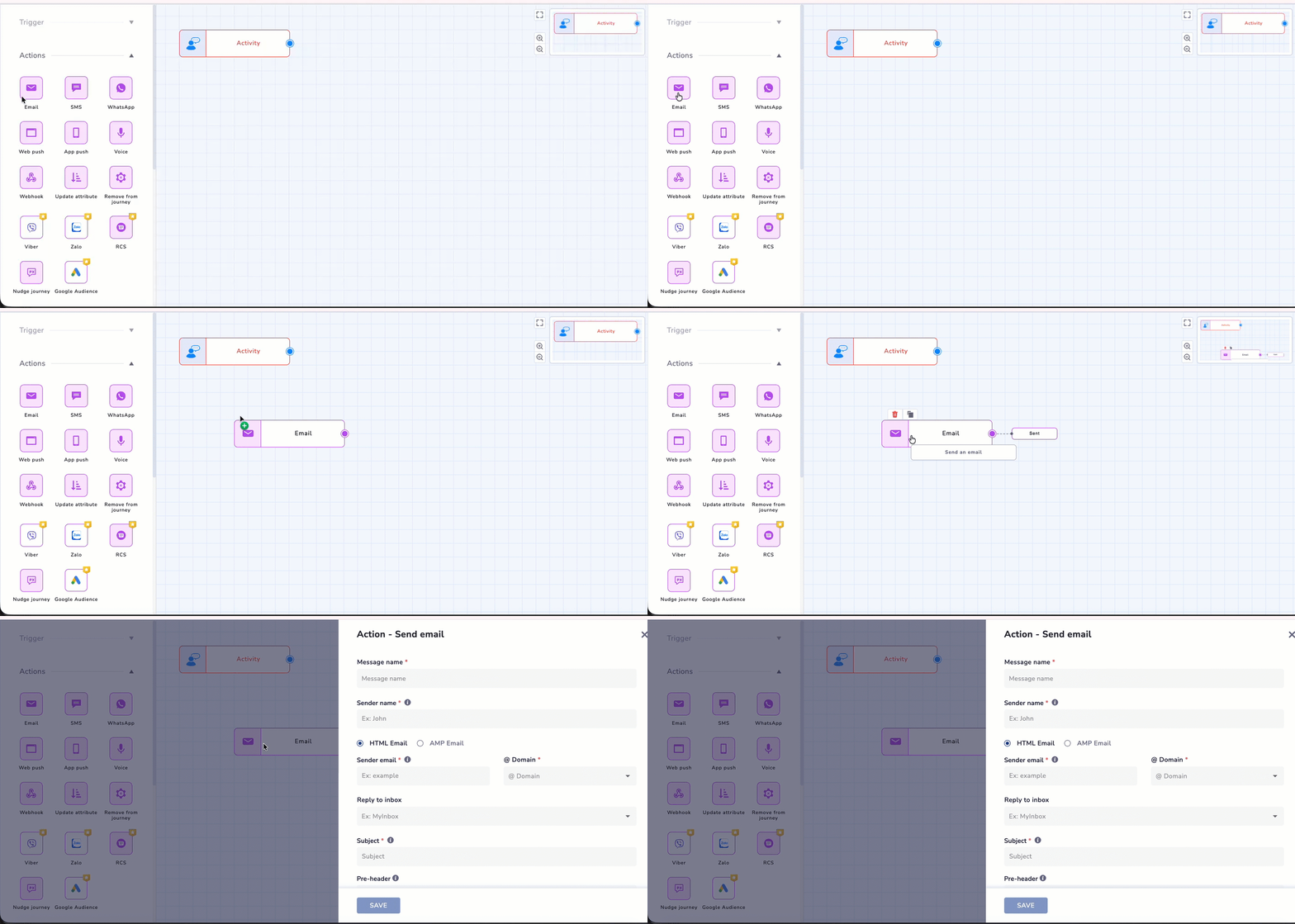
Adding Email Node to the Journey Canvas
PrerequisitesBefore configuring this node, ensure the following are set up in your Netcore CE account:
- At least one verified sending domain is configured under Account Settings > Domains.
- The email template you want to send has been created in the Templates library.
Configure the Email Action
When an Email action node is added to the canvas, a configuration panel opens where the email settings can be defined.
| Field | Description |
|---|---|
| Message Name | Name used to identify the email message within the journey. |
| Sender Name | The display name shown in the recipient’s inbox as the sender of the email. Personlization is supported. Refer here for more details on Personalisation in CE. |
| Email Type | Select the email format to be used for the communication. Choose between |
| Sender Email | Username portion of the sender email address. Example: john.fernandez. |
| @ Domain(Only available for HTML Email) | The sending domain associated with the sender email. This domain must be configured and verified in the account. Refer here to know more. |
| Reply To Inbox | The email address where the recipient replies will be directed. |
| Subject | The subject line is displayed to recipients in their inbox. |
| Pre-header | Preview text is displayed next to the subject line in most email clients. |
| Template | Select an existing email template to use for the message or select Create new template. |
| Preview | It opens a preview of the selected template. Email layout and content can be reviewed. |
| Edit | It opens the template editor, allowing you to modify the template directly from the node configuration. |
| Personalize Latest Activity | It allows the email content to dynamically use data from the most recent activity performed by a contact. |
| Enable External Tracking(Optional) | This option enables tracking parameters to be added to links within the email. |
| SAVE | Use this to save the configuration of the Email node. |
| SEND TEST MESSAGE | Click on SEND TEST MESSAGE to test the email node templates with personalization. |
Good To KnowWhile filling the above details, usage of curly brackets and square brackets is not allowed.
Edit an Existing Template
You can edit and existing template from the Email Node. Follow the steps below to do so
- On the Action-Email tab, select the template from the drop down. Selectedit option as below
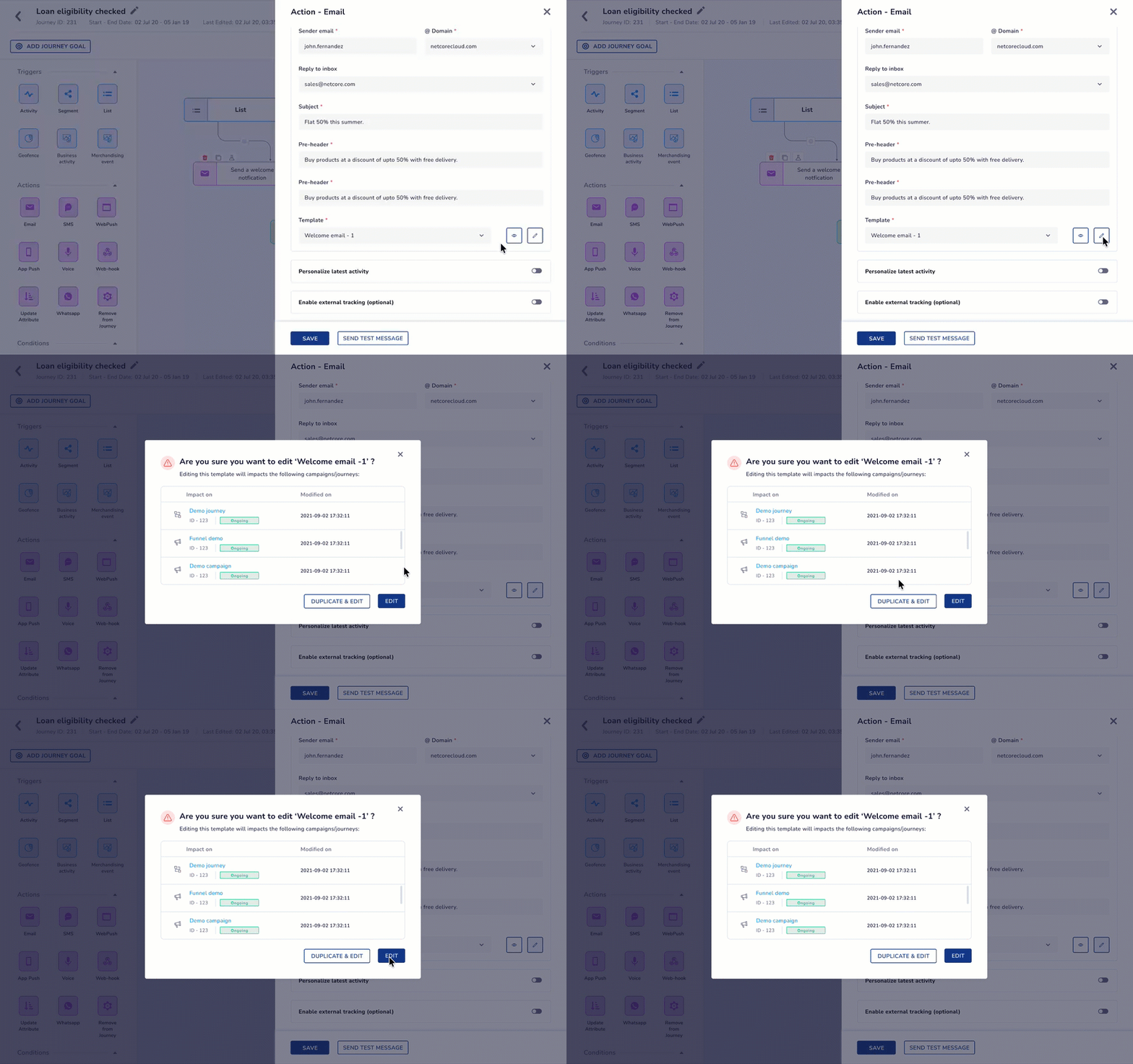
Editing Template from Action Email node
When an email template that is already being used in active journeys or campaigns is edited, the system displays an impact warning. This helps prevent unintended changes that could affect live communications.
Editing Options
| Option | Description |
|---|---|
| Duplicate & Edit | Creates a copy of the template and opens it in the editor. Changes will apply only to the duplicated template and will not affect existing journeys or campaigns. The new template is automatically selected for the current node. |
| Edit | Opens the existing template in the editor. Any changes made will affect all journeys or campaigns that use this template. |
Template Creation from Journey
You can directly create a new template. Follow the steps below to do so.
- From the drop-down, select the Create New option. The Email Template Gallery opens in a new browser tab. Click here to know more about Email Template creation.
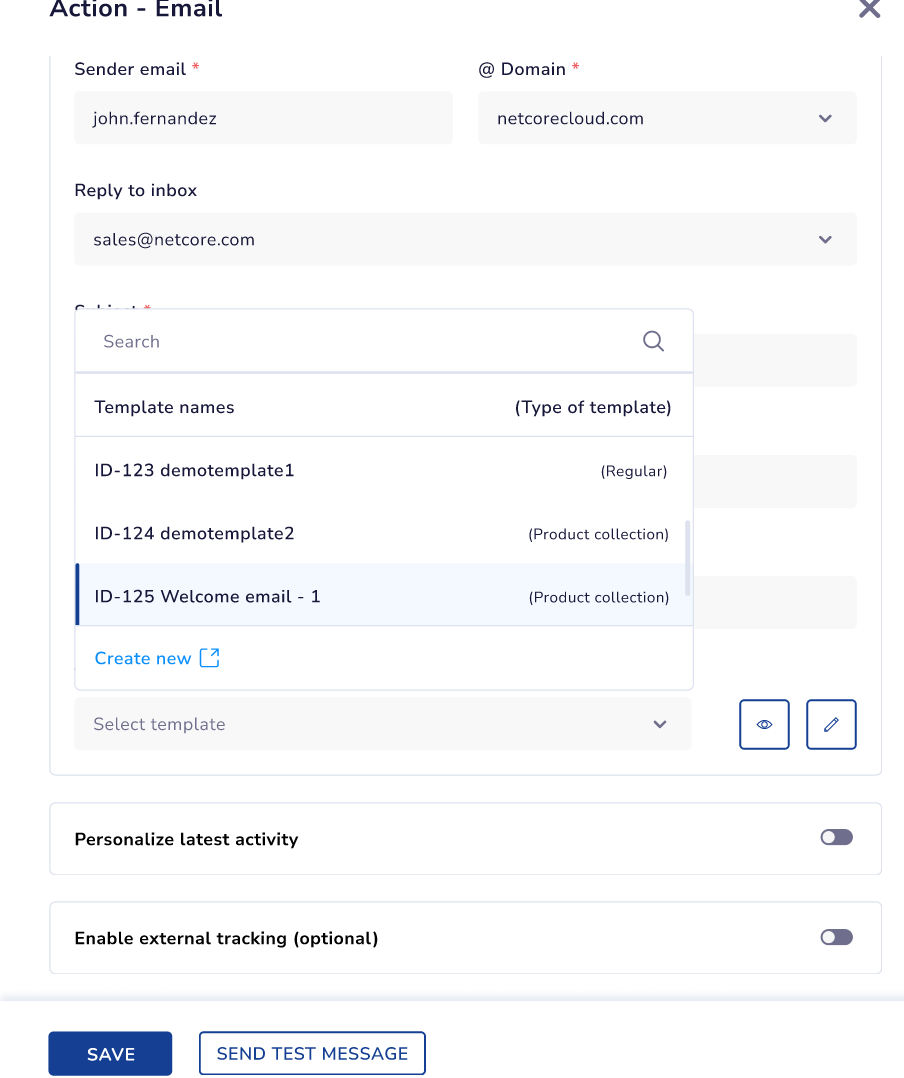
Create a new template from the Email Node.
- Create the template as per your requirements, click SAVE & CLOSE, and return to the Journey Builder.
NoteEditing an exisitng template will affect all other journeys that use the template.
- Select the newly created template. This flow helps you to make quick changes to your template without abandoning the journey setup.
- You can either click SAVE or SEND TEST MESSAGE, which allows you to choose the identifier type, enter test recipients, and reuse recent test profiles. Configure the test email addresses from the panel account configuration. Click here to know more.
Validation for Test EmailIf an entered email address is not found in your contact list, the test message will not be sent.
Use Case
The use case shows how to configure an email node in a journey, edit or create a template if needed, test the email with real contact data, and validate the message before activating the journey.
| Step | User Action | System Behavior / Outcome |
|---|---|---|
| 1. Add Email Node | As a user, you add the Email Action node to the journey canvas and connect it to the trigger. | The Email configuration panel opens to define the email settings. |
| 2. Configure Email Details | You enter the required email configuration, such as Sender Email, Domain, Reply-to Inbox, Subject, and Pre-header. | These settings determine how the email appears in the recipient’s inbox. |
| 3. Select Template | You select an existing template from the Template dropdown. You can search for templates or identify them by type (Regular / Product Collection). | The selected template is applied to the Email node. |
| 4. Create Template (Optional) | If the required template does not exist, you click Create New from the dropdown. | The Email Template Gallery opens in a new tab, where you can create a template and return to the journey to select it. |
| 5. Edit Template | If changes are required, you click the Edit icon next to the template selector. | If the template is already used in other campaigns, the system shows an Impact pop-up allowing you to either edit the existing template or create a duplicate copy. |
| 6. Enable Personalisation | You enable Personalise Latest Activity to include dynamic content based on the user’s recent activity. | The email template can render activity-based personalization such as recently viewed products or actions. |
| 7. Send Test Message | Before activating the journey, you click Send Test Message. | The Test Email drawer opens where you can define test recipients. |
| 8. Enter Test Recipients | You enter up to 10 email addresses, choose preset test users, or select from recently used profiles. | The system validates whether the entered email addresses exist in the contact database. |
| 9. Send Test Email | You send the test email using the configured node settings. | The system generates the email using the selected template, personalisation, and sender configuration and sends it to the specified test recipients. |
| 10. Validate Email Output | You review the received email to verify the subject line, template rendering, personalisation, and links. | If changes are needed, you can edit the template or node configuration and run another test. |
| 11. Activate Journey | Once the email is validated, you save the node and deploy the journey. | The configured email is sent to contacts entering the journey. |
Frequently Asked Questions
Q. Can I use the same email template in multiple journey nodes?
A: Yes. The same template can be reused across different journey nodes and different journeys. Changes to the template will reflect in all journeys using it.
Q. What happens if a contact's email address is invalid?
A: The email will bounce.
Q. Does the Pre-header field support emojis?
A: Yes. Emojis are supported in both the Subject and Pre-header fields. Use them sparingly to draw attention without triggering spam filters.
Updated about 1 month ago