
Export Events to Mixpanel
Send Netcore CE events data to Mixpanel events.
This document walks you through exporting event data to Mixpanel. Mixpanel accepts a live stream of events instead of files.
The export is built in three steps: Setup, Data selection, and Data mapping. A progress bar at the top shows where you are.
How Mixpanel differs from S3 and GCS
- Setup asks for fewer details. There is no file format and no export mode to choose.
- There is no Schedule step. Mixpanel receives events as a live stream.
- The last step is Data mapping, where you match Netcore fields to Mixpanel fields.
PrerequisteIntegrate Mixpanel with Netcore from Settings > Integrations > Catalog > Mixpanel. Refer to this documentation to know more.
Once the Mixpanel integration is connected, follow the steps given below to set up a Data Transfer from Netcore to Mixpanel.
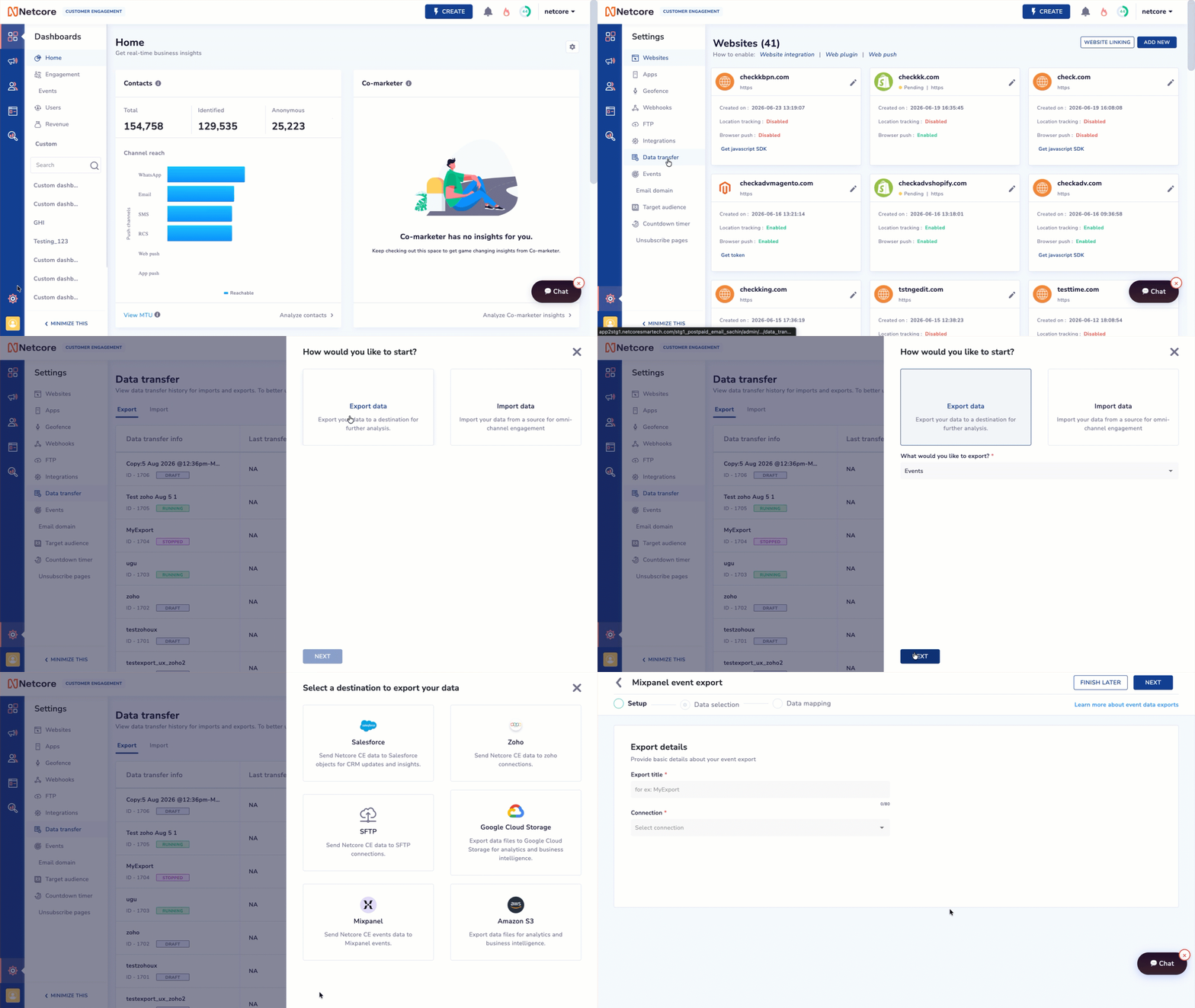
Create Mixpanel Event Export
- Log in to the Netcore CE dashboard and click Settings in the left menu.
- Click Data transfer > CREATE NEW.
- A window opens: How would you like to start?
- Click Export data > Events > Next.
- A window opens: Select a destination to export your data. Select Mixpanel.
-
Provide basic details about your event exportSetup- Export title: Type a name for this export.
- Connection: Pick your Mixpanel connection from the list.
-
Select data parameters you want to include in your export.Data Selection
Here you choose what data to send. The left side is where you make choices. The right side, Data preview, shows the fields that will be sent. The preview updates as you make changes.
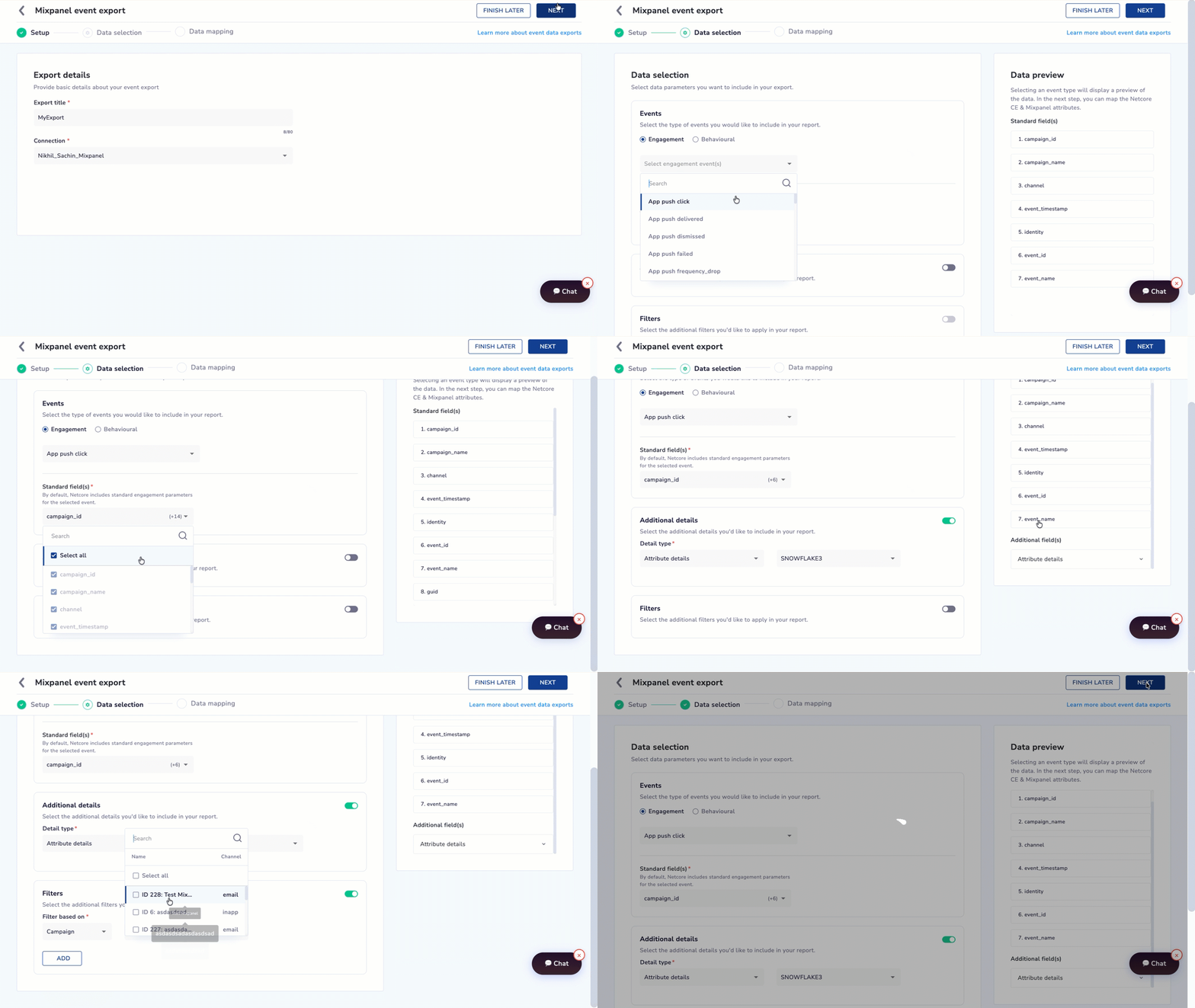
Select data parameters you want to include in your export
1. Pick the event type
Select Engagement or Behavioural. Select the desired events from the dropdown.
Standard field(s)*By default, Netcore includes standard engagement parameters for the selected event.
2. Add extra details (optional)
- Turn on the Additional details toggle.
- Pick a Detail type, then select the fields.
3. Apply filters (optional)
- Turn on the Filters toggle.
- Pick what to Filter based on (Campaign, Journey, or Tags), then pick the values.
When you are done, click NEXT.
You see a table called Map additional fields with three columns:
| Column | Description |
|---|---|
| Netcore field |
|
| Mixpanel field |
|
| Status |
|
Mandatory FieldsMixpanel needs these core fields filled in:
- event: The event name.
- time: When the event happened.
- distinct_id: The user identifier.
- $insert_id: A unique ID for the event.
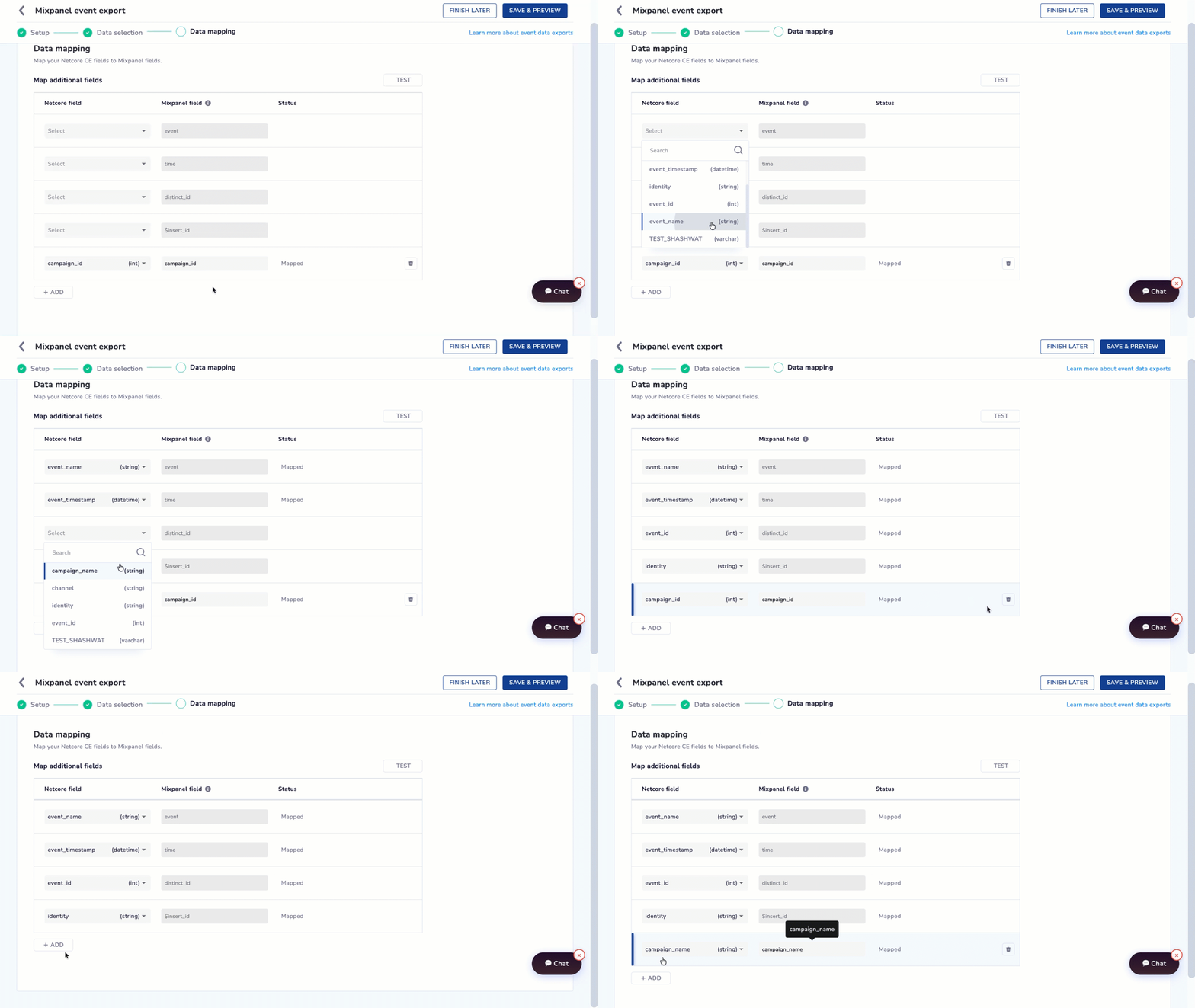
Map your Netcore CE fields to Mixpanel fields
To map a field:
- In a row, open the Netcore field dropdown and pick the field you want to send.
- The row shows Mapped in the Status column.
- Click + ADD to map more fields.
To remove a mapping, click the delete icon on the row. A confirm box appears. Click Yes to remove it.
Test the Mapping
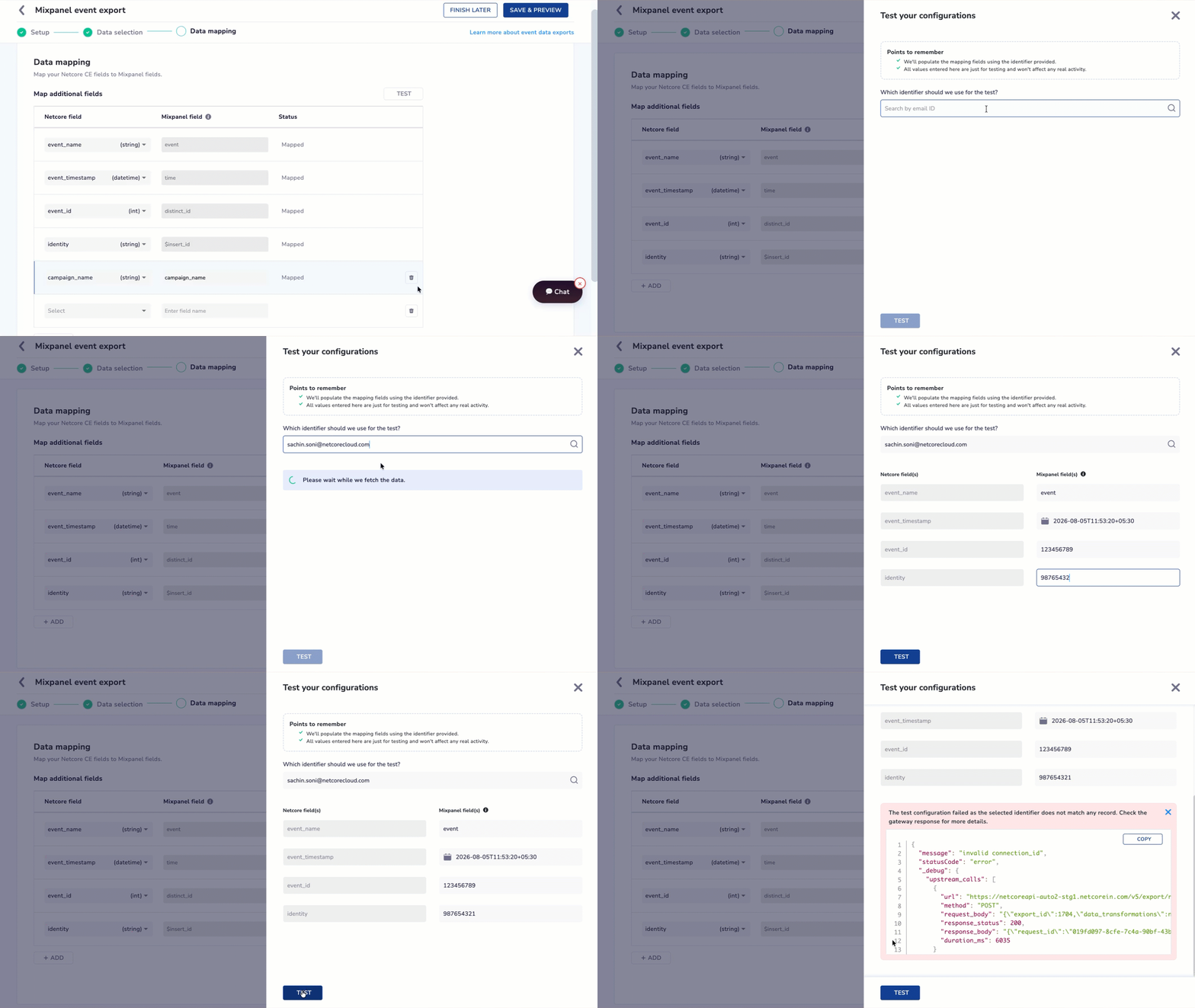
Test your Configuration
- Click TEST at the top right of the table.
- A panel opens: Test your configurations.
- Enter an identifier to test with, such as an email ID.
- Click TEST.
Note
- Map all the required fields before you test. The screen shows a message until you do. Test values are only for the test. They do not affect real data.
- Contacts which are available in Netcore Contact Master will only be visible in the dropdown. This data transfer only supports Identified contacts as of now.
- In case, your selected identifier does not match any record, the test configuration fails and shows . a gateway response.
When the mapping is ready, click SAVE & PREVIEW.
View a summary of all three steps: Setup, Data selection, and Data mapping.
- To change anything, click EDIT on that section.
- When everything is correct, click START EXPORT.
A confirmation message appears. Your new export shows up in the list on the Data transfer page.
NoteThe button says START EXPORT, not Create Export. Mixpanel starts sending events right away because it is a live stream, not a scheduled file export.
After You Start the Export
Back on the Data transfer list, the row for your export shows its name, ID, and status. Use the three-dot menu on the row to manage it. The actions depend on the status. These include Edit, Duplicate, Delete, Pause, Resume, and Stop.
Updated about 10 hours ago