
Enable Campaign Insight Agent
Prerequisites
- The Campaign Insight Agent must be enabled for your Netcore CE dashboard. To enable it, contact your Netcore account manager.
- Configure your Industry in Account Configuration. If your industry type is not listed, select Others from the dropdown.
Enable the Feature
- Go to Profile > Account Configuration > AI Agents and click Enable.
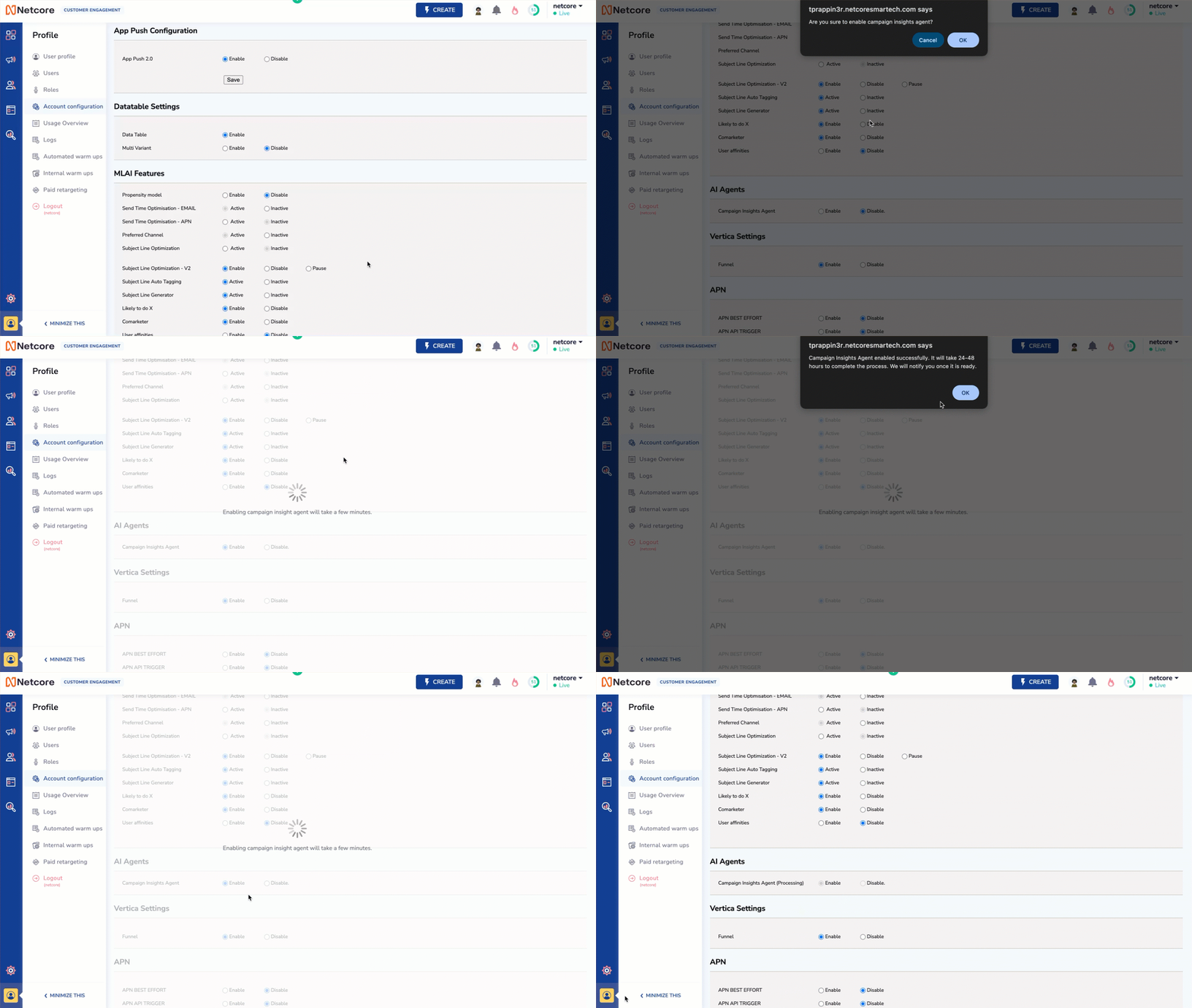
Enable Insight Agent
The Campaign Insight Agent is enabled for your dashboard within 24 to 48 hours, and you receive a confirmation email.
Once you have enabled the Campaign Insight Agent. You can start analysing campaigns and optimising your marketing strategy.
NoteCurrently, panel admin users cannot perform this action. Only the Helpdesk team can enable the feature, not panel users.
Use the Campaign Insight Agent
- Go to Campaigns and click Get Insights.
- Explore or ask questions:
- Use one of the preset prompts, or
- Type your own question, for example, "What were the top 3 campaigns last month?"
- View insights in a chat format. The table below lists the available controls.
Chat history is available for the last 30 days. Saved chats are available for a lifetime.
| Control | Description |
|---|---|
| Copy | Copy the generated insight. |
| New Chat | Open a new chat box. |
| Bookmarks | View your saved content and chat history. Restart an old chat by clicking it in your history. |
| Chat history | Available for the last 30 days. Saved chats are kept for a lifetime. |
| Fullscreen | View the chat box in fullscreen mode. |
| Show tones | Set the content tone and use emojis. Available tones: FOMO, Formal, Trust, Inspiration, Witty, Curiosity, Urgency, Nostalgia, Quirky, Empathy, Surprise, Exclusivity, Humor, Authenticity, and Confidence. |
| Like | Click thumbs up when an insight is useful. This tells the model to recommend similar insights in future. |
| Dislike | Click thumbs down when an insight is not useful. This tells the model to improve future insights. |
If you hit an error, retry after 10 minutes. If the issue persists, email us or raise a ticket directly with the Helpdesk team from the Netcore CE dashboard.
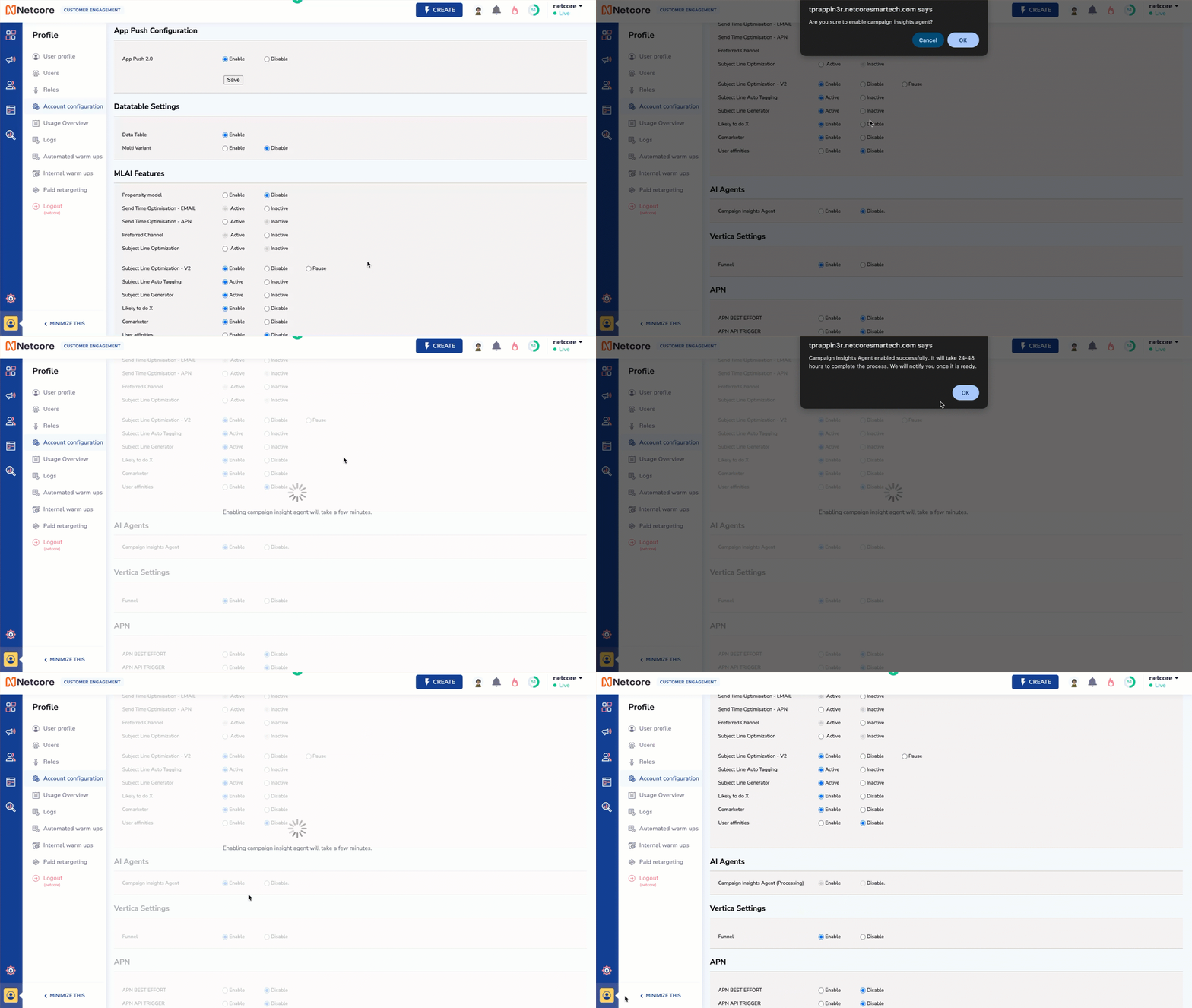
Get Detailed Insight for your Campaign
Brand-Aware Insights and Memory
Two settings make the agent's answers fit your team. Both are optional and remain private to your account.
Brand Profile
A brand profile provides the agent with your business context, including priority metrics, key segments, channel strategy, terminology, and reporting conventions. With it configured, every answer reflects how your team works rather than generic best practices. Brand profiles are set up with your Netcore team and applied automatically to your account.
Memory
The agent remembers preferences across conversations, such as the metrics you care about, the channels you focus on, and how you like answers presented, and applies them automatically next time. You can update or clear remembered preferences at any time.
NoteYour brand profile and saved preferences are isolated to your own account and used only to answer your questions.
Enable insight agent old content:
Prerequisites
- Insight Generator feature needs to be enabled for your Netcore CE dashboard. To enable this feature, contact your Netcore account manager.
- Ensure you have configured Industry in Account Configuration. If your industry type is not available, select Others in the dropdown.
Enable Feature
Follow the steps given below to enable the Campaign Insight Agent.
- Navigate to Profile > Account Configuration> AI Agents section and click Enable. The Campaign insights feature will be enabled for your dashboard in 24-48 hours, and you will receive a confirmation email.
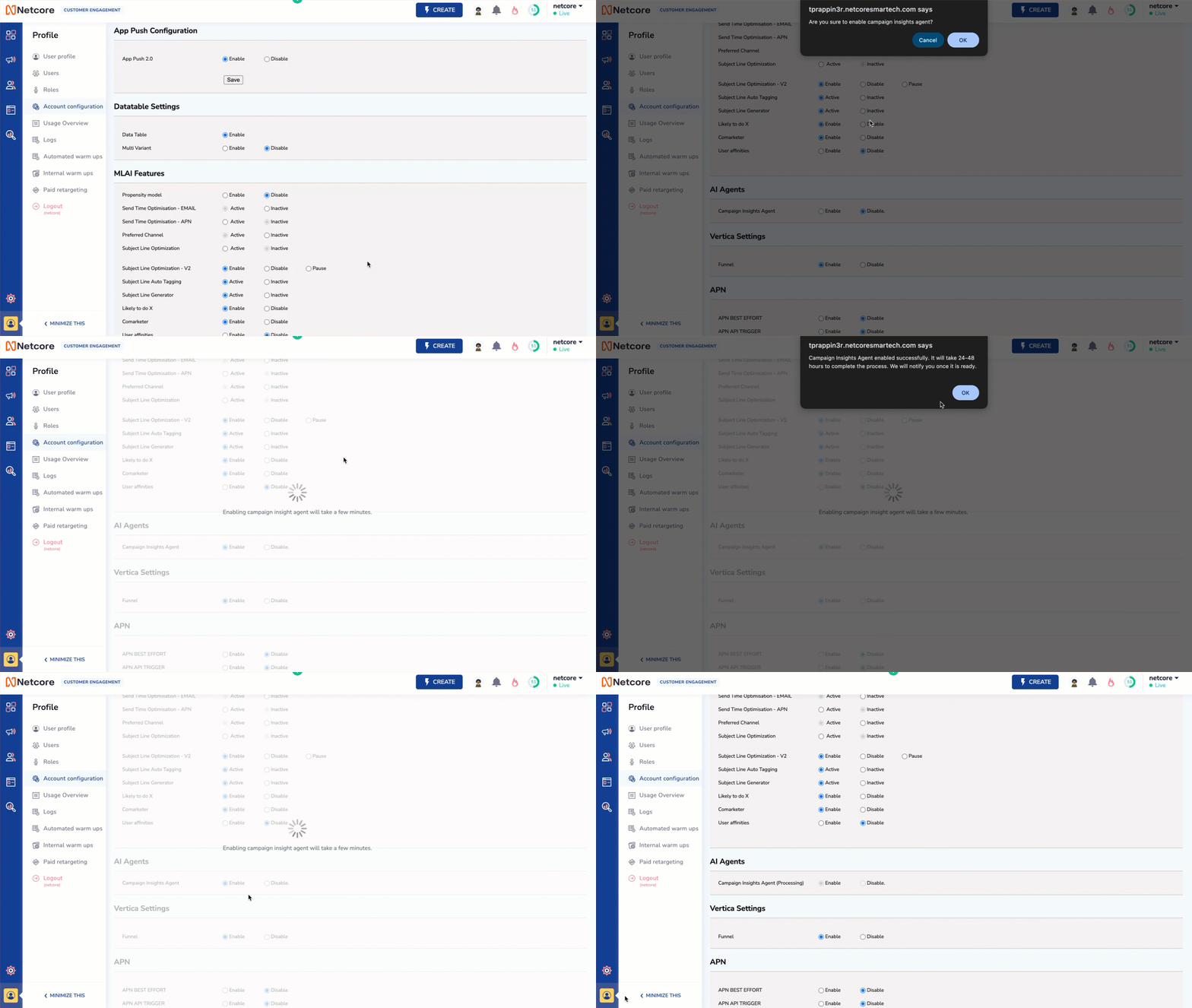
Enable Campaign Insights Feature
Congratulations!!! You have now enabled Netcore's Campaign Insight Generator. Now you can use to analyze your campaigns and optimise your marketing strategies.
Important NoteCurrently, panel admin users cannot perform this action. Only the Helpdesk team can perform this action, not panel users.
Use the Insight generator
Follow the steps given below to access and use the Insight Generator.
-
Navigate to Campaigns and click the Get Insights button.
-
Explore or Ask Questions
- Use one of the preset prompts.
- Or type your own question such as, "What were the top 3 campaigns last month?".
Chat history is available for the last 30 days, and saved chats are available for a lifetime.
- View insights in a chat format. Refer to the table to learn the available functionalities available here.
| Functionality | Description |
|---|---|
| Copy | Copy the generated insights. |
| New Chat | Open a new chat box. |
| Bookmarks | View your saved content and chat history. You can restart an old chat by clicking on it in your chat history. |
| Chat history | Chat history is available for the last 30 days, and saved chats are available for a lifetime. |
| Fullscreen | View the Co-marketer chat box in fullscreen mode. |
| Show tones | Use emojis and set the content tone. The tones available here are FOMO, Formal, Trust, Inspiration, Witty, Curiosity, Urgency, Nostalgia, Quirky, Empathy, Surprise, Exclusivity, Humor, Authenticity, and Confidence. |
| Like | Click the thumbs up emoji when you like the insights. This will inform our AI model to recommend similar insights in future suggestions. |
| Dislike | Click the thumbs down emoji when you dislike the insights. This will inform our AI model to improve our insights in future suggestions. |
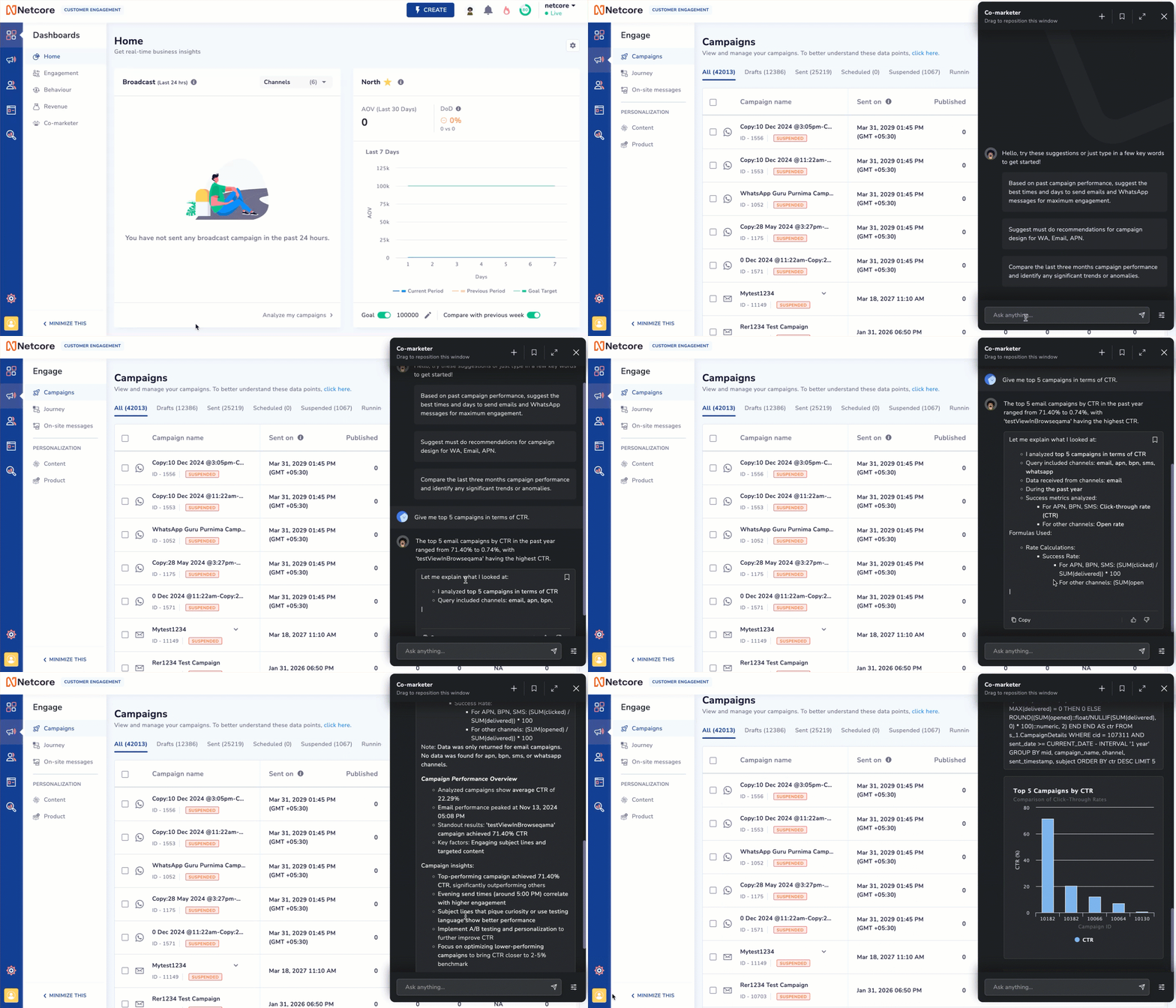
Get Detailed Insights for your Campaigns
If you encounter an error, retry after 10 minutes. If the issue persists, email us or raise a ticket with our Helpdesk team directly from the Netcore CE dashboard.
Updated 23 days ago