
Folders
Learn how to organize email templates into folders in nested subfolders, archiving, unorganized templates, search and filters, and bulk actions.
Overview
A template can only be in one folder at a time. If you need to tag a template in multiple ways, use Categories instead.
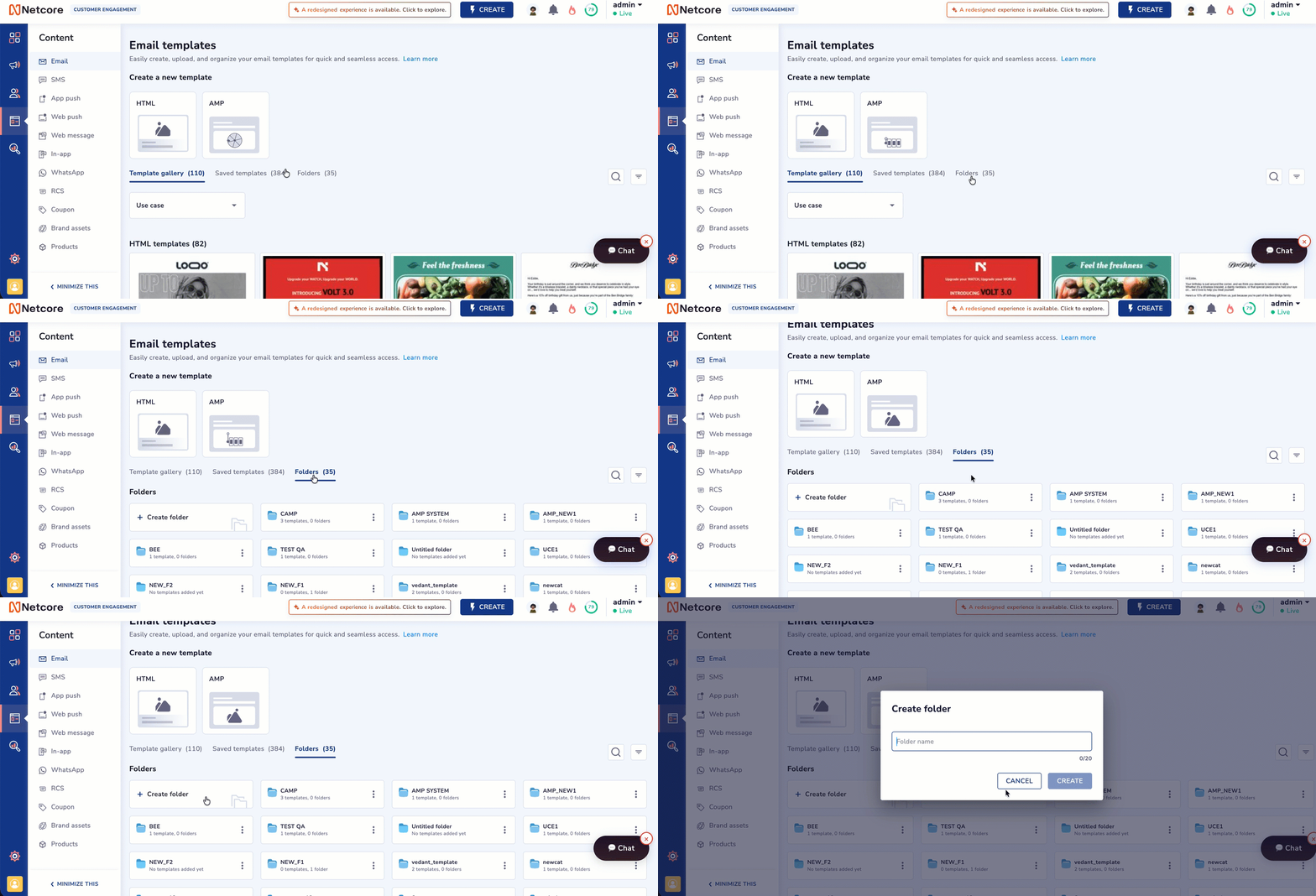
Navigate to Content > Email, then select the Folders tab. The tab header shows a live count, for example Folders (99).
The Folders tab shows, on one screen:
- + Create folder, to start a new folder.
- Your folders, as cards.
- The Archived folder: A system folder that holds every archived template.
- Unorganized templates: Every saved template that is not currently in a folder.
Organize your saved templates into folders
Folder Cards
Each folder card shows the folder name and an immediate count: the number of templates and subfolders directly inside it (not counting what's inside those subfolders). For example, 15 templates, 0 folders.
Folders can be nested; a folder can contain subfolders, which can contain further subfolders.
Click + Create folder to add a new folder. To create a subfolder, open the parent folder first, then click Create folder from inside it.
Folder Actions
Click the kebab menu (⋮) on a folder card for two actions:
| Action | What it does |
|---|---|
| Rename | Rename the folder. |
| Archive | Moves the folder and everything in it to the Archive folder. |
NoteFolders can't be duplicated or deleted. Archiving is the only way to remove a folder from active use.
Navigation
When you open a folder, a breadcrumb appears above the folder contents, for example My folders / Test, so you can navigate back up at any point.
Unorganized Templates
Templates that aren't in any folder, including newly created templates and templates removed from a folder, appear under Unorganized templates at the bottom of the Folders tab.
Archive
Click the Archived folder to see every archived template. Archiving is permanent; archived templates aren't automatically deleted after a set period. Restore is the only action available on an archived template.
A template that's in use (attached to a live, scheduled, or draft campaign or journey) can't be archived — this applies whether you archive a single template or an entire folder. If you try to archive a folder that contains an in-use template, a "Heads up!" dialog blocks the action and lists exactly which templates are causing the conflict, along with where they're used.
Archiving one or more templates (individually or in bulk) shows a confirmation dialog: "Are you sure you want to archive these template(s)?".
Click YES, ARCHIVE to confirm, or CANCEL.
Search and Filters
Search and Filters work the same way here as in Saved Templates; click here to view the full details.
Both apply across Template Gallery, Saved Templates, and Folders, so using them from the Folders tab can also change the folder list shown (for example, filtering to a Category with no matching folders shows Folders (0)).
Bulk Actions
Selecting one or more templates from Unorganized templates (or from inside a folder) opens the same floating action bar used in Saved Templates: Select all templates, Clear selection, More (Archive, Remove category), + ADD CATEGORY, and MOVE TO FOLDER.
Click here to view the full details on these actions, including the all-or-nothing rule and the 10-second Undo window.
NoteUndo is available immediately after a bulk move or archive action, via the Undo link in the confirmation toast.
Updated about 15 hours ago