
Saved Templates
Find all the templates you have created under Saved Templates.
Overview
All the templates created by you or other marketers on your team are populated under Saved Templates. This is different from Template Gallery, which holds Netcore's ready-made system templates.
Navigate to Content > Email, then select the Saved Templates tab. The tab header shows a live count, for example Saved templates (3,775).
Templates are listed newest-edited-first, four cards per row, with infinite scroll (there's no pagination).
Template Card
Each card shows:
- A thumbnail. While a thumbnail is being generated, the card shows "Preview being generated...". If generation fails, a fallback "No preview available" image is shown instead.
- The template name and a unique Template ID.
- Last modified: date and time the template was last edited.
- An In Use tag, shown only if the template is attached to a live campaign, a scheduled campaign, a paused scheduled campaign, or a draft journey. Completed campaigns and A/B test child variants don't count toward this tag.
Hovering over a card shows a tooltip with: Template Name, Type, Folder (shown as a breadcrumb, or "Unorganized" if the template isn't in a folder), Created on (timestamp and creator), Last edited on, Use case, and Category. If the creator's account has since been deleted or disabled, the tooltip still shows their stored name.
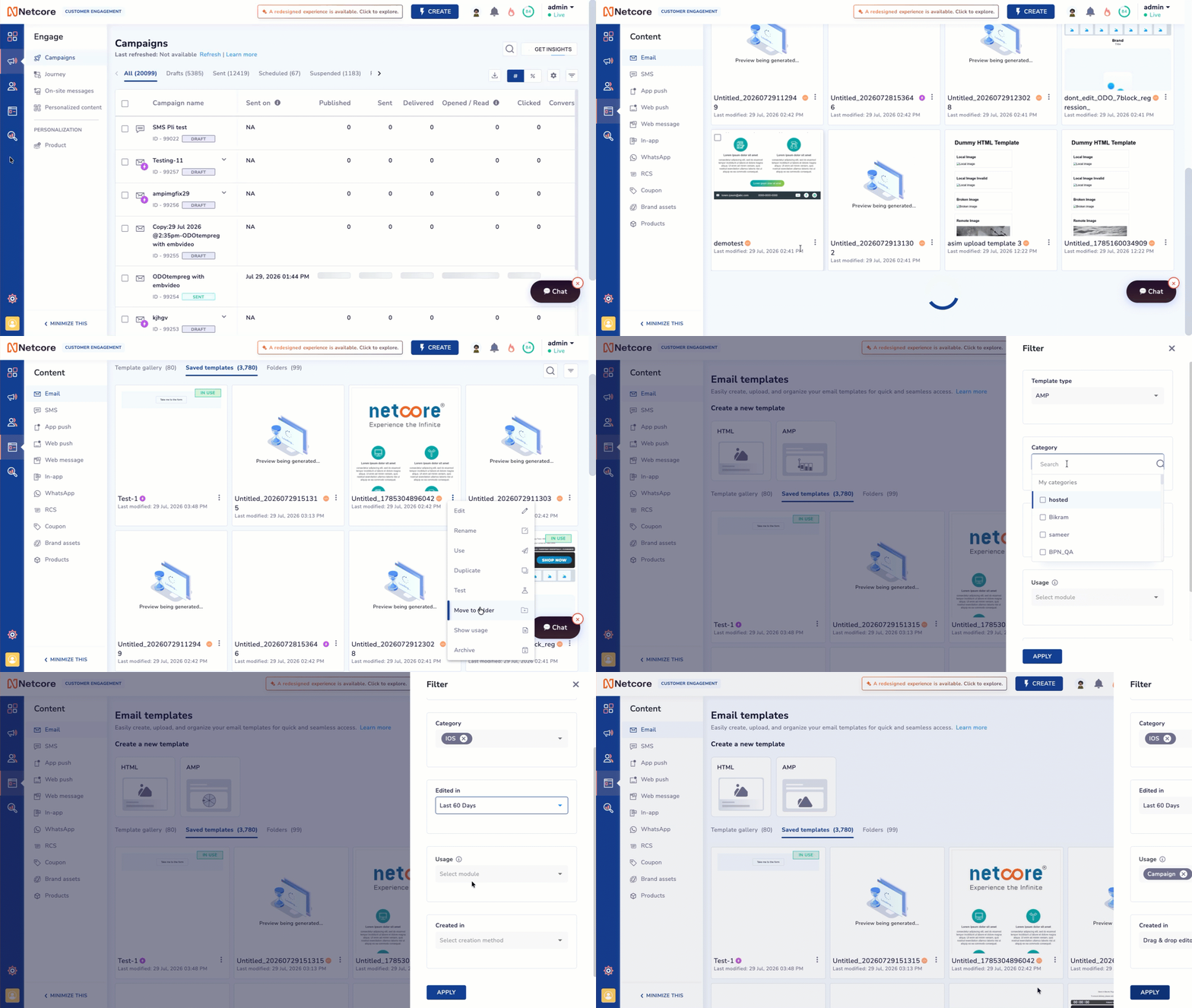
Manage your Saved Templates
Template Actions
Click the kebab menu (⋮) on a card to see the available actions:
| Action | What it does |
|---|---|
| Edit | Opens the template in the editor it was created in. If a draft exists, an auto-save recovery popup appears. |
| Rename | Rename the template directly from the card, without opening the editor. |
| Use | Opens the campaign builder with this template attached. Always uses the last saved (published) version; never a draft. |
| Duplicate | Creates an instant copy without opening the editor. You stay on the Saved Templates listing. The copy is named Copy: <Template Name>, and further duplicates are suffixed (1), (2), and so on. The copy inherits the original's Category, Use case, Folder, and Type. |
| Test | Opens the test drawer to send a sample of the template to up to 10 email addresses. The subject line is prefixed with TEST:. Your 6 most recently used test email addresses are shown for quick reuse. |
| Move to folder | Opens a dialog: "Select the folder where you would like to move the template." Search for a folder, or click + Create folder to make a new one. Nested folders show an arrow to expand. Click MOVE to confirm. |
| Show usage | Shows every campaign and journey the template is used in, regardless of status. Deleted, failed, completed, archived, and copying campaigns/journeys are excluded from this list. |
| Archive | Moves the template to the Archive folder. Archived templates are kept permanently; they are not automatically deleted. A template that's in use (attached to a live, scheduled, or draft campaign/journey) can't be archived. |
NoteA template that's currently in use can't be renamed or archived. These actions stay disabled until the template is no longer attached to a live, scheduled, or draft campaign or journey.
Search
Click the search icon at the top-right of the section. The search bar is labeled "Search by name or ID" and matches on template name or Template ID, including partial matches. Suggestions appear after you type at least 3 characters, and results only populate after you select a suggestion or press Enter.
Search is global; it looks across Template Gallery, Saved Templates, and Folders, not just the section you're currently in. Your search stays active until you clear it. Search is disabled while the Preview drawer is open.
If nothing matches, you'll see: "No templates found matching your search."
Filters
Click the filter icon next to search to open the Filter drawer. Filters are global, applying across Template Gallery, Saved Templates, and Folders. The available filters are:
| Filter | Options |
|---|---|
| Template type | Filter by template format. |
| Category | Choose from your own categories or Netcore's predefined categories. |
| Edited in | Last 7 Days, Last 30 Days, Last 60 Days, Last 90 Days, or Custom Range. Custom Range requires both a Start Date and an End Date. |
| Usage | Filter by where the template is used: Campaign, Journey, or both (searchable, with a Select all option). |
| Created in | Filter by how the template was created: Drag & drop editor, HTML file, ZIP file, Code editor, or Classic editor. |
Click APPLY to run the filters.
Once applied, each filter appears as its own capsule below the tabs (for example, Duration: 30 Jun 2026 - 29 Jul 2026, Template type: HTML, Category: Hosted, Creation method: Drag & drop editor, Usage: Campaign +1 if more than one value is selected for that filter). The filter icon shows a badge with the number of active filters. Click the X on a capsule to remove just that filter, or click Clear all to remove every filter at once.
NoteCombining filters and search that return no results shows the same empty-state message as a plain search with no matches.
Bulk Actions
Hover over a template card to reveal a checkbox in the top-left corner.
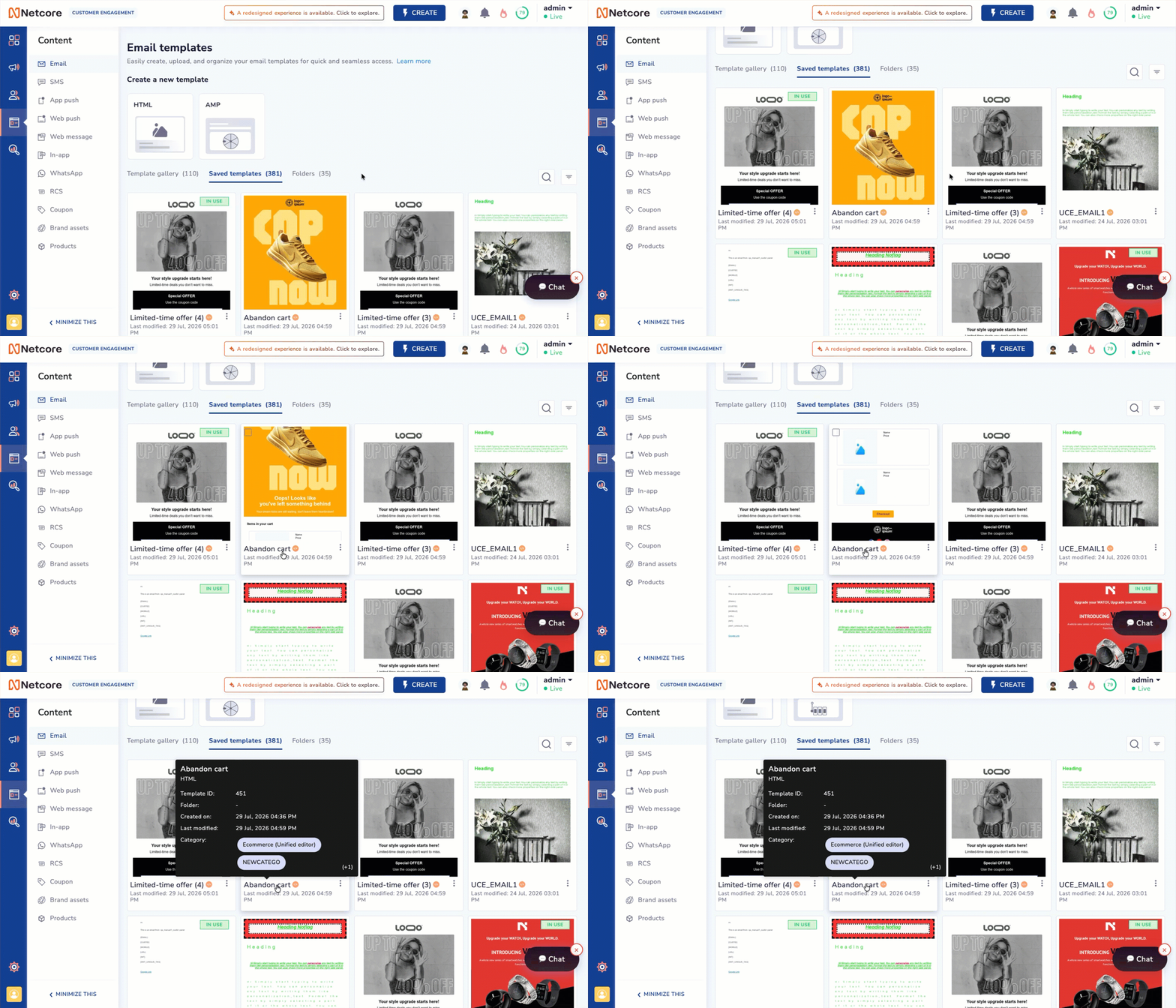
Template Details Preview
Selecting one or more templates opens a floating action bar at the bottom of the screen with:
- Selected count (for example, "2 templates selected")
- Select all templates / Clear selection
- More, with two additional actions:
- Archive
- Remove category: opens "What categories would you like to remove from the templates?". Pick from your existing categories, then click REMOVE CATEGORY (or CANCEL).
- + ADD CATEGORY
- MOVE TO FOLDER
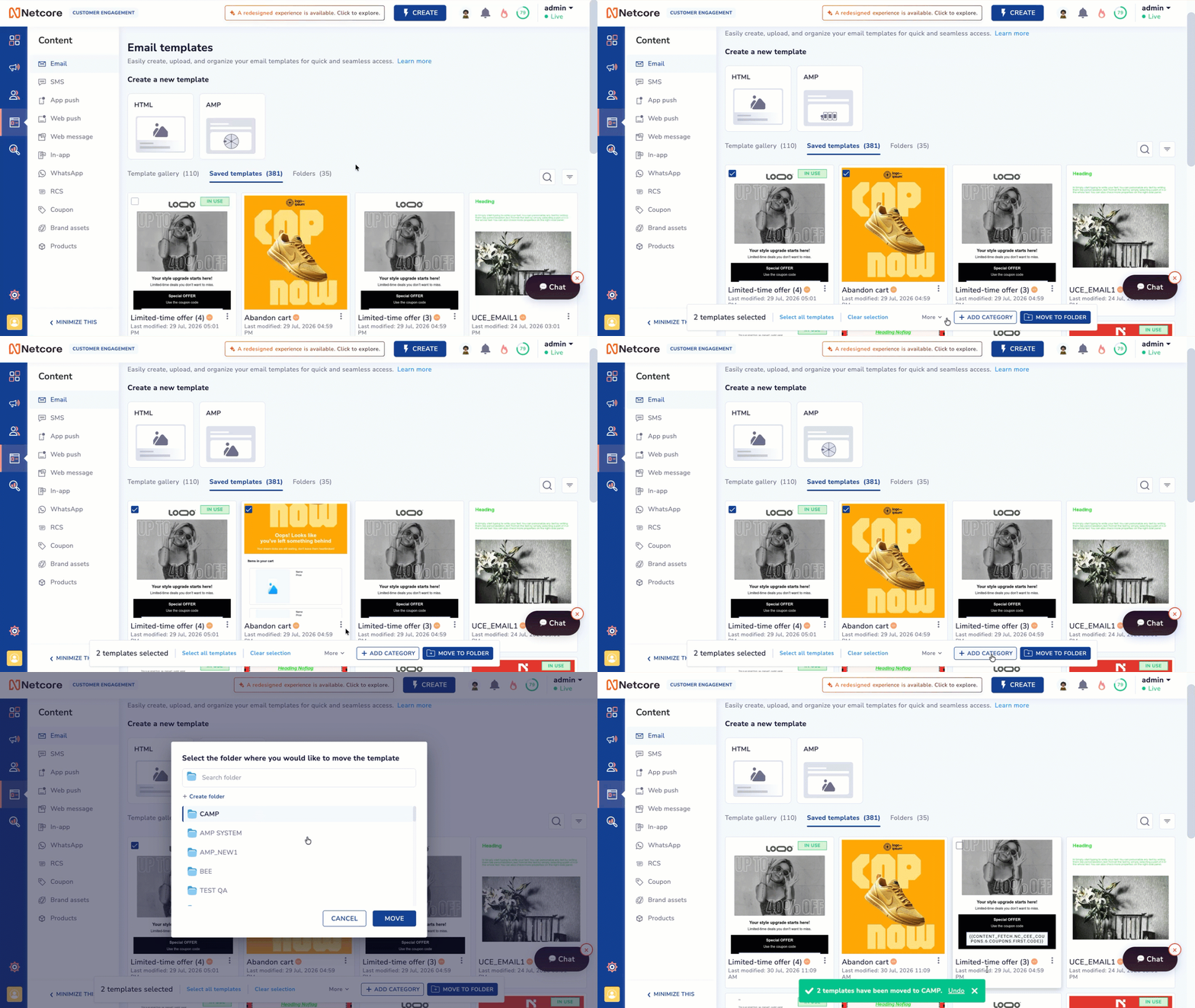
Use Bulk Actions for your templates
Bulk actions are all-or-nothing. If even one selected template is in use, the entire action is blocked, and a warning lists the specific templates causing the conflict; no partial actions go through. Every bulk action (move, archive, add/remove category) can be undone within a 10-second window after it completes.
Updated about 15 hours ago