
Template Gallery
Learn how to use the Template Gallery in Netcore's Content module to browse ready-made HTML and AMP email templates
The Template Gallery is the new starting point for email templates inside Content. It replaces the earlier default-templates view with a single, filterable gallery that sits alongside your Saved templates and Folders, so you can browse ready-made designs, drop into the editor, and organize your own copies in one flow.
Accessing the Template Gallery
- Log in to your Netcore dashboard.
- Navigate to Content > Email.
- You will land on the Email templates page, which opens directly into three tabs:
- Template gallery: Ready-made system templates, grouped by type
- Saved templates: Templates you've created or customized
- Folders: Your organizational structure for saved templates
At the top of the page, Create a new template lets you start from a blank HTML or AMP template. The Template Gallery tab, covered below, is for starting from an existing design instead.
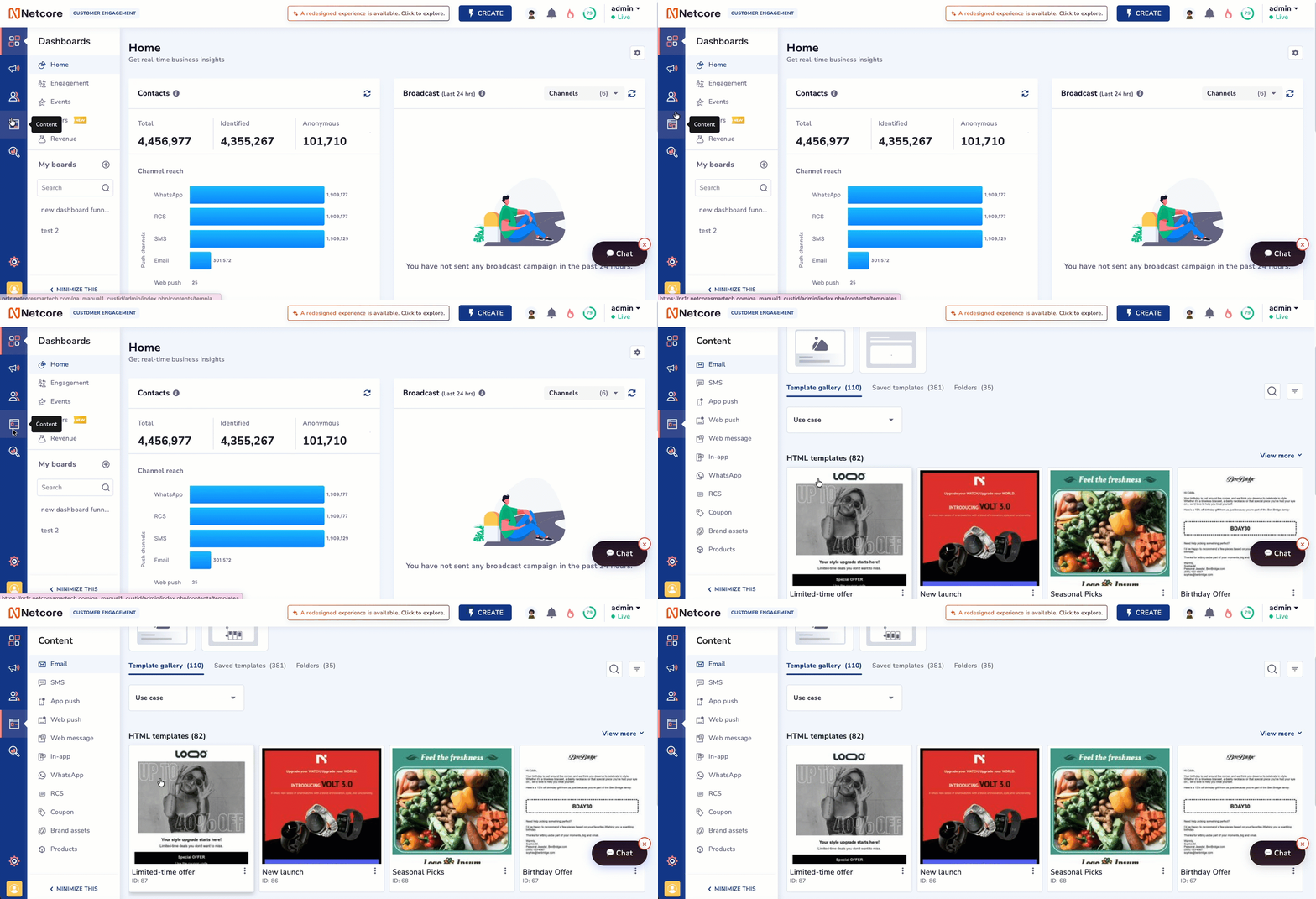
Access Template gallery from Content Dashboard
Functionality Available
The Template Gallery groups templates by type (for example, HTML templates) and shows a running count next to each group and each tab. From here you can narrow down what you see using:
| Control | What it does |
|---|---|
| Use case | A dropdown checklist (for example, Re-engagement (High Intent), Price Alert/Promotions, Content/Releases, Seasonal/Promotions, Lifecycle) to filter templates by marketing use case. Supports multi-select, with Clear and Apply actions. |
| Search by name or ID | Free-text search across the gallery. |
| Filter panel | Opened via the filter icon next to search. Includes: Template type (HTML/AMP), Category, and Edited in (Last 7/30/60/90 Days, or a Custom Range). |
Each group also has a View more link to expand beyond the initial set of templates shown.
Use Template
Hover over any template card to reveal a kebab menu with three actions:
- Edit: It opens the template for editing in Unified Content Editor.
- Use: It applies the template directly (for example, into a campaign or journey flow)
- Test: Itends a test email of the template as-is
Good to Know
- Editing on a Template Gallery item does not modify the original system template. Netcore automatically creates a copy for you and opens that copy directly in the drag-and-drop editor
- The original stays untouched in the gallery for reuse.
Send Test Email
From the editor header, Send Test opens a drawer where you can:
- Enter a Subject for the test send
- Confirm the Sender email and Domain (auto-filled from your account configuration)
- Either check Use preset test email addresses, or enter up to 10 recipient addresses separated by commas
- Quickly add addresses from your Recently used list
Points to Remember
- Test emails bypass blocklist/suppression rules, unlike live campaigns.
- If the entered email address isn't present in your contact master, a non-personalized version of the email is sent.
FAQs
Does using a Template Gallery design overwrite the original?
No. Selecting Edit on a gallery template always creates a new, separate copy under Saved templates. The original template in the gallery is unaffected and stays available for future use.
Can I add a template to more than one folder?
No — a template can belong to only one folder at a time. You can attach multiple categories to the same template for additional, cross-cutting organization.
Will my category be duplicated if I type a name that already exists?
No. Netcore surfaces existing categories with similar names as you type, so you can reuse them instead of creating duplicates.
Updated about 15 hours ago